
How to Transfer Emails from Yahoo Mail to Hotmail in 2026
Nowadays, when users move from Yahoo Mail to Hotmail is something most of the people consider when they want a fresh start or better integration with other Microsoft services. But one common concern is how to move all those important emails without losing anything in the process. Whether it’s personal messages or work conversations, everything matters.
In this guide, we’ll walk you through simple methods you can follow on both Mac and Windows, which include a professional Yahoo Backup Tool so you can transfer emails from Yahoo Mail to Hotmail safely and without confusion.
|
Quick Guide to Migrate Yahoo Mail to Hotmail |
Why Migrate Yahoo Mail to Hotmail?
- Hotmail offers integration with Migration services like Outlook and Office apps.
- The interface of Hotmail feels more organized and easier to manage.
- Moreover, you get stronger security features to keep your emails protected.
- In addition, it works smoothly with all devices, such as mobile, tablet, or desktop.
- Managing a large mailbox of emails becomes simple when you improve the search option.
Pre-Requisites: Transfer Emails from Yahoo Mail to Hotmail
- Make sure you have active Yahoo Mail account credentials.
- The accounts you use are active Hotmail/Outlook accounts.
- Moreover, you must enable IMAP in Yahoo Mail settings.
- It is recommended to take a backup of emails (important for safety).
- Furthermore, make sure to use a stable internet connection.
Manual Methods to Export Emails from Yahoo to Hotmail Using Outlook (IMAP Configuration)
This method works best for small to medium mailboxes. For the large email transfers may take hours or even days. Moreover, Outlook must remain open during the entire process.
Step 01: Enable IMAP in Yahoo Mail
- First, log in to your Yahoo Mail account.
- Go to Settings >> More Settings.
- Click on Mailboxes >> Select your Yahoo account.
- Make sure IMAP is enabled (usually enabled by default).
Important: Generate an App Password from Yahoo if you use 2-step verification.
Step 02: Add Yahoo Mail Account in Outlook
- Open Microsoft Outlook on your system.
- Thereafter, go to File tab >> Add Account.
- Enter your Yahoo email address and click Connect.
- Enter your Yahoo password or App Password.
- Outlook takes care of the IMAP settings for you — no manual tweaking needed.
- Once the account shows up and everything looks good, go ahead and hit Done.
Step 03: Setting Up Your Hotmail Account in Outlook
- After that, go back to File and click Add Account.
- Type in your Hotmail or Outlook.com address.
- Then enter your password and hit sign in.
- Outlook will sort out the configuration on its own.
- Once it’s done, just click Finish.
Step 04: Start Transferring Emails
- Both accounts will now show up in the left panel of Outlook.
- Open up your Yahoo Mail folders, Inbox, Sent, and so on, and find the emails you want to move over.
- To grab everything at once, hit Ctrl + A, or just hand-pick the ones you need.
- From there, right-click and choose Move, then select whichever Hotmail folder you want to send them to.
- Just drag and drop them straight into the Hotmail Inbox or any other folder you have in mind.
Limitations of the Manual Method When Import Yahoo Emails into Hotmail
- This process consumes a lot of time for large mailbox migrations.
- In this method, there is a high risk of missing emails.
- Moreover, when you perform the migration, no bulk option is available.
- Additionally, the folder structure may not remain intact.
- Apart from that, the user must have technical knowledge to operate.
Enterprise-Level Software to Transfer Emails from Yahoo Mail to Hotmail
If you want to keep your emails safe, a Yahoo Backup Tool is honestly a smart move. Data loss can hit at any moment, and without a backup, recovering those emails gets really painful. On top of that, this tool lets you save and export your mailbox. With the help of this software, you can also migrate Yahoo Mail to AOL Mail and other formats as well.
Step-by-Step Process to Move Emails from Yahoo to Hotmail
- First, download and open the Yahoo Backup software on your computer.
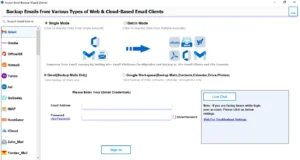
- Afterward, log in through your Yahoo Mail email ID and app password.
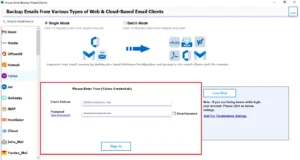
- Then, after it loads, check the folders you want to move >> Next.
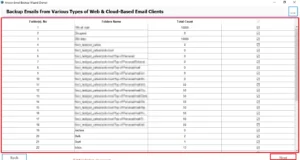
- Now, select Hotmail as the destination and enter your Hotmail account details.
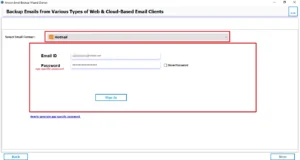
- After that, if needed, set filters to move only selected emails, then to continue click Next.
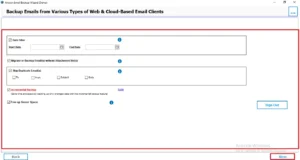
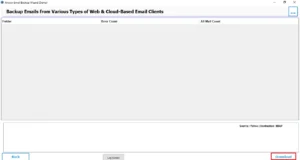
- At last, click on Convert to begin transferring your emails.
Data Integrity & Email Structure Preservation
What actually happens when you transfer emails from Yahoo to Hotmail? Move forward and understand what your data looks like after migration.
How Email Migration Affects Your Data
- Attachments: Emails contain important files like documents, images, etc. Moreover, if you don’t handle the migration process correctly, you may skip attachments from the original process.
- Metadata: This includes sender details and recipient information. Therefore, any changes in metadata can impact your email authenticity.
- Folder Hierarchy: Your Yahoo Mail folders should be replicated in Hotmail.
Why is it important to maintain accuracy
- At the time of manual transfers or repeated sync, duplicate emails may appear. Moreover, this leads to clutter and difficult-to-manage conversations.
- Emails with HTML formatting of inline images should appear the same after migration.
How Professional Software Make sure Data Integrity
- Your emails move without any changes to the content or attached files.
- The same folder setup you had in Yahoo Mail stays intact in Hotmail, so you won’t have to reorganize everything again.
- Moreover, attachments come along with their emails, so nothing gets left behind or separated.
- Additionally, you can also avoid duplicate emails, as this software helps keep things clean.
- Once the process is done, you can check a report that shows what was transferred and if anything needs your attention.
Pro-Tips for Safe Email Migration
- It is recommended to always take a backup of your important emails.
- Make sure to avoid interrupting the process.
- Moreover, you have to use a stable connection to perform the migration.
- Before you start the process, first test with a small batch.
- In the end, after migration, verify the migrated data.
Conclusion
In this guide, we covered all the aspects of why it is important to transfer emails from Yahoo Mail to Hotmail. Along with that, we discussed the two best methods to complete the migration process. While the manual method is best for small files, it is recommended to use professional software for bulk emails. It helps to maintain the folder structure and data hierarchy.
Frequently Asked Questions
Ans. It depends on the number of emails and your internet speed; it can take minutes to several hours.
Ans. Yes, you can perform the migration on both Mac and Windows using manual or professional methods.
Ans. There is a small risk with manual methods, but it can be minimized by using a reliable approach.
Ans. No, Outlook allows manual transfer via IMAP but does not provide fully automatic migration.
Ans. It can be time-consuming, may miss some emails, and lacks bulk or advanced filtering options.
About The Author

Khushboo Maurya is a content and website optimization expert who helps blogs and websites grow naturally. She focuses on improving content quality and reaching more people through smart, simple strategies.

