
Ultimate Guide to Migrate Yahoo Mail to AOL Mail in 2026
Moving your emails from Yahoo Mail to AOL Mail can feel difficult, but it’s actually quite manageable. Most of the people try to forward messages one by one, which takes time and often leads to missing data. A better option is to use a straightforward method that transfers everything together, such as emails, attachments, and folders. This guide walks you through a simple way to complete the migration smoothly, along with the Yahoo Backup Tool, in a hassle-free way to migrate Yahoo Mail to AOL Mail.
Brief About Yahoo Mail & AOL Mail
Yahoo Mail
Yahoo Mail is one of those email services that just became part of daily life for millions of people. Moreover, the spam filter actually does its job quietly in the background. Whether someone uses it for quick personal exchanges or needs a reliable place where emails stay saved for years, it holds up well for both.
AOL Mail
AOL Mail has quietly stuck around longer than most people expected, and there’s a reason for that. People who have used it for years tend to stay because it never tries to do too much — it just handles email the way email should work. The storage situation is generous enough that inbox management rarely becomes a problem, and the spam filtering keeps the clutter out.
Why do users prefer to Migrate Yahoo Mail to AOL Mail?
There are some reasons given that help you to understand why most of the users migrate from Yahoo Mail to AOL Mail.
- AOL Mail offers a clean interface that makes it easier for users to manage emails.
- Most of the users experience faster loading times and smooth navigation in AOL.
- Moreover, AOL Mail provides spam filtering options which keeps inbox secure.
- Some users switch to AOL due to login issues or account recovery in Yahoo Mail.
- Furthermore, users prefer AOL for their communication on one platform.
Best 2 Methods to Migrate Emails from Yahoo to AOL Mail
To accomplish the migration process, we will discuss the two best methodologies to migrate Yahoo Mail to AOL Mail smoothly.
- Manual Method (IMAP Configuration)
- Advanced Software
Pre-Migration Checklist
- Make sure that your IMAP is enabled in Yahoo Mail.
- Keep login credentials (or app passwords) ready.
- Moreover, it is important to check the stability of the internet connection.
- In addition, clean unwanted emails to reduce migration time.
- Most importantly, take a backup of important data.
Yahoo Mail & AOL Mail (IMAP Settings)
| Yahoo Mail
Server: imap.mail.yahoo.com |
AOL Mail
Server: imap.mail.aol.com
|
Method 01: Use Outlook (Through IMAP Configuration)
This method works by adding both accounts to Outlook and then convert Yahoo Mail to AOL Mail.
Step 01: Enable IMAP in Yahoo Mail
- In a web browser, log in to your Yahoo Mail.
- Afterward, go to Settings >> More Settings >> Mailboxes.
- Now, select your Yahoo account & make sure that the IMAP is enabled.
- Next, open Account Security in Yahoo & turn on 2-step verification.
- After that, click on Generate App Password & choose Outlook and copy the password.
Step 02: Add Yahoo Mail in Outlook
- Again, open Outlook and go to File >> Add Account.
- Thereafter, enter your Yahoo email address and use the App Password.
- Then, you have to Finish the setup and let the emails sync.
Step 03: Add AOL Mail in Outlook
- Now, again go to File >> Add Account and enter your AOL email address.
- After that, enter your AOL password >> complete the setup.
- In Outlook, you need to open your Yahoo Mail folders.
- Then, select the emails you want to migrate and right-click on the screen.
- Now, click on Move >> and then choose AOL Mail folder.
- In the end, log in to your AOL mail and check if all emails are transferred properly.
Disadvantages of the Manual Method
- This method takes a lot of time to move emails from Yahoo to AOL Mail.
- Make sure you have a stable internet connection on your device.
- Moreover, there is no option for bulk migration and email filtering.
Method 02: Advanced Software to Migrate Yahoo Mail to AOL Mail
Yahoo Backup Software is the best solution to migrate your Yahoo Mail emails to AOL Mail in bulk. Also, it makes sure that your data is transferred safely, with accuracy and structure. Moreover, this software comes with embedded features like date range and skip duplicate emails, which help to move only the required data. Apart from this, it supports multiple file formats to export Yahoo emails to EML.
Steps to Transfer Yahoo Emails to AOL Mail
- First, launch the Yahoo Backup Software on your device.
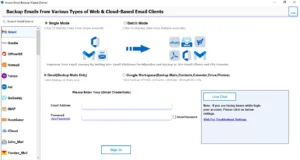
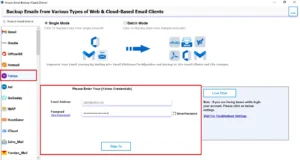
- Afterward, enter the login credentials for Yahoo Mail >> sign in.
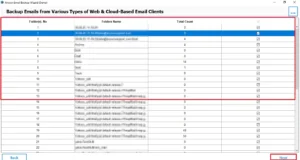
- Then, preview the mailbox folders and click on Next to proceed.
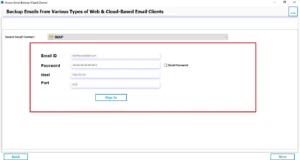
- Now, from the email client, select IMAP & enter the login credentials for AOL Mail.
- Next, enable the required filters for selective data migration and click Next.
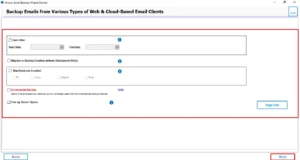
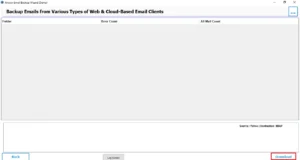
- In the end, click on Convert to start the migration process.
Also Read: If you want to access Yahoo Mail in Thunderbird, then read our detailed guide to export Yahoo Mail to MBOX.
Comparison of the Manual Method vs. the Advanced Software
| Features | Manual Method | Advanced Software |
| Ease of Use | Complex | Beginner-Friendly |
| Bulk Migration | No | Yes |
| Data Filtering | No | Yes |
| Time-Required | High | Minimum |
| Risk of Data Loss | Possible | Minimal |
Conclusion
In this guide, we discussed the approaches to complete the migration process. While the manual method comes with limitations. It is recommended to use advanced software for the migration of Yahoo Mail. With the correct approach, the migration becomes easier and much faster. You can migrate Yahoo Mail to AOL Mail, and if you get stuck during the process, then connect to our technical team via chat.
Frequently Asked Questions
Ans. No, you don’t lose emails if the migration is done correctly. Both manual and professional methods are designed to transfer emails along with attachments and folders.
Ans. This usually happens due to incorrect IMAP settings, disabled IMAP access, or login issues. Make sure IMAP is enabled in Yahoo Mail, use the correct server details, and try using an app password instead of your regular password.
Ans. No, migrating emails does not delete them from your Yahoo Mail account. The process simply creates a copy of your emails in AOL Mail, so your original data remains safe unless you manually delete it.
Ans. The migration time depends on the size of your mailbox, the number of emails and attachments, and your internet speed.
About The Author

Khushboo Maurya is a content and website optimization expert who helps blogs and websites grow naturally. She focuses on improving content quality and reaching more people through smart, simple strategies.

