How To Export Yahoo Mail To MBOX—2 Easy Ways
Yahoo Mail is a commonly used web-based email service to send and receive emails. On the other hand, MBOX is a popular file format that is supported by various email clients such as Thunderbird and Apple Mail. Due to this difference, most of the users face issues like file compatibility while exporting their Yahoo emails to MBOX format. To overcome these issues, a trusted solution is needed. Therefore, in this blog, we will discuss the best approaches to export Yahoo Mail to MBOX, along with the Yahoo Backup Tool, which helps to complete the process safely.
Common Reasons to Export Yahoo Emails to MBOX
First, we will discuss the most common reasons why most of the individuals prefer to export their Yahoo Mail emails to MBOX format:
- You can securely create a local backup of your Yahoo emails and prevent data loss.
- If you want to access your Yahoo mailbox data offline without an internet connection.
- Users can migrate their Yahoo emails to email clients like Thunderbird.
- Subsequently, to reduce the mailbox size by archiving old emails on a local system.
- Also, if you want long-term data security and easy email management.
Best Methods to Export Yahoo Mail to MBOX
From the above, you must have understood the common reasons behind the Yahoo to MBOX export. Now, we will discuss the top two approaches to export your Yahoo Mail into MBOX format.
Solution 01: Manual Approach to Export Emails from Yahoo to MBOX
The manual approach is helpful when you have a small amount of data. Below, we have used Mozilla Thunderbird as an intermediate email client for the process of conversion:
Steps to Save Yahoo Emails as MBOX Format:
- Simply, you need to launch Mozilla Thunderbird on your computer.
- After that, go to the Tools section >> Account Settings.
- Then, in the pop-up window, you have to click Add Account.
- Now, you need to enter your Yahoo Mail credentials >> Continue.
- Then, Thunderbird will add your Yahoo account & load all email folders.
- After that, open Add-ons and install the ImportExportTools NG extension.
- After that, once installed, make sure that the plugin is enabled.
- Then, you need to right-click the folder you want to export.
- Now, select ImportExportTools NG >> Export folder.
- At the end, choose the location to save the MBOX file and click Save.
Drawbacks of the Manual Approach
- This approach is only suitable for small amounts of data.
- It can be time-consuming when you export multiple folders one by one.
- In some cases, this may not maintain the exact folder structure.
- Moreover, sometimes your attachments can be missing or not exported properly.
- Also, users require technical knowledge of Thunderbird to complete the process.
Solution 02: Automated Yahoo to MBOX Conversion Tool
The Yahoo Backup Tool is the best solution that exports your emails from Yahoo Mail to MBOX. It provides advanced filters like Date Filter and other options to export only the required emails. Additionally, it makes sure to maintain the original email structure and folder hierarchy. This software provides a fast way to back up or migrate your mailbox without any data loss. Also, if you want to migrate Yahoo Mail directly to Microsoft Outlook instead of MBOX, you can read our detailed guide on export Yahoo Mail to PST.
Steps for Yahoo to MBOX Export Tool
- Firstly, install and open the Yahoo Backup Tool on your system.
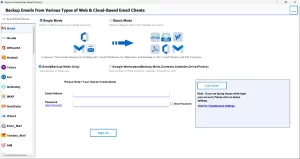
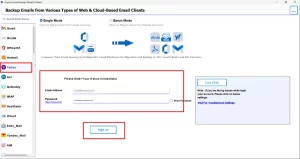
- After that, pick Yahoo as the email source and enter credentials >> Sign in.
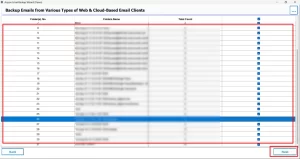
- Then, select and preview your mailbox data and press Next.
- Now, you need to select MBOX as the output format.
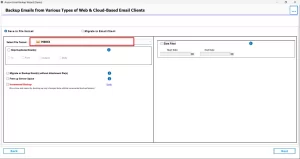
- After that, you can apply the required filters >> Next.
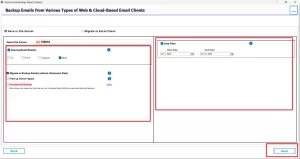
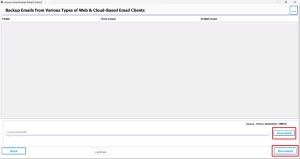
- At last, choose the path to save >> Download to start the process.
Best Practices for Smooth Yahoo to MBOX Export
- Always keep a backup of your Yahoo data before exporting.
- It is important to have a stable internet connection.
- Moreover, after the export, verify the files for accuracy.
- In addition, for large or business data, prefer automated software.
Comparison Between Manual & Professional Methods
| Features | Manual Method | Automated Software |
| Ease to Use | Moderate | Easy |
| Security | Basic | Advanced & Secure |
| Technical Skills Required | Yes | No |
| Dependency | Required Add-ons | Standalone Tool |
| Large File Handle | May fail or slow down | Support Large File |
End Note
In this blog, we discussed how to easily export Yahoo Mail to MBOX format by following the appropriate steps. The manual approach can be used to export a small number of emails, but it takes a lot of time. In contrast, the automated approach is beneficial when you have to export large mailboxes with accuracy. By choosing the right approach based on your requirements, you can complete the export process. Also, you can contact our technical team for help.
Frequently Asked Questions
Ans: No, this Email Backup Wizard doesn’t need any Yahoo Mail premium to export your emails to MBOX.
Ans: You should export Yahoo emails to MBOX to create a secure backup, access emails offline, move data to other email clients, and manage your mailbox more easily.
Ans: Yes, you can convert Yahoo emails to MBOX on both Mac and Windows systems using the respective versions of the Email Backup Wizard Tool.
Ans: Yes, MBOX files work smoothly with many popular email clients such as Mozilla Thunderbird, Apple Mail, Eudora, and others, and files can be exported using an automated tool.
Ans: If the export fails due to a large mailbox, use the Email Backup Wizard tool that supports bulk email export, advanced filters, and error-free processing to ensure a smooth and complete conversion.
About The Author

Khushboo Maurya is a content and website optimization expert who helps blogs and websites grow naturally. She focuses on improving content quality and reaching more people through smart, simple strategies.

