How to Migrate Zoho Mail to Google Workspace Easily
Nowadays, many organisations move from Zoho Mail to Google Workspace for better integration with Google apps. If you have a plan to migrate Zoho Mail to Google Workspace, you need a reliable approach to make sure there is zero data loss. However, it is important to migrate email data for the business world to improve collaboration and security. In this blog, you’ll get to know the most frequent methods to migrate data. For secure migration, you can use the Email Backup Wizard Tool that prevents data loss.
Reasons to Migrate From Zoho to Google Workspace
Businesses choose Google Workspace over Zoho Mail for several reasons:
- Google Workspace has advanced spam protection and security.
- Apart from that, it has integration with Google Drive, Docs, Meet, and Calendar.
- Furthermore, it improved collaboration and real-time productivity tools.
- Google Workspace has better scalability that provides growth to the organisation.
Due to these reasons, the Zoho Mail to Google Workspace migration has become a common requirement in the business world.
Method 01: Using the Manual Migration Method
This method requires an IMAP that syncs Zoho Mail with Google Workspace. As this is a free method, it requires technical knowledge and is not ideal for large mailboxes or multiple users. It also offers limited control over data filtering and performance. Follow the steps to migrate Zoho Mail to Google Workspace:
Step 01: Connect Zoho Mail to Google Workspace
- To initiate the process, log in to your Zoho Mail account.
- After that, go to the settings >> Mail Account and then select IMAP access.
- Click on Enable, review the IMAP connection securely, and Save the settings.
- Now, enter the IMAP server:For personnel mail users: imap.zoho.com
For Zoho Mail Organisation User: imappro.zoho.com
Port: 993 & Encryption: SSL
Authentication: Username & Password - Further, open admin.google.com and sign in using the Google Workspace Super Admin Account.
- Next, from the admin console dashboard, go to Data >> Data Migration.
- Moreover, click on Set up Data Migration, and for source migration, select IMAP.
- Now, for destination migration, you have to select Gmail and click Next to continue.
- Enter IMAP server credentials: server name (imap.zoho.com or imappro.zoho.com) and port – 993 and select SSL.
- Afterward, provide Zoho admin or user email credentials and connect to verify.
Step 02: Upload User File & Start Migration Process
- In the Data Migration Tool section, click on the CSV file.
- Then, upload the prepared CSV file and verify the Map User & click Next.
- Further, select data for migration and click Save to continue.
- After that, review all the settings and click on ‘Start Migration‘.
Challenges – Zoho to Google Workspace Migration
Migrating emails manually can be complex and risky. Some common challenges to migrate email from Zoho to Google Workspace include:
- IMAP migration can be slow for large mailbox data.
- This method only migrates emails and excludes contacts, calendars, and tasks.
- For IMAP enabling, it consumes more time and effort.
- Some of the email folders may not map with Google correctly.
Method 02: Advanced Migrate Zoho Mail to Google Workspace
Advanced Email Backup Wizard Software provides a solution that simplifies the entire process. Therefore, it allows users to transfer Zoho Mail to Google Workspace securely while preserving emails and attachments. Also, this software is made for both individuals and enterprises.
Follow these general steps for a smooth migration:
- To start with, download the Email Backup Wizard Tool and select Zoho Mail.
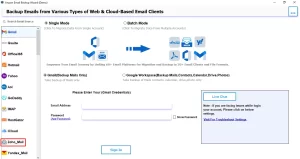
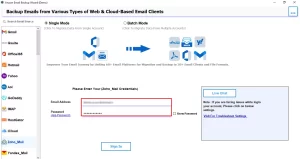
- Now, enter the login credentials of the Zoho Mail account.
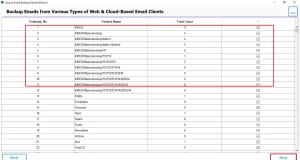
- After that, it will fetch all the mailbox data; you can preview it and then click ‘Next‘.
- From the Migrate in Email Client, select Google Workspace as Output.
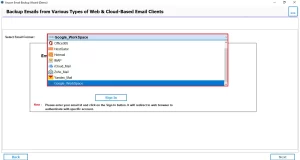
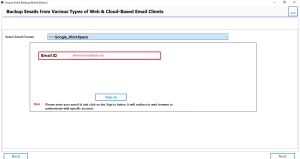
- Further, enter the login credentials for Google Workspace – Email.
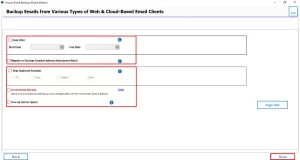
- Now Apply the advanced filter and click on Next to continue.
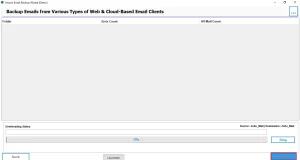
- Finally, click on the Download button to start the migration process.
Benefits of Using a Professional Migration Tool
- This software maintains the original folder structure.
- It preserves email content and attachments.
- Also, you can migrate Zoho Mail to Gmail and to other email clients.
- Apart from that, it supports bulk migration of multiple accounts.
- Further, it eliminates the need for technical expertise.
- Moreover, it reduces the time for the migration process.
Best Practices for a Secure Migration
To ensure success, always follow these best practices:
- Before migration, take a complete backup of your emails.
- Always migrate data during non-business hours to get a faster internet speed.
- Apart from that, make sure you verify migrated mailboxes after completion.
- Above all, inform users about possible temporary access changes.
Doing these steps helps make sure of a smooth and secure transition of their mailbox.
In Closing
To sum up, migrating your email data does not have to be complicated. When you migrate Zoho Mail to Google Workspace using the right method, you ensure data integrity and security. Moreover, the manual method works for small-scale users who have a small amount of data. Whereas the professional tool is suitable for large organisations that transfer data in a faster way.
Frequently Asked Questions
Ans. The time depends on mailbox size, number of emails, and internet speed. Using the Email Backup Wizard, the process usually takes minutes to a few hours per account.
Ans. No, technical expertise is not required. The Email Backup Wizard provides a simple, user-friendly interface that guides users step by step.
Ans. Yes, the Email Backup Wizard tool ensures secure migration with zero data loss by preserving emails, attachments, folders, and metadata.
Ans. Yes, the Email Backup Wizard supports batch migration, allowing multiple Zoho Mail accounts to be migrated to Google Workspace in a single process.
About The Author

Khushboo Maurya is a content and website optimization expert who helps blogs and websites grow naturally. She focuses on improving content quality and reaching more people through smart, simple strategies.

