How to Migrate Zoho Mail to Gmail Without Data Loss?
Summary: Are you ready to leave Zoho Mail behind and want to switch to Gmail? Switching email platforms can seem tough. If you want to migrate Zoho Mail to Gmail, this is the right place. This blog covers everything from manual migration steps to tool-based solutions. It will be helpful even if you are switching to better collaboration, storage, or interface preferences. This blog will guide you through the safest methods, including the Aryson Zoho Backup Tool, to transfer emails.
Reasons to Move Emails from Zoho Mail to Gmail
Zoho Mail is an email platform with very few features and low security. Many users prefer Gmail for its smooth integration with Google Workspace, interface, and innovative AI features. Here are some common reasons people move their emails from Zoho Mail to Gmail:
- Better storage and spam filters
- Integration with Google Drive, Docs, Meet, and Calendar
- Familiar interface and easier mobile access
- Preference for a centralized Google account
Best Methods to Migrate Zoho Mail to Gmail
You cannot copy data from one email client to another. Hence, we will provide you with the methods to preserve the integrity and accessibility of your data. So, you can make a significant difference by choosing the right approach. Below, we’ll explore two proven ways to export Zoho Mail to Gmail. The first one is a manual method for basic needs and a professional tool designed for large-scale data.
Method 1: Free Zoho Mail to Gmail Migration via Account Integration
When we look for a manual way to transfer emails from Zoho to Gmail, this manual method is a practical option. It links your Zoho and Gmail accounts by IMAP and SMTP settings.
- Log in to Zoho Mail >> Settings and select Email Forwarding and POP/IMAP.
- Under IMAP, enable the service to allow synchronization.
- Now, open your Gmail account >> gear icon.
- Switch to the Accounts and Import tab, then click Add another email address under the “Send mail as” section.
- Enter your Zoho email address and password. Click Next Step.
- Use the SMTP configuration given below:
| SMTP Server: smtp.zoho.comPort: 465 |
- Click Add Account. A confirmation email will be sent to Zoho for verification.
- Go back to Zoho Mail and connect your Gmail ID.
- Approve the configuration using the verification links sent to both email accounts.
- Once verified, your Zoho emails will begin syncing with Gmail.
Limitations of Manual Zoho to Gmail Migration
- First, only recent emails are synced.
- As a result, old emails may not be transferred.
- Moreover, the folder structure is not preserved.
- Also, attachments and contacts are not included.
- In addition, the process is a bit technical.
- There are no filter options like date or size.
- Therefore, it can take a lot of time.
- If anything fails, you won’t get alerts.
Method 2: Effective Solution to Migrate Zoho Mail to Gmail
The Aryson Zoho Backup Tool is a reliable solution for anyone looking to safely export or back up Zoho emails. Whether you want to save emails to your computer or an external drive or migrate Zoho Mail to Google Workspace, Outlook, or Office 365, this tool makes the process easy. It can support multiple file formats, like PST, PDF, EML, etc., which lets you filter data and remove duplicates. Additionally, it is compatible with both personal and business users who want a smooth, secure backup experience.
Simple Steps to Migrate Zoho Mail to Gmail Account
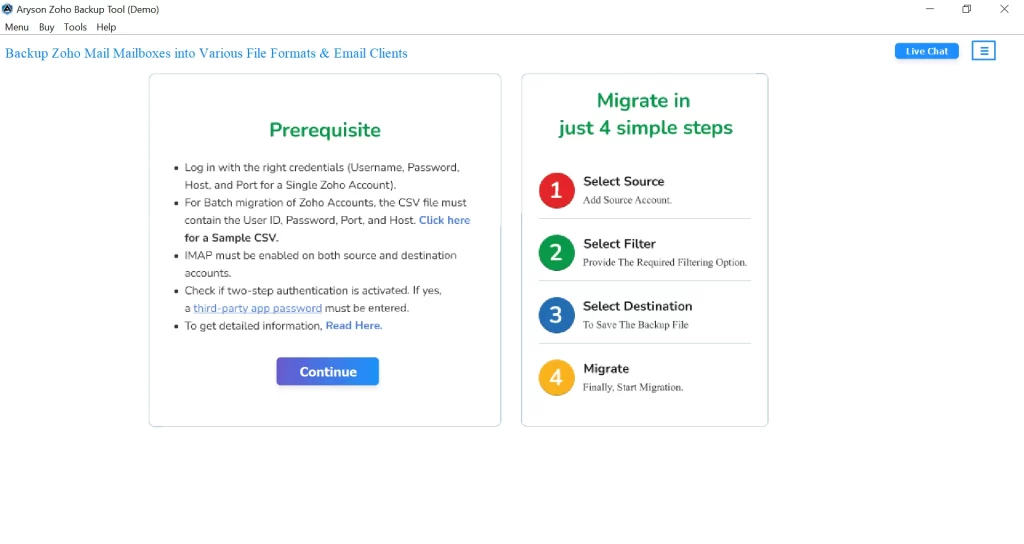
- Firstly, download and run the Aryson Zoho Backup Tool. Click Continue
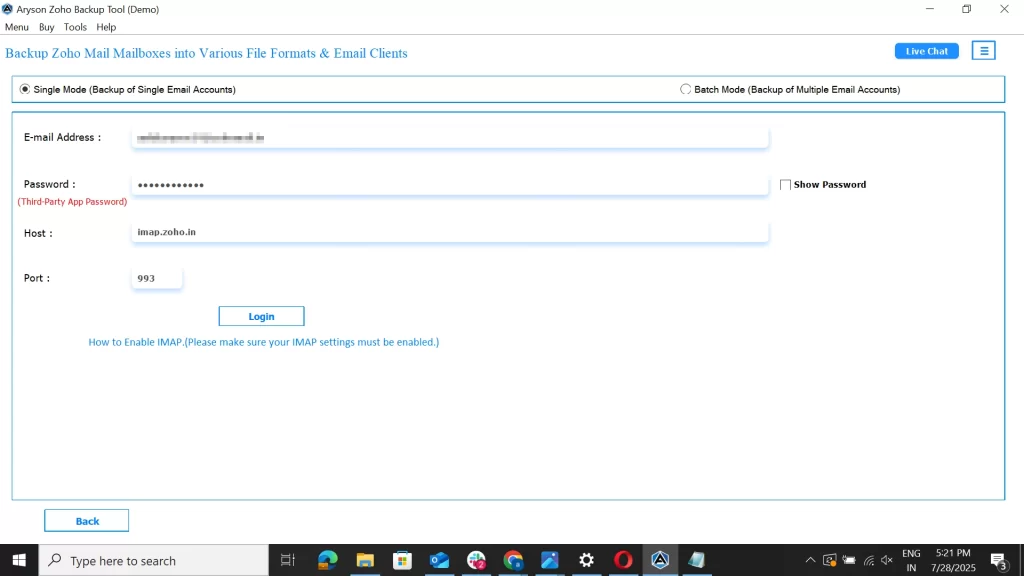
- Enter your Zoho Mail ID and the App Password to log in.
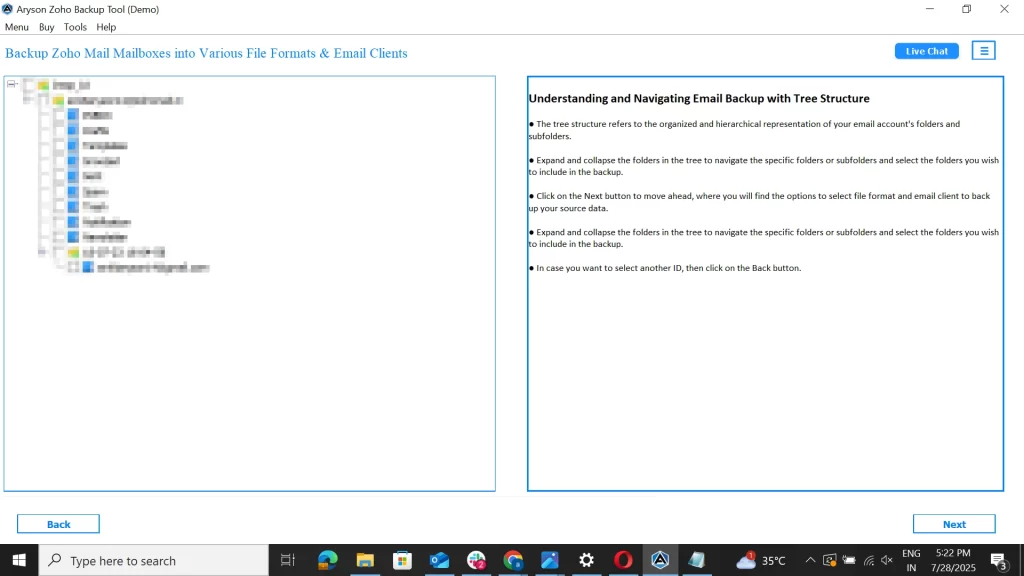
- Choose the folders you want to back up.
- Choose your email service as Gmail.
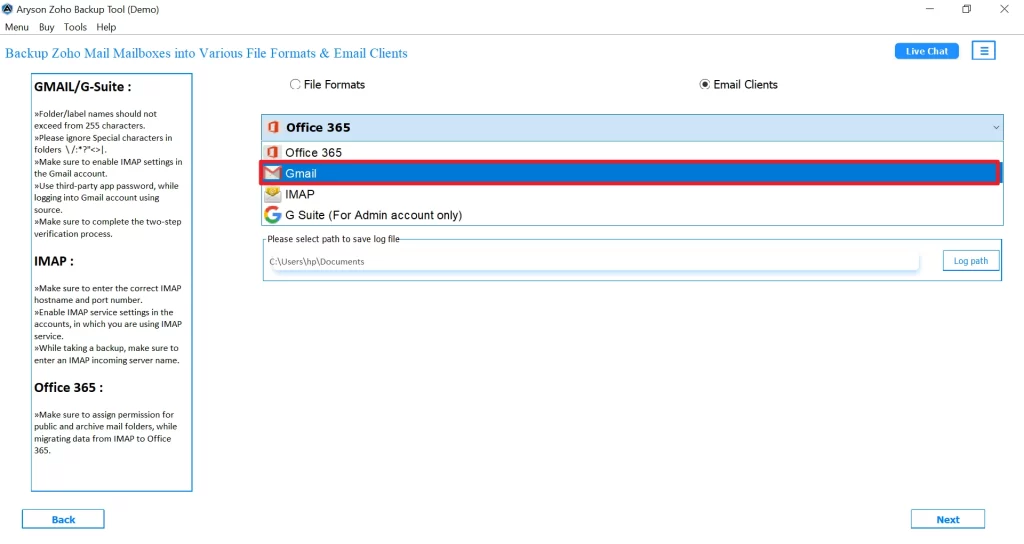
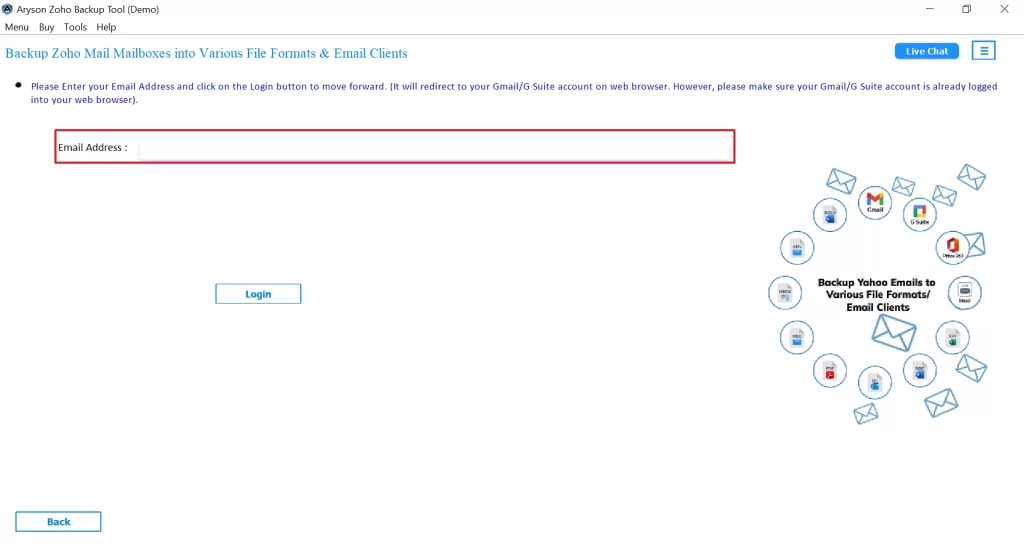
- Similarly, log in with your Gmail ID and Gmail app password.
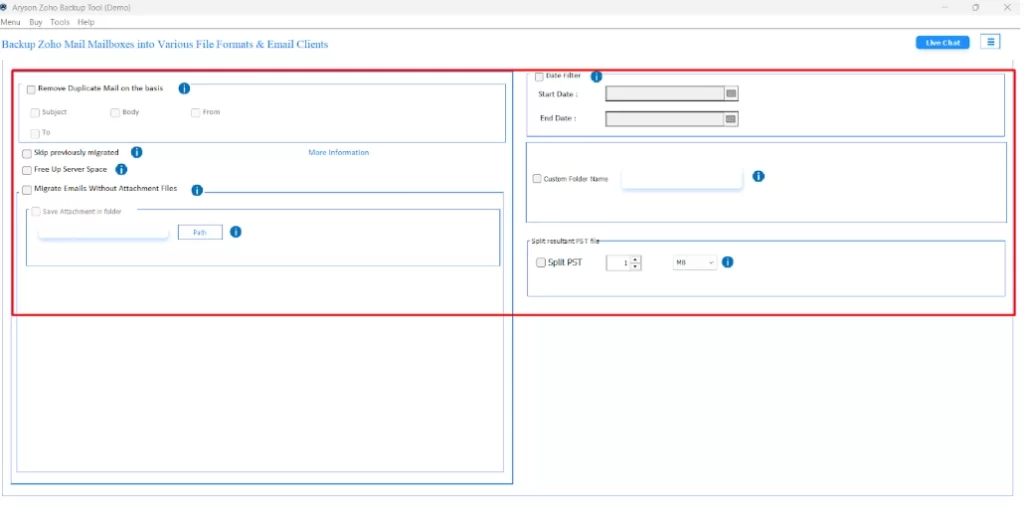
- Now, you’ll see some helpful features you can use according to your needs.
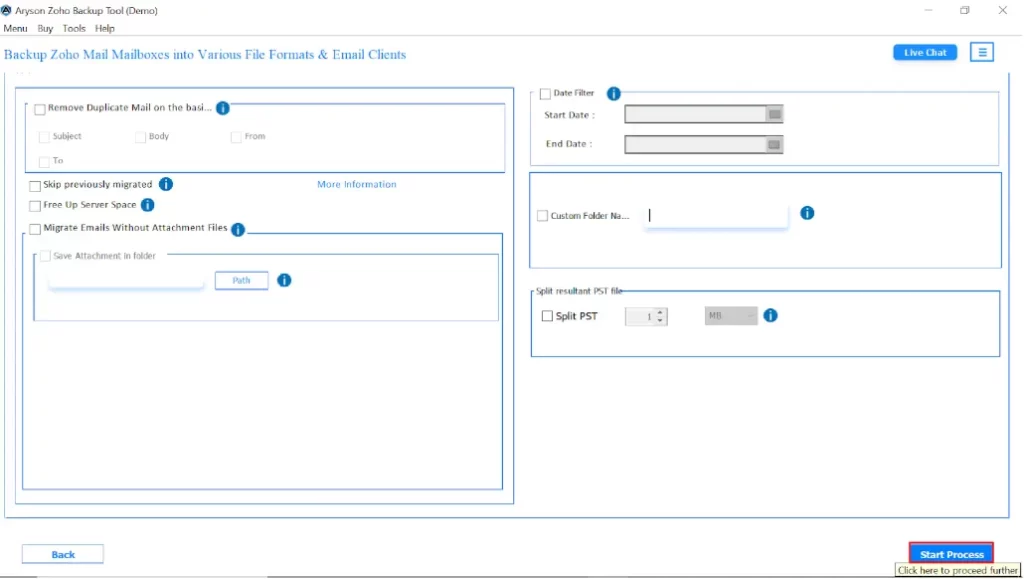
- After reviewing everything, click on Start Process.
Conclusion
In conclusion, when you migrate Zoho Mail to Gmail, it doesn’t have to be difficult. With manual methods working for smaller tasks, on the other hand, automated options offer more control, speed, and reliability. You can always select the right approach to make sure that your data stays safe and folders remain intact. The process is completed without unnecessary hassle or technical issues.
Frequently Asked Questions
Ans: Not directly. But you can connect the two using IMAP and SMTP settings. It allows Gmail to send and receive emails from your Zoho address.
Ans: No. Email forwarding only applies to recently received emails. You will need to either download or move the older Zoho emails manually or via POP in order to access them in Gmail.
About The Author

Khushboo Maurya is a content and website optimization expert who helps blogs and websites grow naturally. She focuses on improving content quality and reaching more people through smart, simple strategies.

