How to Migrate Gmail to Zoho Mail Quickly and Securely
Summary: Thinking about moving your email from Gmail to Zoho Mail, but not sure how to begin? Most of the users are making the switch for better privacy and greater control over how their email data is handled.
At the same time, migration can feel risky. Moreover, no one wants to lose important emails or attachments. This guide walks you through the process, which covers both the manual method and the automated Gmail Backup Tool to migrate Gmail to Zoho Mail.
Reasons to Migrate Emails from Gmail to Zoho Mail
Here are key reasons to transfer emails from a Gmail mailbox to Zoho Mail:
- Zoho Mail offers a cost-effective price for business purposes as compared to Gmail.
- By migrating Gmail to Zoho, you can facilitate the support of a custom domain.
- Zoho Mail comes with a clean user interface that provides a better experience.
- Moreover, it offers better data privacy and does not use data to target ads.
- With Zoho Mail, you actually get much stronger control over how you manage and configure your email settings.
Manual Method to Migrate Gmail to Zoho Mail
You can move your emails from Gmail to Zoho Mail manually by using the IMAP option. It doesn’t cost anything and usually works fine if your mailbox isn’t too large.
Step 01: Enable IMAP in Gmail to Import Gmail Emails into Zoho Mail
Before you start the migration process, make sure that the IMAP access is enabled in your Gmail account.
- First, you need to sign in to your Gmail account.
- After that, click on icon >> select See all settings >> Forwarding and POP/IMAP tab.
- Under IMAP access, select Enable IMAP and click on Save Changes.
- Thereafter, go to your Google Account >> Security and generate an App Password.
Step 02: Log in to Zoho Mail Admin Console
- Now, sign in to your Zoho Mail Account and open the Admin Console.
- Next, you have to navigate to Data Migration and click on Add Migration.
- Then, choose IMAP as the migration type and enter the details:
- Server Name: imap.gmail.com
- Port: 993
- Security Type: SSL
- Afterward, enter your Gmail email address and password.
Step 03: Configure Migration Settings
- Likewise, select the folder you want to migrate & choose whether to include attachments.
- Moreover, map Gmail folders to Zoho Mail folders if needed.
- In the end, click on Start Migration to begin the process.
Limitations of the Manual Method
There are lots of limitations associated with the Gmail to Zoho Mail migration.
- Migrating a large number of emails can take a significant amount of time.
- Users must have some technical knowledge before proceeding.
- You can’t utilize the principle of selective filters and opt in.
- Any incorrect misconfiguration leads to data loss.
- Due to complex steps, attachments do not migrate properly.
Professional Method For Gmail To Zoho Mail Migration Tool
Unlike the manual method, the Gmail Backup Tool is the best solution to back up Gmail emails in bulk. This software supports multiple email clients, such as Thunderbird, Outlook, iCloud, and many others, for extensive data access. The software can also export Gmail to PST, PDF, EMLX, and other data files. Also, it allows selective downloading of emails based on date range, folder, or sender/receiver filters. Nonetheless, the original folder hierarchy and email attributes are preserved during backup. Additionally, it comes with a simple and easy-to-use interface suitable for beginners as well as experts.
Simple Steps to Migrate Gmail to Zoho Mail
- First, download the Gmail Backup Tool on your system.
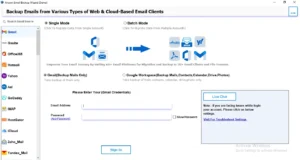
- After that, log in with your Gmail credentials and click on Sign In.
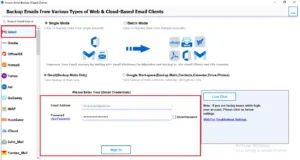
- Next, preview mailbox data and select the data you wish to migrate >> Next.
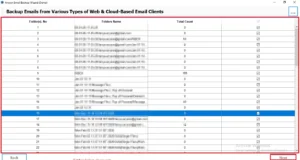
- Then, from the email client list, select Zoho Mail and enter the login credentials.
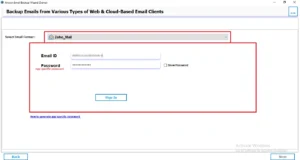
- Then, apply the filters and functionalities as needed.
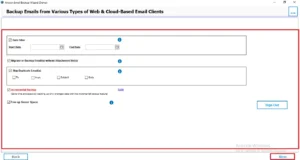
- In the end, click on the Convert button to move Gmail emails to Zoho Mail.
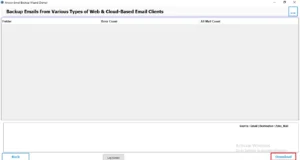
Also Read: If you want to switch to an email client like Thunderbird, then read our detailed guide on Export Gmail to MBOX.
Comparison: Manual VS Professional
| Features | Manual Method | Professional Method |
| Ease of Use | Requires Technical Steps | Simple & User-Friendly |
| Migration Speed | Slow for large mailboxes | Fast & Efficient |
| Bulk Migration | Limited | Support Bulk Migration |
| Data Accuracy | Risk of missing emails or attachments | Maintains complete data integrity |
Conclusion
To finish it up, we discussed all the aspects to migrate Gmail data into Zoho Mail. While the manual steps are viable but require technical expertise. They take significant time and can also lose data. However, employing a professional tool simplifies the process. It guarantees data security and saves your time. You can even set filters and migrate Gmail to Zoho Mail as per your choice. Additionally, the professional software is easy for beginners to use and secure. Choose the option that best fits your needs and comfort.
Frequently Asked Questions
Ans. Yes, IMAP must be enabled in Gmail. Without it, Zoho Mail won’t be able to access or sync your emails.
Ans. No. Only existing emails in your mailbox (Inbox, Sent, etc.) will be migrated. Deleted emails in Trash are usually not included.
Ans. It depends on the mailbox size. Small accounts may take a few hours, while large mailboxes can take a day or more.
Ans. Manual methods may carry some risk if not configured properly. Using a professional migration tool significantly reduces the chances of data loss.
About The Author

Khushboo Maurya is a content and website optimization expert who helps blogs and websites grow naturally. She focuses on improving content quality and reaching more people through smart, simple strategies.

