How to Export Gmail to MBOX with Attachments
User Query: I am over my Gmail storage limit (15GB used), but still receiving emails. Deleted thousands of emails, yet storage hasn’t reduced. I need a temporary solution without Google One. Planning to use Google Takeout to export Gmail to MBOX and move to another account. Need details on deletion, search, format, and traces.
Summary: If your Gmail shows storage full and you want to safely export your emails, then you are not alone. Most of the users reach the 15 GB limit and look for temporary ways to free up server space without upgrading their Google account. One of the best options is to export Gmail emails to MBOX via Google Takeout, and another is Email Backup Wizard Software. MBOX works with tools like Thunderbird and Apple Mail for offline access and backup use.
Manually Export Gmail to MBOX via Google Takeout
Before you proceed further, we want to caution you that this method of exporting Gmail to MBOX with attachments via the Google Takeout feature can be risky and time-consuming. Therefore, we advise users to look into the limitations of the method.
Step 01: Select Mail to Convert Gmail to MBOX
- Visit https://takeout.google.com and sign in with your Gmail account.
- Click on “Deselect all” to clear the selection of all Google services.
- Scroll down and select only “Mail” by checking the box next to it.
- Click on the “All Mail data included” button.
- If you want to export all your emails, keep the default “Include all messages in Mail” selected.
- If you want to export specific labels only, deselect the “Include all” option and select the desired labels.
- Click OK to confirm your selection >> click Next step.
Step 02: Choose Destination to backup Gmail emails as MBOX files
- Under Delivery method, choose how you want to receive the archive:
- Example: Send download link via email.
- Set the following options:
- File type: Choose .zip
- Archive size: Choose a size limit (e.g., 2 GB, 4 GB, etc.). If your data is larger, it will be split into multiple files.
- Click Create export.
- Google will start preparing your archive. This may take some time depending on the size of your mailbox.
- Once the archive is ready, you’ll receive an email with the subject “Your Google data is ready to download.” Click the Download Archive button.
- Extract the downloaded ZIP file. Inside, you will find your emails in .mbox format, which you can open using email clients like Thunderbird, Apple Mail, or dedicated MBOX viewers.
Limitations of Google Takeout for Gmail Export
- This method exports your entire mailbox every time, not just new emails.
- Backup is saved in MBOX format, which needs a compatible email client to open.
- Moreover, large mailboxes can take several hours or even days to export.
- Also, you can only filter emails by labels, not by date, sender, or keywords.
- The download link expires after 7 days, so you must download your backup before it expires.
Professional Method to Export Gmail to MBOX
Email Backup Wizard Software is used to directly migrate the emails into MBOX format.. This software backs up Gmail to different file formats, which include MBOX, without the need for Google Takeout. It keeps your folders and email details the way they were. It can handle large mailboxes without much trouble. With its simple interface, users can export Gmail emails to MBOX files and migrate Gmail to Office 365 and other email clients.
Users can skip previously migrated emails to avoid duplication.
|
Working Process to Save Gmail Emails to MBOX
- Download and run the Email Backup Wizard Software on your system.
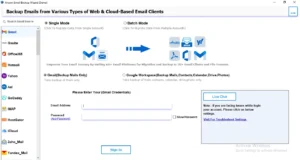
- Click on the Gmail icon & enter the required Gmail Credentials >> Sign In.
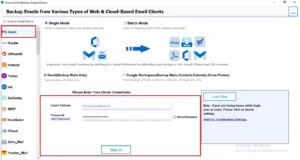
- Now, select the desired Gmail items from the list & click on the Next button.
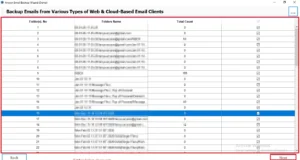
- Click the “Save in file” option >> select MBOX as the save format.
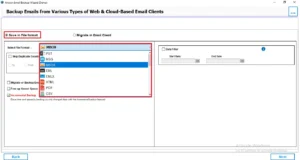
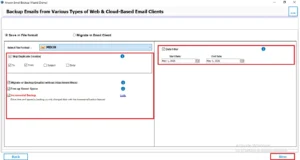
- Apply the optional Features/Filters for selective data exportation >> Next.
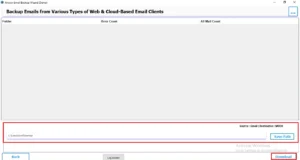
- Click on the Download button to initiate the process.
Comparison Between Google TakeOut & Professional Email Backup Help
| Features | Google Takeout | Professional Tool |
| Ease of Use | Moderate | Easy with a guided interface |
| Export Format | MBOX Only | |
| Selective Backup | Limited | Advanced filters |
| Attachment Handling | Included in export | Fully preserved |
| Gmail integration | Native Google service | Users login credentials |
Conclusion
In conclusion, this article has explained two commonly used methods to export Gmail to MBOX with attachments. Google Takeout is the official and free option, but it can be technical & time-consuming for large mailboxes. Whereas a professional software like Email Backup Wizard offers a bulk migration. However, the choice depends on whether you prefer a manual approach or a more user-friendly solution to manage your Gmail Data.
Frequently Asked Questions
Ans. If your Gmail export is taking too long or appears stuck, check your internet connection and ensure you have enough storage space available. Large mailboxes can take several hours or even days to process through Google Takeout. You can also cancel the export and create a new request if the issue persists.
Ans. A corrupted MBOX file may prevent you from accessing some or all of your emails. In such cases, try downloading the archive again from Google Takeout if it is still available. Keeping multiple backups of important email data can help avoid data loss.
Ans. Some common challenges include lengthy export times, large archive sizes, incomplete downloads, corrupted ZIP files, and difficulty importing MBOX files into certain email clients. Users with large Gmail accounts may also experience delays during archive creation.
Ans. Yes, Gmail emails can be exported for legal, auditing, or compliance requirements. The exported MBOX file preserves the original email content and metadata, making it useful for record-keeping and documentation. However, you should verify that the export process meets your organization’s compliance policies.
Ans. Google Takeout allows you to choose the maximum archive size when creating an export. If your Gmail data exceeds the selected size limit, Google automatically splits the export into multiple ZIP files. This makes it easier to download and manage large mailbox exports.
About The Author

Khushboo Maurya is a content and website optimization expert who helps blogs and websites grow naturally. She focuses on improving content quality and reaching more people through smart, simple strategies.

