How to Export Zoho Mail to EML Without Losing Emails?
User query: “Hi, I’m Emily. I’ve got a lot of emails stored in my Zoho Mail account, and I’d like to export them to EML format so I can keep a backup on my computer. What’s the best way to do this without losing attachments or email formatting?”
Overview: In the above query, Emily wants to know the best way to export her Zoho Mail emails to the EML file format without losing attachments or email formatting. The solution to this query lies in this write-up. Here, we will discuss two different ways to export Zoho Mail to EML, including the Aryson Zoho Backup tool. Read this entire blog to better understand both the methods and pick according to your preference.
Why do we need to export Zoho Mail to EML?
There are several reasons why we need to perform the export process. Some of those valid ones are listed below:
- Once you export your emails as EML files, you can keep an offline backup of important conversations to access them even in case of any server issue or accidental deletion.
- EML files can be easily migrated to various email clients like Outlook, Thunderbird, Windows Mail, etc.
- EML files are portable without needing direct access to your Zoho account.
- You can access EML files without needing an active internet connection.
- Exporting Zoho Mail to EML keeps emails, headers, and attachments intact, which is ideal for backup or compliance.
Seeing the features the EML file format provides, it makes sense to import your EML emails into AOL Mail for better access and management.
Solutions to Export Zoho Mail to EML
There are two ways to convert Zoho Mail to EML files. You can pick any one of them based on your preference, expertise, and the amount of data you have. To get a better understanding of both methods, let’s discuss them in detail.
Manual Method to Convert Zoho Mail Emails to EML Files
The manual conversion requires you to install an email client like Mozilla Thunderbird. If you don’t have it installed on your PC, you can’t proceed further with this method. Follow the steps to perform manual conversion given below carefully to accomplish your task.
Steps to Perform the Manual Export Process:
- Firstly, download an email client like Mozilla Thunderbird.
- Then, set up an IMAP configuration for your Zoho Mail account.
- Then, in Thunderbird, go to Account Settings.
- Next, configure your Zoho Mail by entering its IMAP server credentials.
- Thunderbird will sync all your Zoho emails.
- Depending upon the mailbox size, this process may take some time.
- Then, select your desired emails one by one.
- Right-click selected emails and choose the Save As option.
- Simply save them in .eml format on your system.
- Now, you have to follow the same steps for each folder you want to back up.
This way, you can export emails from Zoho Mail to EML manually. But this method is a little time-consuming and requires every user to have decent technical skills. Therefore, let’s explore an efficient and reliable method to perform the export process.
Direct Solution to Export Zoho Mail to EML
Aryson Zoho Backup Tool is the most efficient solution to export the Zoho Mail to EML in bulk. This software performs the export process within a few clicks without disturbing the folder hierarchy, data loss, or corruption. Using the same software, you can export Zoho Emails to Excel CSV, saving your long hours. Using this software can save you multiple hours, eventually increasing your efficiency at work. You can go through the steps below to perform the export process.
Step-by-Step Guide to Backup Zoho Emails to EML
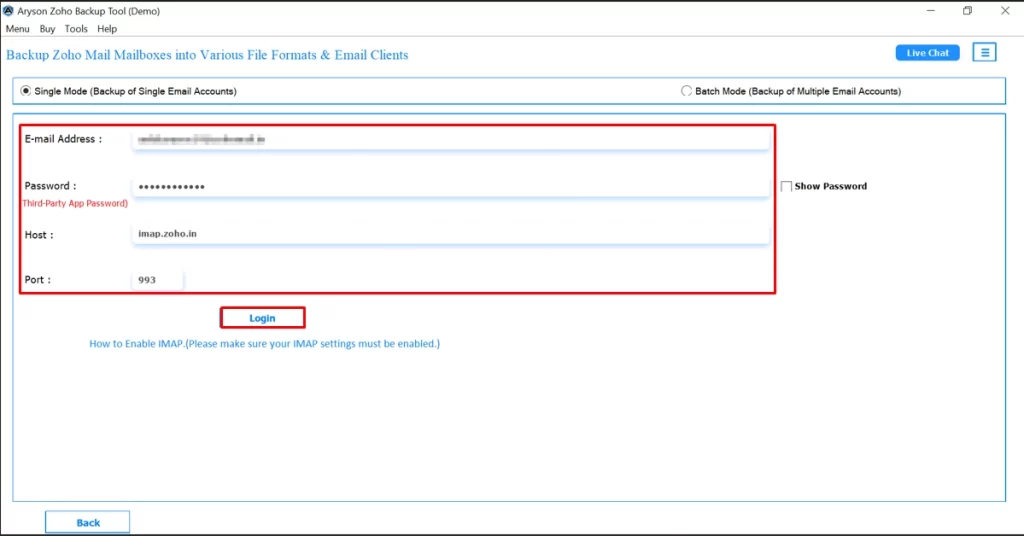
- Open the Aryson Zoho Backup Tool on your PC.
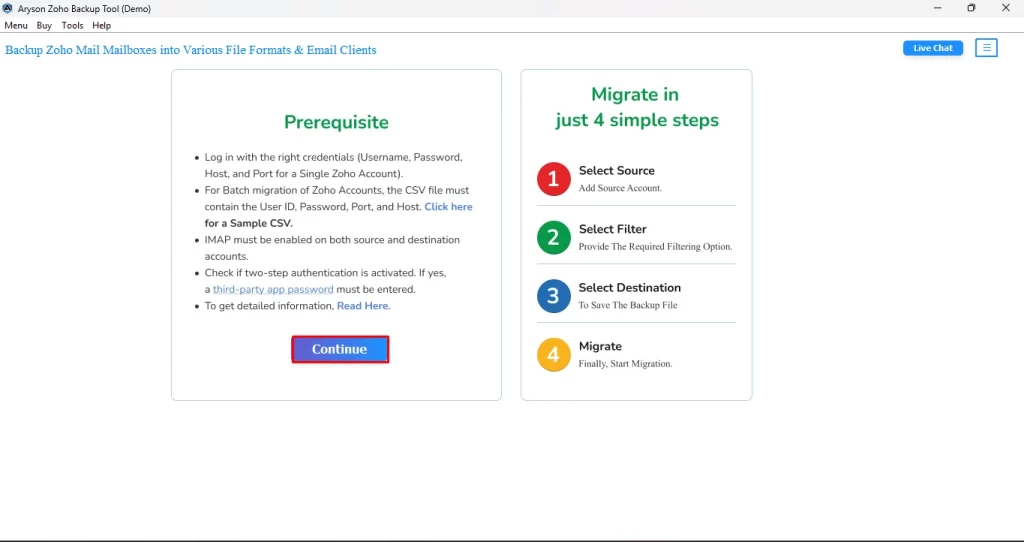
- Then, input your Zoho credentials carefully and click on the Login button.
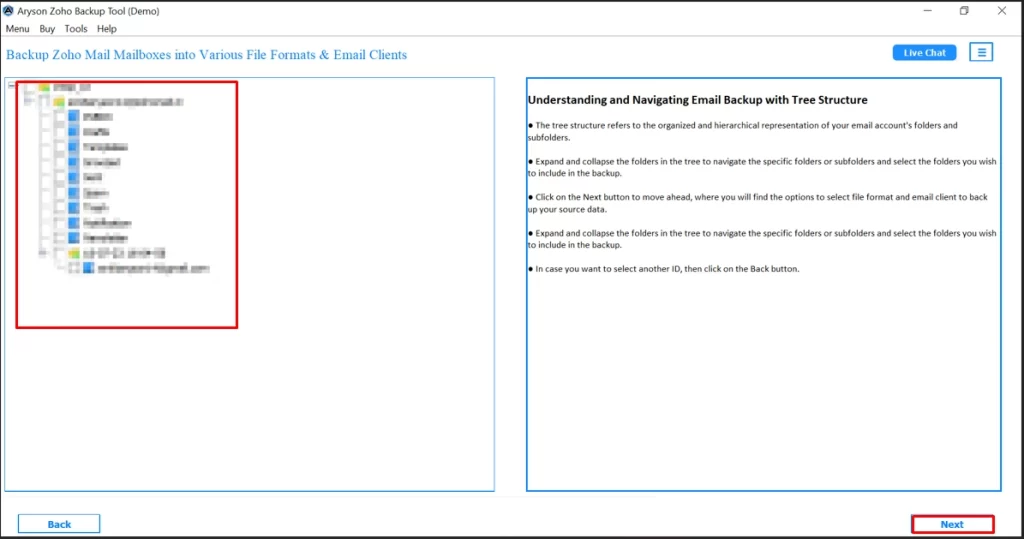
- After that, you have to select one or more files to export to EML and hit the Next button.
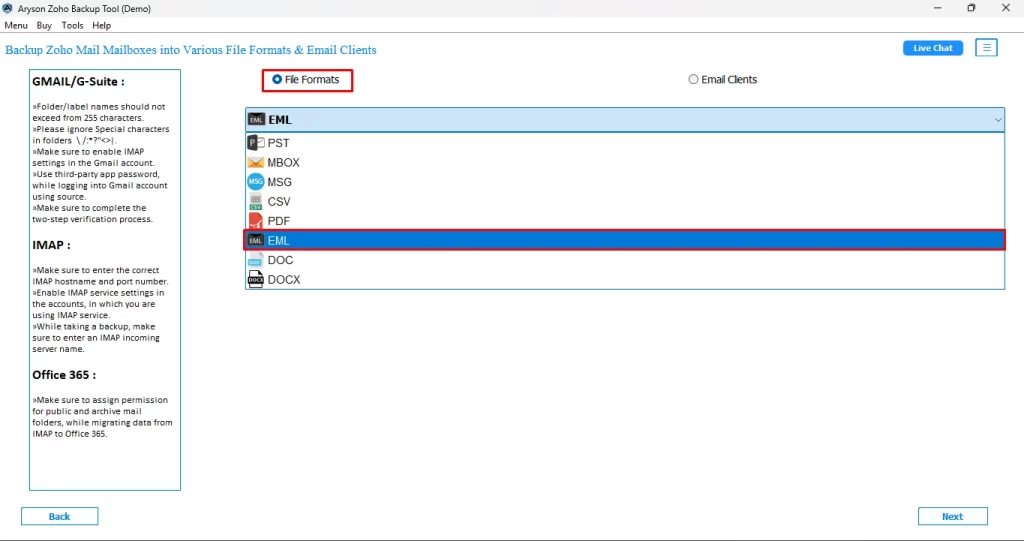
- Now, select EML under the File Formats option.
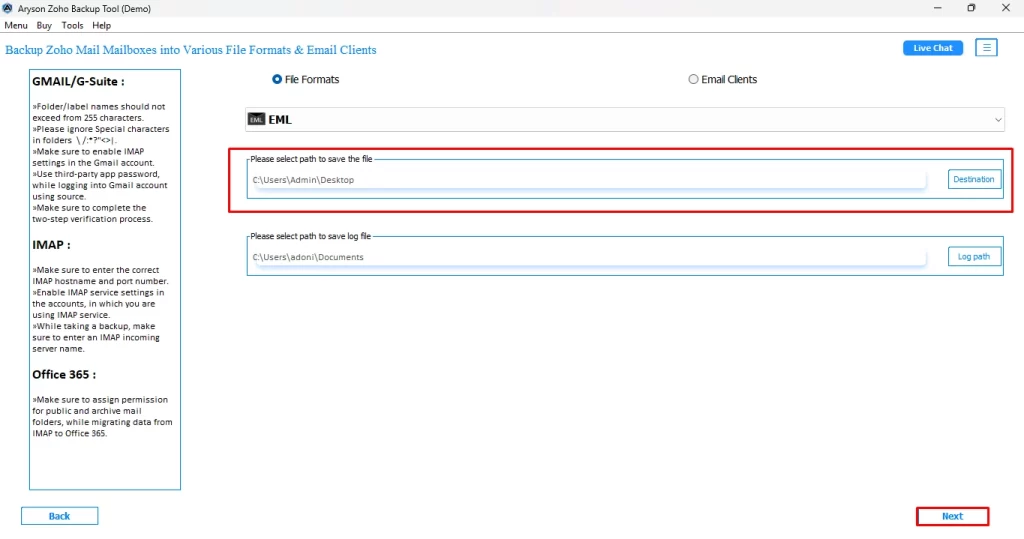
- Select the desired location for the resultant file if you want, and hit the Next button.
- You can use the additional features provided and hit the Convert button to proceed.
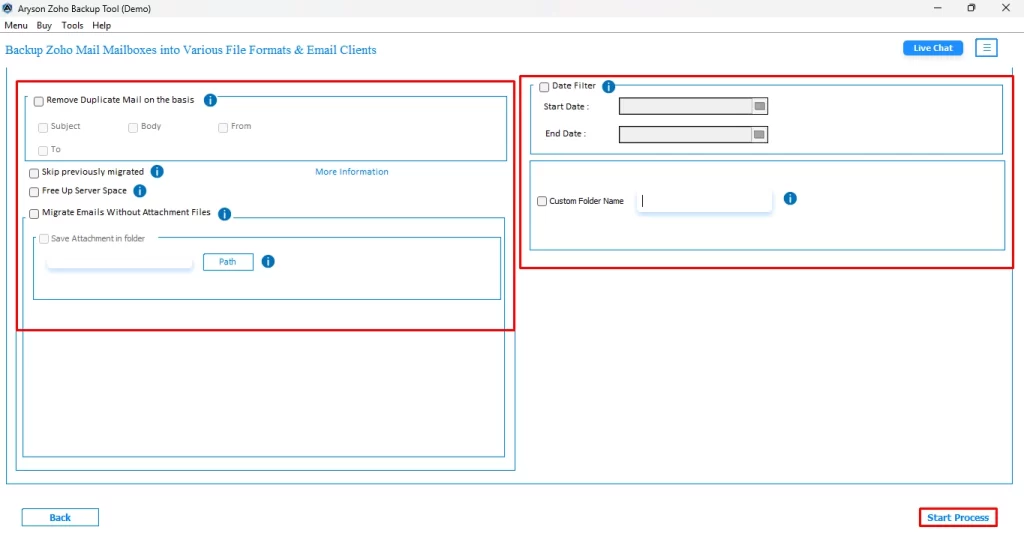
Following the steps above carefully, you can easily download Zoho emails to EML within a few seconds.
Conclusion
In the above blog, we discussed two major ways to export Zoho Mail to EML. For someone with a large number of emails to export, the Aryson Zoho Backup tool is the best solution. Whereas, if you have just a few emails and you don’t mind them, you can proceed with the manual method as well. You can refer to the above-provided step-by-step tutorial to perform the export process. Don’t forget to check out the FAQs section below to get better clarity.
Frequently Asked Questions
Ans- It may take you hours to export the Zoho Mail to EML if you use the manual method. But using the Aryson Zoho Backup tool will reduce that time frame to a few seconds.
Ans- No, you can export multiple emails from Backup Zoho emails to EML, all at once, within a few clicks. However, if you proceed with the manual method, you can’t do the same.
About The Author

Khushboo Maurya is a content and website optimization expert who helps blogs and websites grow naturally. She focuses on improving content quality and reaching more people through smart, simple strategies.