How To Export Emails From Gmail To CSV Quickly
Summary: Want to export your Gmail data to CSV and searching for the best solution? This blog is for you as it becomes necessary for users to analyze their email data, maintain records, or migrate information to a different platform. In the business world, professionals need their email details for audits, backups, or reporting purposes. To overcome this problem, we will discuss the methods to export emails from Gmail to CSV. Therefore, a quick and reliable Aryson Gmail Backup Tool helps save time while ensuring accurate data export without missing important email information.
Reasons to Convert Emails from Gmail to CSV
There are several reasons to convert emails from Gmail to CSV, a few of which are given below:
- It creates a local copy and protects data against accidental deletion.
- The CSV format is useful to maintain the Gmail storage space.
- This allows viewing and accessing email records without an internet connection.
- It converts the data into a table in Excel that will help to understand the pattern.
- CSV is universal, easily moving the data to other email clients, such as CRM.
- This is helpful to organize and maintain the legal reports.
How many ways to Export Gmail Emails to CSV
There are mainly two methods for the exportation.
- Automated Method
- Manual Method
Therefore, to save Gmail Emails to CSV, we will discuss the two methods in detail to ease your work.
Automated Method to Export Emails from Gmail to CSV
Having a bunch of Gmail files that are not suitable for accessing without an internet connection. You can use the Aryson Gmail Backup Tool to easily export Gmail to CSV. This tool comes with multiple features to obtain specific data. You can use the Date filter option to acquire specific time period data. Using this, you can export Gmail to MBOX into various formats like PST, PDF, MSG, etc. The steps are discussed below:
- Begin by downloading and installing the Aryson Gmail Backup Tool.
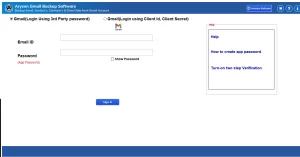
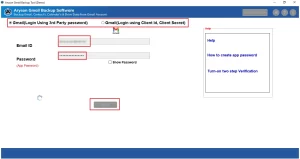
- Enter the Gmail Login Credentials – Name and App Password.
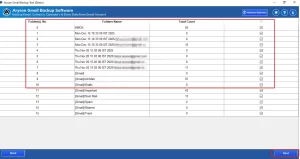
- Now, you have to select the file from the preview table and click Next.
- Further, choose Save as a file and CSV as the file format and apply filters, tap the Next button.
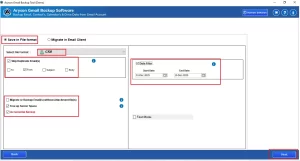
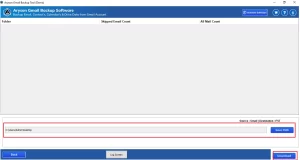
- Finally, select the path to save the resultant file and click on Download.
Benefits of using the Automated Software
- It comes with an easy interface that helps users use the tool easily.
- Moreover, it allows multiple file conversions in bulk.
- This will skip the already migrated files.
- The tool frees up the server space to get enough space.
- It will skip the duplicate files to acquire specific data.
If you have very few files to convert, you can use the manual method to save Gmail Emails to CSV.
Manual Method to Export Emails from Gmail to CSV
The steps to export the emails from Gmail to csv format using the manual method are discussed in this section. The following are the steps to proceed:
Steps to Export Email from Gmail to Excel One by One
- First, choose the email you want to export by clicking on it.
- Next, select the Download message by clicking on the More tab (the three vertical dots).
- The EML format of your message will be downloaded. The desktop email applications, like MS Outlook, Thunderbird, and others, make it simple to open files in EML format.
- The EML file should be dropped into a blank sheet that is open in MS Excel.
- Further, you will see a new prompt; select Yes to continue.
- Due to security reasons, the email will open in Protected View. View the mail by selecting Enable editing.
- Now, you can view your email message in CSV format.
- After that, continue by saving the CSV file.
- At last, for each email that you wish to export as a CSV file, repeat steps 1 through 8 once again.
Drawbacks of the Manual Method
- This method is useful for single files only.
- The process is very lengthy and not suitable for large file sizes.
- The user needs technical knowledge to follow this method.
- It is a time-consuming process.
Conclusion
As per the above observation, converting your Gmail files to CSV is very important. In this blog, we have discussed the two methods to convert the emails. You can use any one of them as per your requirement. It is suggested to use the automated method with its benefits to ease your work to export emails from Gmail to CSV. This tool provides the Demo Version so that users can familiarize themselves with the tool before purchasing the license.
Frequently Asked Questions
Ans. The Aryson Gmail Backup Tool performs a read-only process, ensuring all emails remain intact and unchanged in your Gmail account.
Ans. When you export Gmail emails to a CSV file, it typically includes key email details such as sender and recipient addresses, subject line, date and time, message ID, and email body.
Ans. Using the Aryson Gmail Backup Tool, you can easily open and view it using spreadsheet applications like Microsoft Excel or Google Sheets.
Ans. If the CSV file appears empty or incorrect, open it in Excel or Google Sheets using the comma delimiter, verify export completion, and re-export after selecting proper emails and settings.
About The Author

Khushboo Maurya is a content and website optimization expert who helps blogs and websites grow naturally. She focuses on improving content quality and reaching more people through smart, simple strategies.

