Quick and Simple Ways to Export AOL Mail to EML
Overview: We all know that AOL Mail is one of the most popular email services, but many users still prefer to export AOL Mail to EML for easier backup, migration, or offline accessibility. This is because the EML file format preserves the original email content and attachments as well as formatting. But the export process is not so simple. Therefore, this blog is written to help users with manual and automated ways to export AOL Mail to EML, including using the Aryson Email Backup Wizard for secure exporting.
Scenarios Where Users Need to Export AOL Mail to EML
There are numerous reasons why users might want to convert AOL emails to EML files. Below are a few of them.
- The user might want to migrate emails to another email client like Thunderbird, Outlook, or Windows Mail.
- Users might need to create a local backup of important AOL emails to access them offline.
- The user wants to keep all the email attachments and formatting intact.
- You might need portable email files for legal or archiving purposes.
- The user wants better email management and organization, even outside the AOL platform.
If any of these scenarios match yours, you must export AOL emails to EML.
Best Solutions to Export AOL Mail to EML
There are multiple ways to convert AOL emails to EML files. But here we will discuss the two most reliable ones, which allow users to choose the best one based on their convenience and volume of emails.
Solution 1: Manual Method to Export AOL Mail to EML
Using the manual method, the user has to save each individual AOL email in EML file format in some desktop email client. While it is tedious to use if you have a larger mailbox, it is fairly simple to use if you have only a small number of emails, and it does not cost anything. Follow the following steps to export AOL Emails to EML files:
Stage 1: Set up your AOL Mail Account in an Email Client
- First, open Mozilla Thunderbird or Outlook from your desktop and
- Next, add the AOL Mail account and set the IMAP settings.
- Then, let the client sync all your AOL emails.
Stage 2: Export Emails to EML
- Next, open the desired email you want to export.
- And, select Save As or Export from the menu.
- Choose EML as the file format and save it to your desired location.
Points to Be Noted:
- This method cannot export multiple emails at once easily.
- It is time-consuming for large mailboxes.
- Also, this method is prone to multiple errors.
Somen’s Query: “I have hundreds of emails in my AOL mailbox and need them in EML format to access them in Thunderbird. But the manual conversion will take a lot of time. Is there a faster method to export all emails at once?”
Solution 2: Automated Method to Export AOL Mail to EML
For users who have a large number of emails and are unable to manage them, exporting their emails to EML format is a must. For that, they can use the Aryson Email Backup Wizard. This software allows bulk export of AOL emails to EML in a few clicks without affecting the attachments and folder structure. Apart from EML, it can also convert AOL emails to PDF, MBOX, PST, and other file formats. Moreover, it offers various additional features, like date filters, skip previous migration, etc., to improve the user’s performance.
Key Features of Aryson Email Backup Wizard:
- This software supports batch export of multiple AOL emails to EML.
- Moreover, it preserves attachments, formatting, and folder hierarchy.
- Also, it provides users with various filters like date range and folder selection.
- Additionally, it can directly export from AOL to EML without affecting the original mailbox.
- On top of that, it ensures secure and error-free migration.
Steps to Perform the Export:
- Download and run the Aryson Email Backup Wizard.
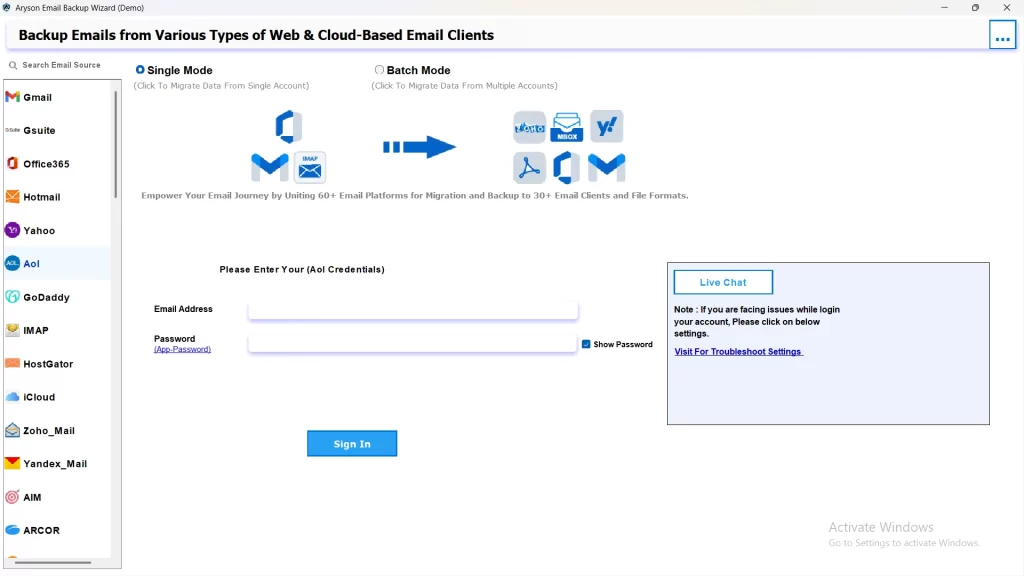
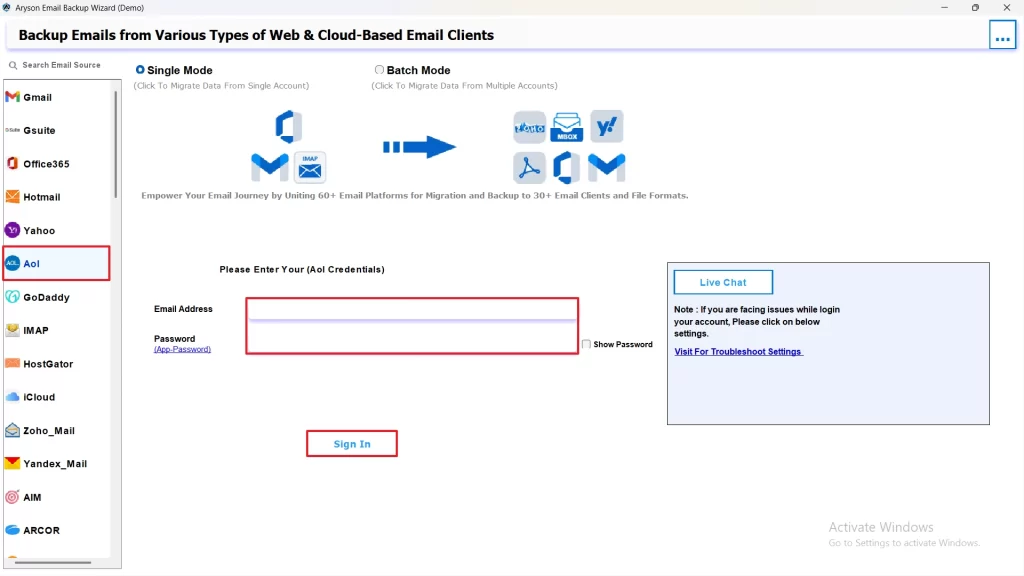
- Select AOL as the source and sign in with your credentials.
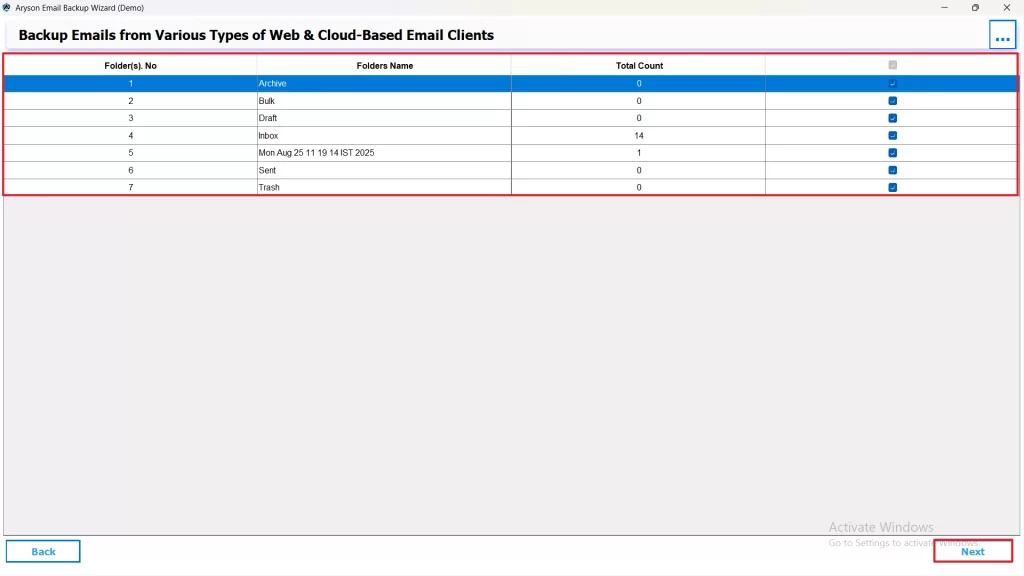
- Then, Select the files/folders you want to export >> click Next.
- After that, choose EML as the resultant file format >> click Next.
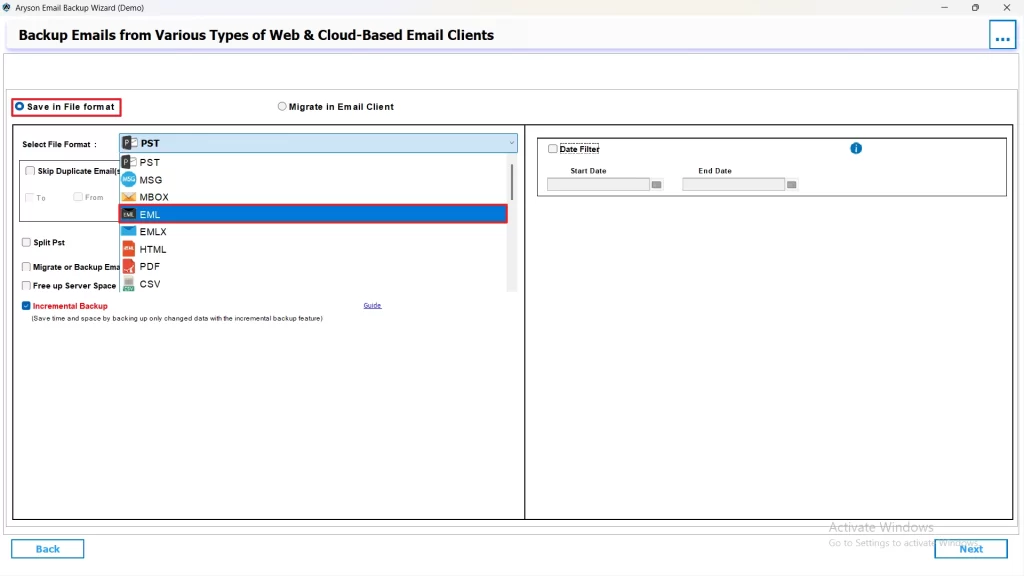
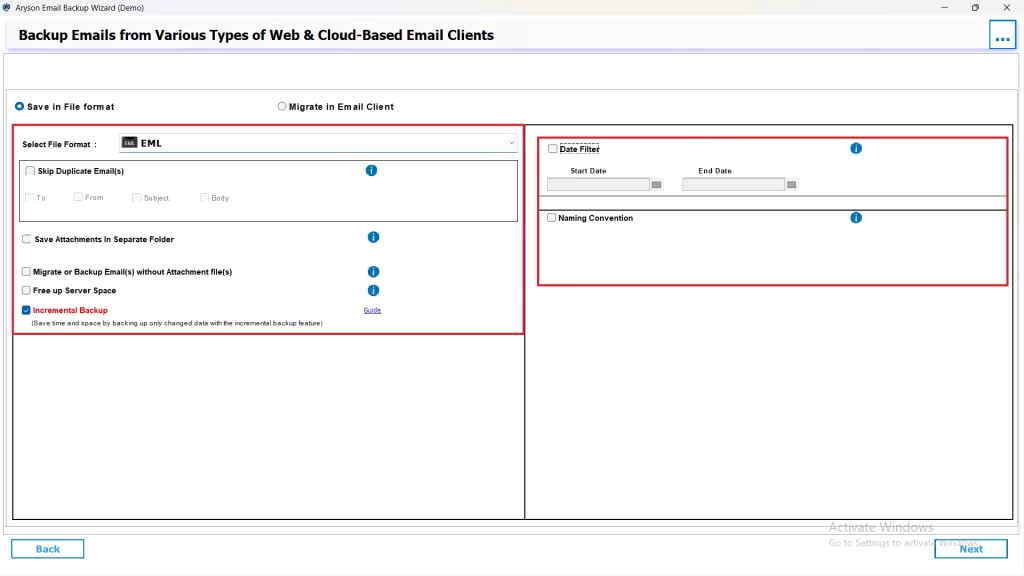
- Use the additional features provided according to your needs.
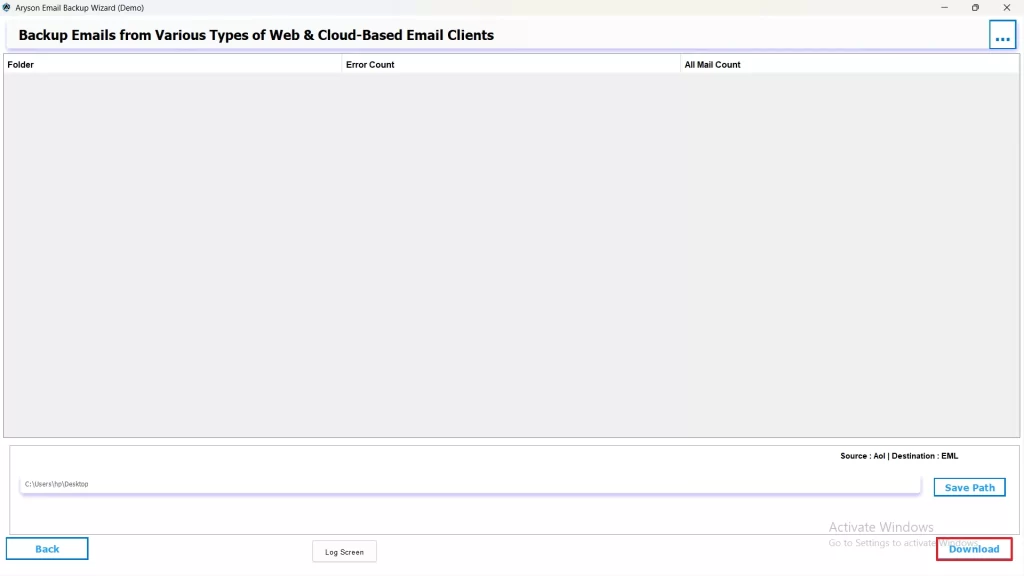
- Choose a location on your system and click Start Export.
Conclusion
To get better backup, portability, and management of emails, AOL users often export AOL Mail to EML. But if you are a complete beginner, this conversation might sound difficult to you. Therefore, in this blog, we discussed both the manual and automated ways to export AOL Mail to EML. While the manual method works for a few emails, the automated solution is the ideal choice for bulk export without data loss. But irrespective of the method chosen, users must follow each and every step carefully to avoid any kind of data loss.
Frequently Asked Questions
Ans: Yes, EML files are compatible with most email clients like Thunderbird, Windows Mail, and Outlook, allowing easy migration.
Ans: No, the export process only creates copies of your emails in EML format; your original AOL mailbox remains intact.
Ans: Simply open your AOL mail account where you exported your EML data. Double-click on the EML file, and it will be displayed on your screen with complete info.
Ans: Yes, using Aryson Email Backup Wizard, all attachments are preserved along with the emails during the export.
Ans: No, the Aryson Email Backup Wizard supports unlimited emails in bulk, whereas the manual method may have practical limitations.
About The Author

Khushboo Maurya is a content and website optimization expert who helps blogs and websites grow naturally. She focuses on improving content quality and reaching more people through smart, simple strategies.

