How to Convert OST to MBOX in Simple Steps?
Overview: Microsoft Outlook creates an OST file, which allows users to access their Outlook mailbox data without an internet connection. Still, users nowadays convert OST file to MBOX, as MBOX is a universal file format supported by various email clients like Thunderbird, Eudora, Apple Mail, and many more. Hence, making it suitable for cross-platform migration. The task of conversion seems hectic to beginners at first. Therefore, this blog helps them with different ways of conversion, including the Aryson OST to PST Converter, along with the relevant steps to use it.
Why might a user convert OST to MBOX?
- Supported email clients: MBOX supports multiple email clients, whereas OST supports only the OST format.
- More Migration Flexibility: MBOX is a universal file format, making it more flexible for cross-platform migration.
- Better Backup and Archiving: Backing up data is complex with OST; in contrast, it is simple and versatile in the case of the MBOX file format.
- Offline Accessibility: OST files work only with a specific Outlook account, whereas MBOX lets users open emails anytime offline.
- Better Email Management: The MBOX file format makes the management of emails much easier.
After seeing the advantages of OST to MBOX conversion, let’s move on to the actual conversion.
Top 2 Solutions to Convert OST File to MBOX
Here, we will discuss the top two solutions to convert OST files to MBOX file format.
- Using MS Outlook and Thunderbird
- Using an optimized solution
Solution 1: Export OST to PST using Outlook
Microsoft Outlook doesn’t support the MBOX file format directly; therefore, you first need to convert your OST file into PST format. After that, you can import that PST file into an MBOX-supported email client like Thunderbird.
Step 1: Convert OST to PST Using Outlook
- To begin, open MS Outlook and go to File.
- Then, Click Open & Export >> Import/Export.
- After that, choose Export to a File >> Next.
- Next, select the Outlook Data File (.pst) >> Next.
- Now, pick the folders that you want to export.
- Choose a destination location to save your file & click Finish.
Step 2: Import PST file into Thunderbird
- Now, Open both MS Outlook and Thunderbird on your PC.
- Then, in Thunderbird, click Tools >> Import >> Mail >> Next.
- Select Outlook as the source email client and click Next.
- Now, your emails will take some time to import into Thunderbird.
- Lastly, click Finish to complete the process.
Pitfalls When Users Manually Convert Outlook OST to MBOX
Although this method is absolutely free, it has its own drawbacks in terms of processing speed, reliability, and accuracy.
- This method will take you long hours to complete the process.
- It might seem complicated to beginners and non-technical users.
- There is no direct option to convert OST files into MBOX format.
- Also, there are high chances of data loss and corruption during conversion.
- You can bulk convert your OST files using this solution.
- The user must have Thunderbird installed on their system.
User query: “I need to switch from Outlook to Thunderbird and have several large OST files in my Outlook mailbox to migrate. At first, I tried to export OST to PST and then import it into Thunderbird. But this method was very slow and complicated. How can I quickly convert multiple OST files to MBOX without using the manual method?”
Solution 2: Optimized solution to Convert OST File to MBOX
Just like the above user, if you also need to bulk convert OST files to PST quickly, then you should go for the Aryson OST to PST Converter. Using this software, the conversion of multiple OST files can be done easily without affecting the folder structure or email metadata. It can further convert OST to PST, EML, PDF, and other file formats. It also provides different advanced features such as deleting duplicate emails, skipping previously migrated items, renaming folders as per need, and date filtering. This makes the migration process faster and more efficient. On top of that, its intuitive interface makes the whole conversion process easier for beginners.
Quick Steps to Convert OST File to MBOX
- Open the Aryson OST to PST Converter on your existing PC.
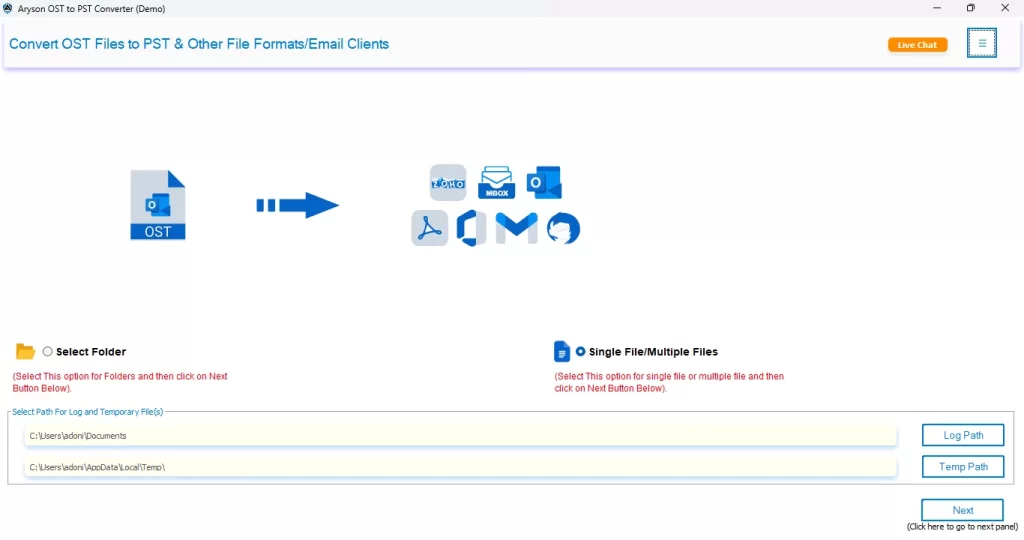
- Then, open your desired OST files to export & hit Next.
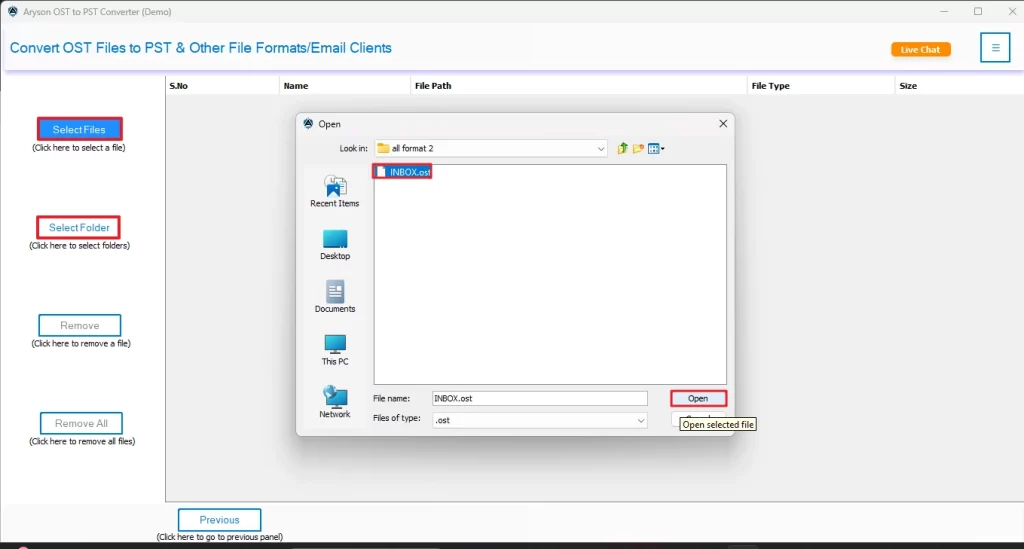
- After that, select one or more files >> preview them >> and click Next.
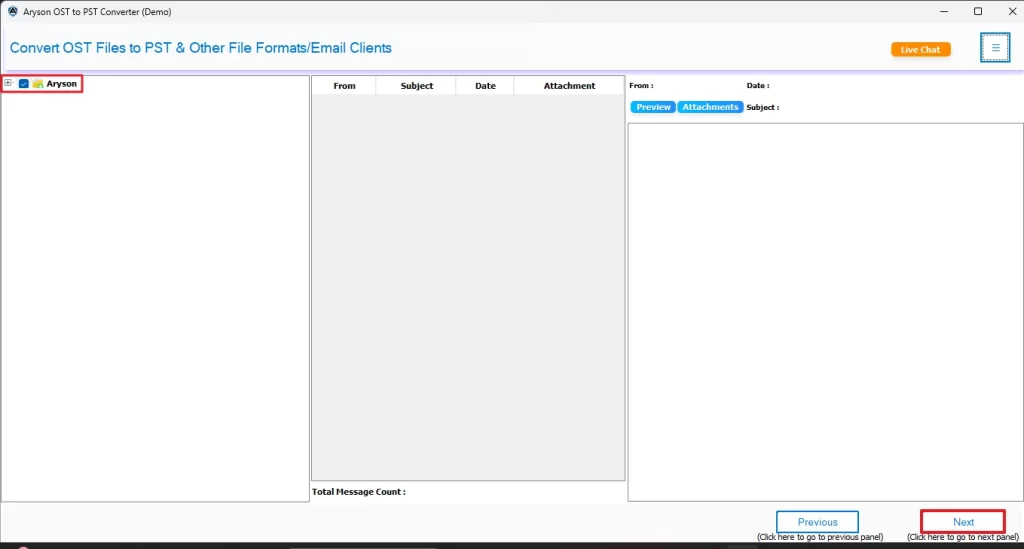
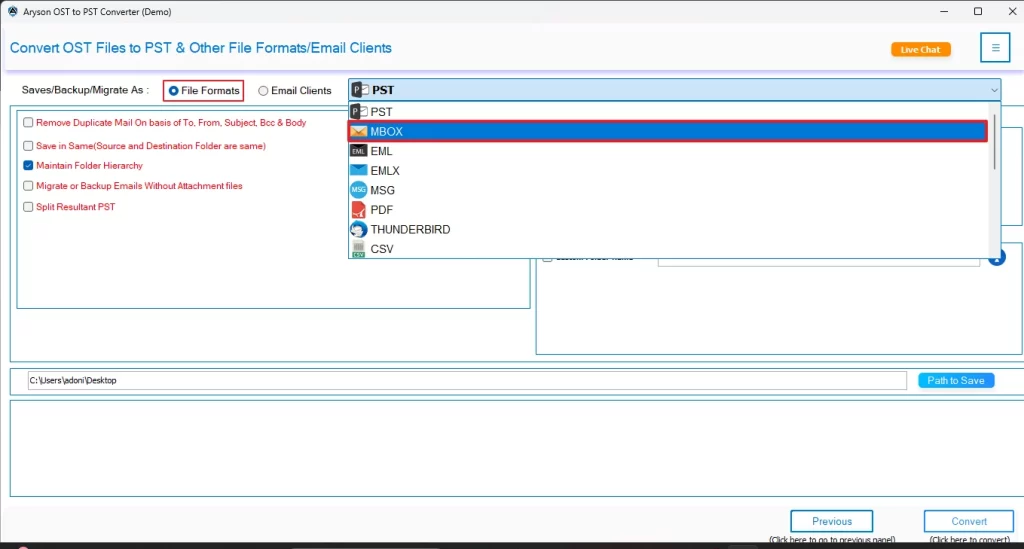
- Next, select MBOX as the resultant file format.
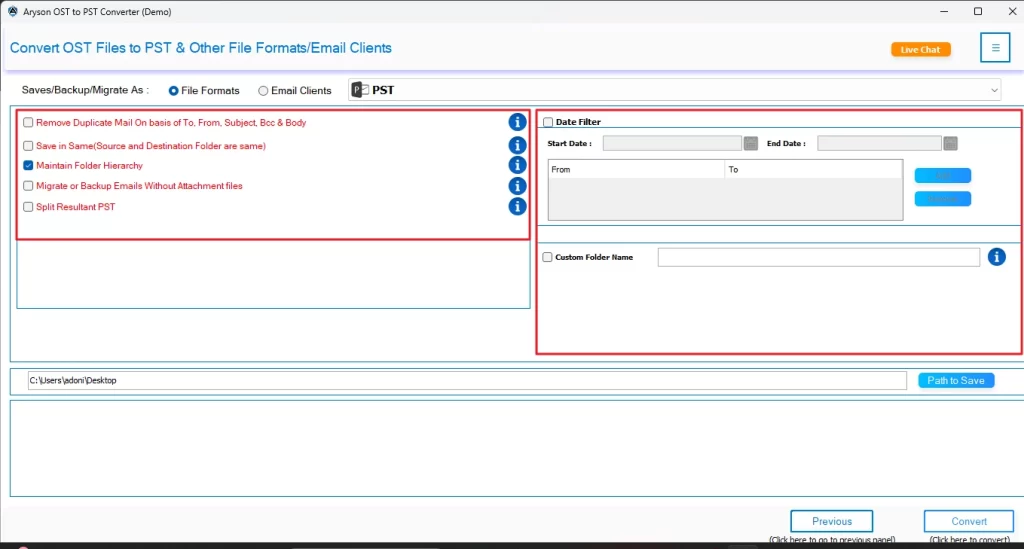
- Now, use the built-in features of the software accordingly.
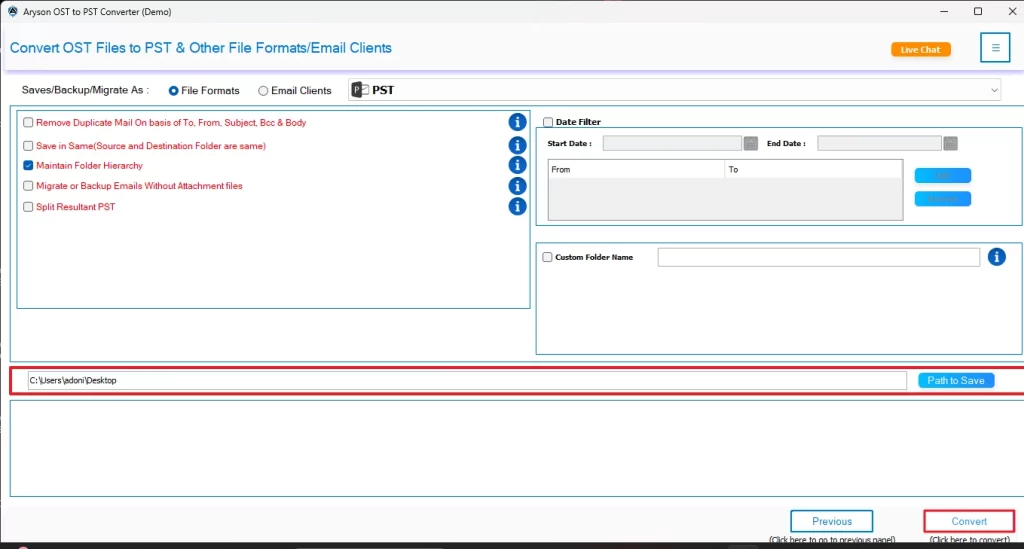
- Lastly, provide the path to save & click Convert to begin conversion.
Let’s Sum Up
The MBOX file format allows users to effortlessly migrate to different email platforms, access mailbox data offline, etc. To get the privilege of all these advantages, Outlook users often convert OST file to MBOX. For that, we discussed two different solutions in the above blog. However, both methods had their own advantages; the automated solution is more suitable for bulk and reliable conversion.
Frequently Asked Questions
Ans- Yes, it’s completely safe if you use the Aryson OST to PST Converter to export emails from Outlook OST to MBOX, as it maintains data integrity during the process.
Ans- No, there’s no data loss if you are using the Aryson OST to PST Converter for conversion, though manual conversion promotes data corruption.
Ans- Yes, you can use the advanced software above to batch convert multiple OST files at once.
Ans- There is no chance of errors if you are using the Aryson OST to PST Converter using the right steps. However, if you rely on the manual method, there is a high chance of errors.
Ans- Yes, you can convert OST files even without an active Outlook connection using the Aryson OST to PST Converter.
About The Author

Khushboo Maurya is a content and website optimization expert who helps blogs and websites grow naturally. She focuses on improving content quality and reaching more people through smart, simple strategies.

