
How To Migrate Yahoo Mail To Office 365 Safely In 2026
To migrate Yahoo Mail to Office 365, you can use IMAP migration or a professional migration tool. While IMAP works for a small number of mailboxes, the fastest and safest method in 2026 includes the advanced Yahoo Backup Tool, which makes sure bulk transfer and zero data loss.
Why Migrate Yahoo Emails to Office 365?
Many users switch from Yahoo Mail to Office 365 for several reasons.
- Unlike Yahoo, Office 365 offers strong security to keep users’ valuable emails safe.
- Office 365 provides a business-class email platform with a custom domain option.
- Moreover, Office 365 provides integrated apps such as Excel, Word, Teams, and OneDrive.
- Users get enough mailbox space and storage in Office 365 as compared to Yahoo Mail.
- Administrators can easily manage users, permissions & policies from a centralised dashboard.
Companies migrate from Yahoo Mail to improve productivity and collaboration after the shift to Microsoft 365. In a real-world scenario, businesses migrate 50+ mailboxes and prefer Office 365 due to enterprise-grade security.
| Quick Steps to Migrate Yahoo Mail to Office 365 |
|
Best Solutions to Migrate Yahoo Mail to Office 365
The two main approaches that accomplish the migration process will be discussed below:
- Manual Method
- Professional Software
Method 01: Use Manual Method to Import Yahoo Mail to Office 365
In this method, IMAP is used to connect Yahoo Mail with Microsoft 365. Follow each step carefully to transfer Yahoo emails to Microsoft 365 to avoid mistakes.
Step 01: Prepare Yahoo & Microsoft 365 Account
- To begin, access your Yahoo Mail account through any web browser.
- After that, enable the IMAP setting and generate an app password.
- Then, you have to log in to the Microsoft 365 Admin Center and create user mailboxes.
- Next, go to the Exchange Admin Center and select Migration >> Add Migration Batch.
- Now, you need to Add Migration Batch, and for the migration, pick IMAP.
Step 02: Enter Yahoo IMAP Details
Now, provide the IMAP details carefully.
|
IMAP Server: imap.mail.yahoo.com Port: 993 Encryption: SSL |
Step 03: Start the Migration Process
- Thereafter, upload the CSV file with user details and validate the credentials.
- At last, you have to start the migration process of Yahoo Mail to Office 365.
Limitations of the Manual Method
- The manual method carries a potential risk of incomplete data transfer.
- It does not offer an advanced filtering option for exporting specific data.
- Moreover, when you migrate multiple emails, it takes a lot of time to finish the process.
Common Challenges Occur During Migration
- Authentication Error: Incorrect login details prevent Yahoo Mail emails from migration.
- Slow Internet Speed: An unstable internet connection can delay the migration process.
- Large Size Mailbox: A heavy mailbox takes a long time to migrate data & causes a timeout.
- Incorrect IMAP Configuration: Moreover, incorrect server details prevent the migration process from starting successfully.
- Duplicate Data: moving the same mailbox can create duplicate emails.
Method 02: Use the Professional Yahoo Mail to Office 365 Migration Tool
Subsequently, use the Yahoo Backup Software that can securely move your data. This software has several embedded features that allow you to migrate data based on your needs. Moreover, the software is created to maintain data integrity and support a secure migration process. If you plan a different migration, read our detailed guide – migrate Yahoo Mail to Google Workspace. It is designed with a simple user interface so that all users can use this software with ease.
Simple Process to Migrate Yahoo Mail to Office 365
- To start the process, download the Yahoo Backup Software on your system.
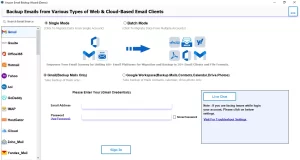
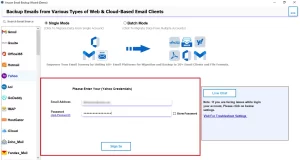
- Next, choose Yahoo Mail and enter the email address and app password for login.
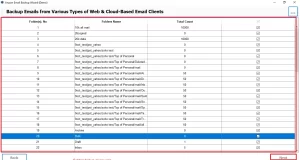
- Then, wait to load the fetched data and preview it, and then click Next at the bottom.
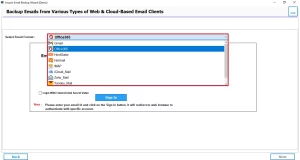
- After that, select Office 365 from the email clients as the output for the migration.
- Thereafter, authenticate with Office 365 login credentials for protected access.
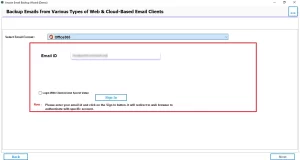
- Subsequently, enable the filters for selective migration and click on Next to continue.
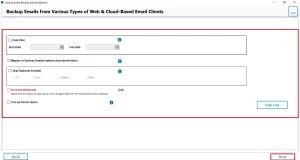
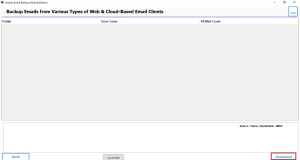
- Finally, to start the migration process, click on the Download button.
Manual Vs Professional – Comparison
| Features | Manual Approach | Automated Software |
| Bulk Migration | No | Yes |
| Speed | Slow | Fast |
| Data Accuracy | Medium | High |
| Filters | No | Yes |
| Risk of data loss | High | Minimal |
Pro-Tips for Secure Migration
- It is recommended to always take a backup of your important data.
- The user must avoid a migration during peak hours for faster performance.
- Verify the data after the migration process is completed.
Conclusion
In this blog, we covered all the aspects of why it is important to migrate Yahoo Mail to Office 365. We discussed the two methodologies for migration, so choose the right method for the smooth migration of your valuable data. If you have a small number of emails, go for the manual method. Otherwise, it is recommended to use professional software that ensures better security and efficiency.
Frequently Asked Questions
Ans. The size of the mailbox and the speed of the internet determine this. However, use the Email Backup Wizard, which performs bulk migration to expedite the process.
Ans. Issues such as login errors, IMAP configuration problems, and duplicate emails may occur during migration. Professional software helps minimise these errors through secure authentication and stable connectivity.
Ans. No. If two-step verification is enabled, just generate an app password and use it in the software.
Ans. Yes. Set up email forwarding or update MX records after migration.
Ans. This professional software has no size limit, but storage depends on your Microsoft 365 subscription plan.
About The Author

Khushboo Maurya is a content and website optimization expert who helps blogs and websites grow naturally. She focuses on improving content quality and reaching more people through smart, simple strategies.

