
Quick & Reliable Way to Migrate Office 365 to IMAP Server
User query: “Hey, everyone, can you help me out? Does anyone know a quick and reliable way to migrate an Office 365 mailbox to an IMAP server? I want you to share some secure and genuine methods so that my emails and attachments don’t get lost.”
Overview: If you’re searching for a quick and reliable way to migrate Office 365 to IMAP server, this blog has you covered. Here, you’ll be explained both the manual method (step by step) and an automated solution that is the Aryson Email Backup Wizard Tool, which is designed to automate the migration process while maintaining data integrity. By the end, you’ll know exactly which approach works best as per your requirements.
Major Benefits of Office 365 to IMAP Migration
Once you move your Office 365 mailbox to an IMAP server, IMAP will offer you more flexibility, security, and effortless email management across all devices and platforms. Below are some of the major benefits:
- Better accessibility offered: An IMAP-based email client ensures that your messages stay updated across all devices, allowing you to access, check, and manage your mailbox seamlessly from anywhere at any time.
- Email Client Compatibility: Works seamlessly with various email clients, giving you freedom from being tied to just Office 365.
- Better email management: IMAP helps structure folders efficiently and manage emails with ease.
- Advanced Security: After performing the migration process, you will get access to advanced encryption and backup options that many IMAP servers provide to protect your data.
- Smooth Switching: Switching to IMAP, it becomes easier for you to switch to other email services or consolidate accounts without losing your data.
Proven Techniques to Migrate Office 365 to IMAP Server
If you want to migrate your Office 365 mailbox to an IMAP server, you will see a couple of practical options available in today’s world. But here we will discuss two methods. You can either go for the manual method, which gives you full control, or opt for an automated solution that makes the process faster and easier. You can pick whichever approach suits your needs and convenience.
Manual Method to Transfer O365 Emails to IMAP Server
You can migrate Office 365 to IMAP server using Outlook, but it can be a slow and somewhat complicated task. Also, it becomes necessary for you to install MS Outlook on your system. In case you don’t have it in your system, you can’t use this method. Follow the given steps to perform migration:
- Firstly, start Outlook and add your Office 365 account.
- Now, allow all your emails and folders to sync completely. This process may take some time.
- Next, add your IMAP account to the same Outlook profile, making sure that all your incoming and outgoing server settings are correct. And wait for the account to completely synchronize.
- Once both accounts are active, start selecting emails or folders from Office 365 and drag or copy them into the corresponding folders of your IMAP account.
- Now, you have to repeat this process carefully for your Inboxes, Sent Items, Drafts, and any other custom folders you might have created.
- MS Outlook will now take enough time to upload all email messages to the IMAP server. The process may take you long hours, depending on your mailbox size and your internet connection.
- Once everything gets uploaded, you have to log in to your IMAP account or another email client to verify that all your emails have been transferred correctly.
- If there is any data loss, you may need to repeat the transfer process.
Optimal Solution Migrate Office 365 to IMAP server
Aryson Email Backup Wizard is the quickest and most genuine solution to migrate Office 365 emails to IMAP server. With this tool, you can complete the migration in just a few moments without any data loss or corruption. Beyond IMAP, it can also migrate Office 365 to iCloud, Gmail, IMAP, Office 365, and several other email platforms. It even comes with handy features like skipping duplicate emails and freeing up server space. Just follow the simple steps below to get started and transfer your mailbox effortlessly.
The simplified guide to convert Office 365 emails to IMAP is as follows:
- Run the Aryson Email Backup Wizard and log in using your Office 365 credentials.
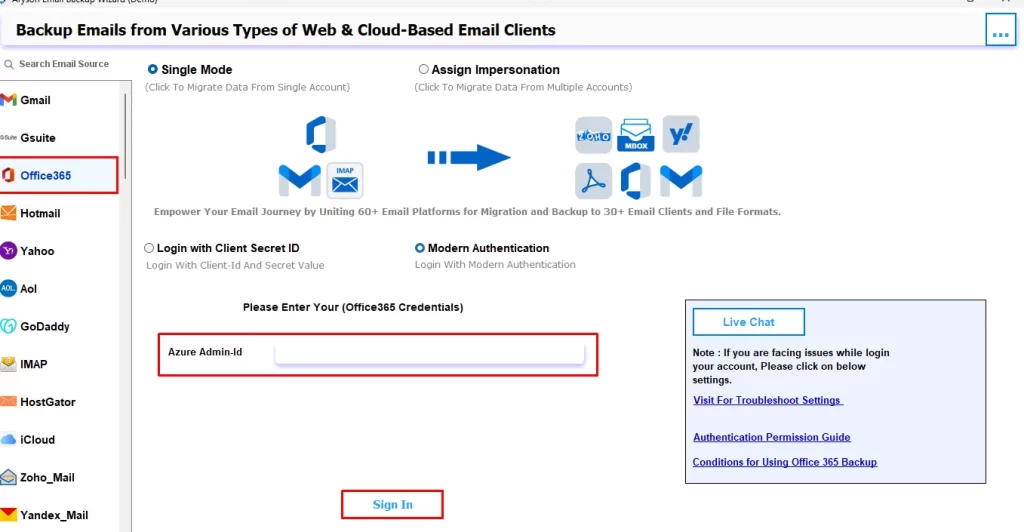
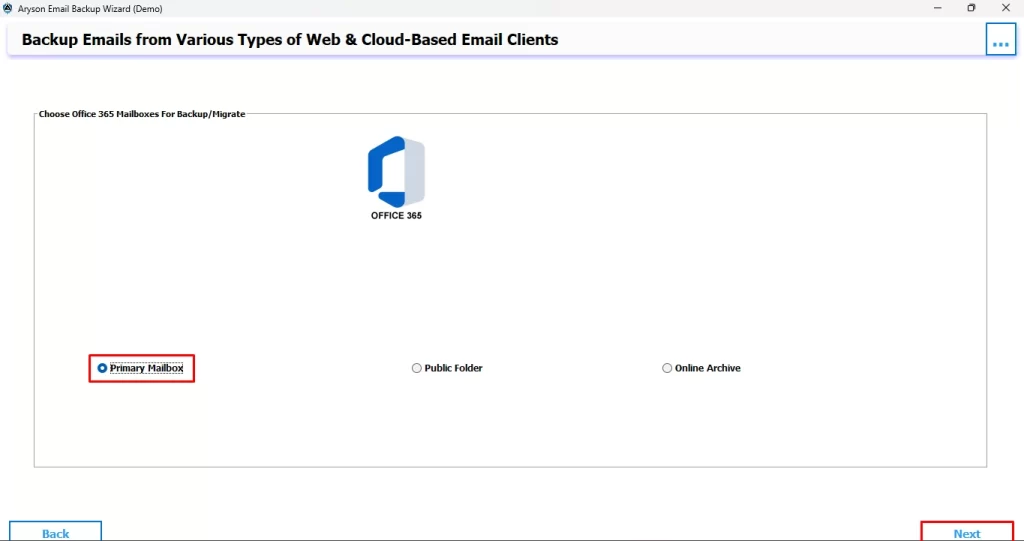
- Choose the desired mailbox folder you want to migrate and click Next.
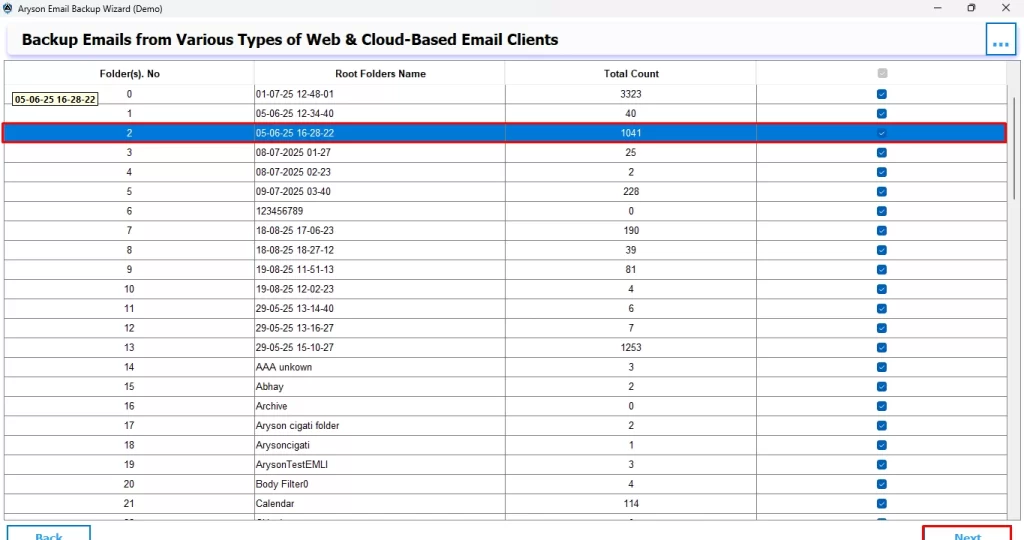
- You’ll then see a preview of the files you’ve selected. Once confirmed, click Next to proceed.
- Under Select Email Format, choose IMAP and sign in with your IMAP credentials.
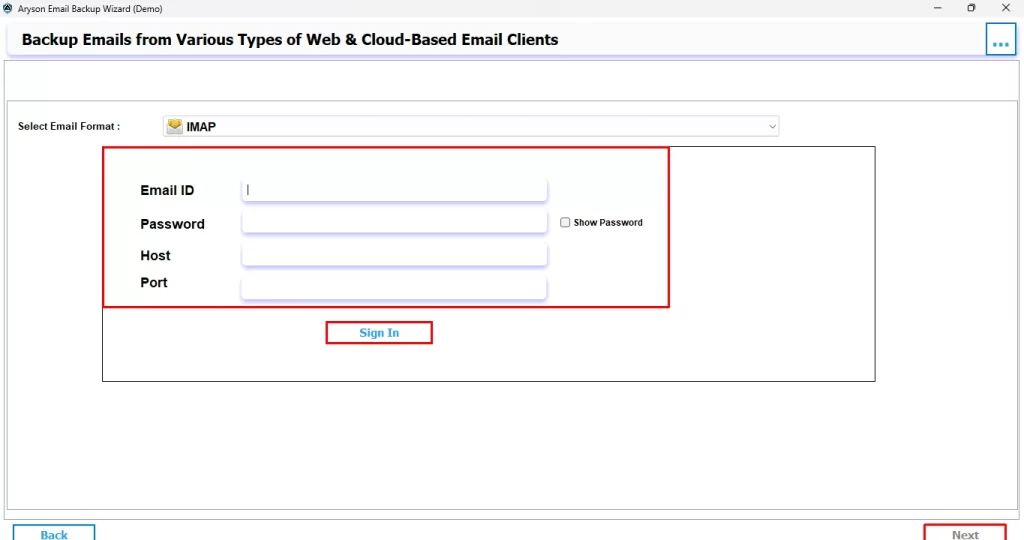
- You can also make use of the built-in features if needed, and then click Next to start the migration.
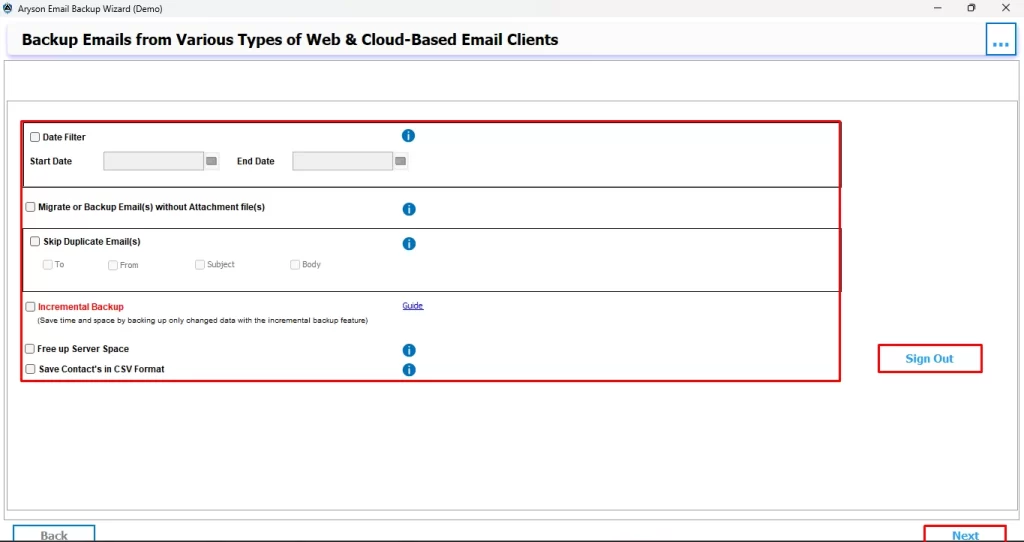
That’s it! In just a few simple steps, you can perform an Migrate Office 365 to IMAP server quickly and securely.
Conclusion
If you’ve followed this article till the end, you already know how to migrate Office 365 to IMAP server with the Aryson Email Backup Wizard and the manual method. The optimal solution gives you a genuine way to move your emails into IMAP without risking data loss or missing attachments. Whereas the manual approach is time-consuming and complicated. You can go for whichever method you want.
Frequently Asked Questions
Ans-Well, it just depends upon the method you are using for performing the migration process. In case you are using the Email Backup Wizard, there will be no data loss. However, if you proceed with the manual method, there might be a chance of data loss and corruption.
Ans- In case you are using the Email Backup Wizard for performing the Microsoft 365 to IMAP migration, it will take just a few seconds to complete the whole process. Whereas using the manual method may take you countless hours.
About The Author

Khushboo Maurya is a content and website optimization expert who helps blogs and websites grow naturally. She focuses on improving content quality and reaching more people through smart, simple strategies.