
How to Migrate Gmail to IMAP Account Without Data Loss
Summary: In today’s time, Gmail is one of the most widely used email platforms. Many users eventually need to migrate Gmail to an IMAP account due to organisational changes, server upgrades, or a shift to a different email service. The biggest concern during this process is avoiding data loss, including emails, attachments, folder structure, and metadata.
In this blog, we will explain how to migrate Gmail emails to an IMAP account without data loss. Also, we will discuss the Email Backup Wizard Tool that will prevent data loss and maintain email attachments.
Why you should transfer Gmail to IMAP
Here we will discuss why IMAP is more suitable than Gmail.
- Your IMAP syncs emails across desktop, mobile, and web clients.
- It keeps a copy of your emails safe outside Gmail.
- Move emails to another email provider without depending only on Gmail.
- Further, it organises emails using IMAP folders in different email clients.
- Suitable to work with Outlook, Thunderbird, Apple Mail, and mobile apps.
- It transfers your old emails and reduces the size of the mailbox.
Now, we will discuss the methods that help you migrate your Gmail data to the IMAP server.
What Data Needs to Be Preserved During Migration?
When you import Gmail emails to an IMAP account, the following data should remain intact:
- Your email mailbox data (Inbox, Sent, Drafts, Spam, Trash, etc.)
- Then, most importantly, email attachments and folder hierarchy.
- Date, time, subject, and sender details, and read/unread status.
Any reliable Gmail to IMAP migration method must ensure complete data integrity.
Manual Method to Migrate Gmail to IMAP
Now, you can migrate your Gmail data to IMAP using this free method. Before that, configure both Gmail and IMAP accounts in an email client like Thunderbird. After that, you can drag and drop them into a targeted account folder.
Prerequisites Before Proceeding with the Steps
- Start with an active Gmail account and an active destination IMAP account.
- You must have a stable internet connection.
- Further, Mozilla Thunderbird is installed on your system.
Step-by-step Process to Import Gmail Emails to IMAP Account
Step 01: Enable IMAP in Gmail
- To initiate the process, log in to your Gmail account and then click Settings >> See all settings.
- Also, open the Forwarding and POP/IMAP tab.
- In addition, under IMAP Access, select Enable IMAP and click on Save Changes.
Step 02: Create an App Password (Recommended)
Required if 2-Step Verification is enabled
- Now, go to the Google Account and then tap on Security.
- Further, enable 2-Step Verification (if not already enabled).
- After that, generate an App Password for mail and save the password.
Step 03: Add Gmail Account to Thunderbird
- Next, open Mozilla Thunderbird.
- Click Account Settings >> Account Actions >> Add Mail Account.
- Enter your Gmail email address and App Password.
- Thunderbird will auto-detect IMAP settings, and click on Done to continue.
Step 04: Add Destination IMAP Account
- Afterward, in Thunderbird, again select Add Mail Account.
- Next, enter the destination IMAP email credentials.
- Likewise, complete the account setup.
- Additionally, ensure both Gmail and IMAP accounts appear in the left panel.
Step 05: Start Gmail to IMAP Migration
- In addition, expand your Gmail account folders in Thunderbird.
- Next, select emails or entire folders (Inbox, Sent, custom labels).
- Moreover, drag and drop emails/folders from Gmail to the destination IMAP account.
- Now, Thunderbird will upload emails to the IMAP server.
- Last, log in to the destination IMAP webmail.
Drawbacks of the Manual Method
- It is a time-consuming process for large mailboxes.
- Apart from that, there is a high risk of missing or duplicated emails.
- Moreover, it is not suitable for bulk or multiple account migration.
Due to these limitations, most users prefer an automated Gmail to IMAP Migration Tool.
Reliable Method to Migrate Gmail to IMAP Professionally
Above, you see that the manual method has limitations because the user does not migrate their data in bulk. To overcome the above limitations, use the Email Backup Wizard tool. A reliable tool that is made with several built-in advanced features. See the points below for more factors.
- Moreover, it directly transfers Gmail to IMAP without intermediaries.
- Supports bulk Gmail account migration.
- Preserves folder structure and email metadata.
- Further, there is no email size or count limitation.
- Also, you can migrate Gmail to Outlook using this software.
- It provides secure authentication and data handling.
Proceed with the steps to Import Gmail Emails to IMAP Account
- To begin with, download and launch the Email Backup Wizard tool.
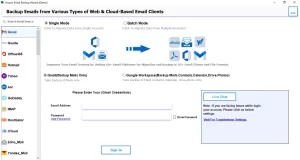
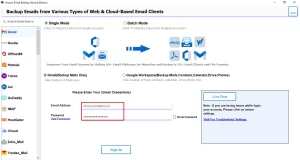
- Now, enter your Gmail login credentials, such as your Email Address and App Password, and click Sign in to continue.
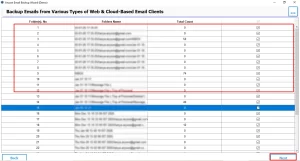
- Next, you can preview the fetched data of the Gmail mailbox and proceed further by clicking Next.
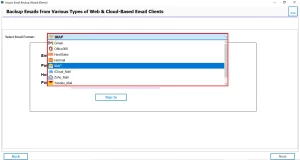
- On the next page, click on Migrate in Email Client, and from the drop-down menu, select IMAP.
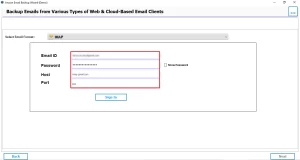
- Further, enter the credentials, such as Email ID, Password (App Password), Host (imap.gmail.com), and Port (993).
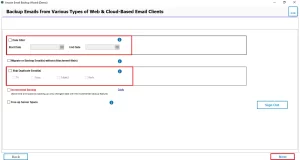
- Apply the advanced features, such as the Date filter and Skip duplicate emails, free up server space, and then click Next.
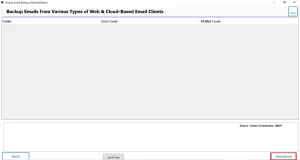
- Lastly, click on the Download button to migrate Gmail emails to IMAP.
Understand the Difference Between the Two Methods
| Features | Manual Method | Professional Method |
|---|---|---|
| Data Loss Risk | High risk of data loss and missing file attachments during the manual migration process. | Designed to secure user data and ensure accurate migration without any data loss. |
| Bulk Migration | Allows only one migration at a time, which is impractical for users with large volumes of data. | Supports bulk migration of large datasets efficiently. |
| Time Efficiency | The process is time-consuming as each step must be performed manually. | Performs faster migration by processing data in batches. |
| Folder Structure | The original folder structure is often altered or lost during manual migration. | Preserves the original folder structure and hierarchy. |
| Technical Skills | Requires technical expertise and can be confusing for beginners. | Comes with a user-friendly interface suitable for both technical and non-technical users. |
Final Thoughts
To sum up, migrating your Gmail data to an IMAP account does not have to be complicated or risky. While manual methods may work for small mailboxes, they are not reliable for professional or large-scale migrations. A migration tool ensures a secure, fast, and error-free process while maintaining complete data integrity and accuracy. This tool will save time and prevent data loss.
Frequently Asked Questions
Ans. Yes, the Email Backup Wizard Tool migrates all Gmail emails to an IMAP account with attachments and folder structure intact.
Ans. Yes, IMAP must be enabled in Gmail, so Email Backup Wizard can securely access and migrate your mailbox data.
Ans. The time depends on mailbox size and internet speed, but Email Backup Wizard performs the migration quickly and efficiently.
Ans. Yes, Email Backup Wizard migrates emails without modifying or deleting your Gmail account or data.
Ans. Yes, after migration, emails can be accessed on both desktop and mobile IMAP-supported email clients.
About The Author

Khushboo Maurya is a content and website optimization expert who helps blogs and websites grow naturally. She focuses on improving content quality and reaching more people through smart, simple strategies.

