
How To Effortlessly Migrate Gmail To Google Workspace Like A Pro
Overview: Most of the users face problems while managing their email safety and using it for professional work. Migrating your Gmail data to Google Workspace helps users to manage their emails professionally while keeping data secure and accessible. Many individuals and businesses still use personal Gmail accounts, which can limit collaboration and administrative control. This guide explains how you can migrate Gmail to Google Workspace smoothly. To ensure email continuity and data safety, use the Email Backup Wizard Tool to minimize downtime.
Insight Overview of Gmail and Google Workspace
| What is Gmail?
Gmail is a free and web-based email service. It collaborates with other apps such as Docs, Excel, Drive, etc. Also known for its user-friendly interface and powerful searchability. Gmail can be accessed from any device through an internet connection. |
What is Google Workspace?
Google Workspace is a cloud-based collaboration tool from Google. It combines multiple apps in a single place, such as Gmail, Docs, Drive, Calendar, Meet, and Chats. This is useful for both individuals and enterprises to connect, create, and work together. |
Why you should Migrate Gmail to Google Workspace
Several factors help you understand the importance of migrating your Gmail data to Google Workspace.
- You can use your own domain name (xyz@company.com) to create a credible image of the organisation.
- It can be accessed from any device, anywhere, and receives regular updates.
- Google Workspace is better for coordination, file sharing, and communication.
- Provide more storage across Drive, Gmail, and Photos as compared to free accounts.
- Additionally, it allows real-time editing in docs, sheets, slides, and calendars.
- Also, making it ideal for business scalability and reliability for free accounts.
- When you migrate from Gmail to Google Workspace, you gain better control over users, data, and security.
Moving forward, see the working process on how you can transfer your Gmail mailbox data to Google Workspace. That will help you to migrate the data in a faster way and ease your work.
Method 1: Manual Way to Transfer Gmail to Google Workspace
Google provides a built-in data migration service that allows you to transfer your Gmail data to Google Workspace easily.
Step-by-step Guide to Migrate Gmail Emails to Google Workspace
- Firstly, sign in to the Google Workspace Admin Console.
- Then, navigate to Data, select Data Import and export, then Data Migration(new) from the admin dashboard.
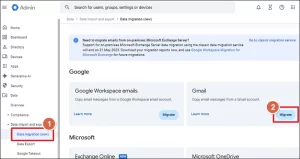
- After that, select the source as Gmail and enter the credentials of your Gmail account.
- Further, authorized access requests will be sent to your email address for OAuth authentication.
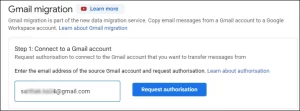
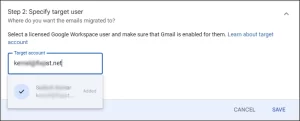
- Now, verify the request for further processing and enter the targeted Google Workspace address, and press Save.
- In the same way, select the migration options such as date range and labels, and start the migration process.
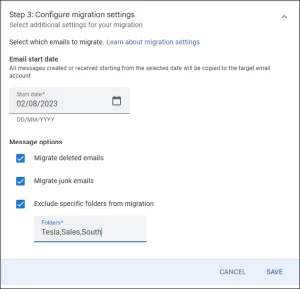
Once the process is completed, all selected Gmail emails will appear in the target Google Workspace mailbox.
Why you should avoid the Manual Method
- In addition, it has limited control over large or multiple accounts.
- Likewise, it slows down the migration speed for large mailbox data.
- Moreover, for this method user requires technical knowledge and admin access.
- As a result, it does not provide advanced filtering or duplicate removal.
These limitations often push users to look for more flexible solutions.
Method 2: Professional Solution for Gmail to Google Workspace Migration
Use this method to get accuracy, speed, and full control. A professional migration tool allows you to migrate Gmail emails to Google Workspace without data loss or service disruption.
Using the professional Email Backup Wizard tool supports bulk migration and selective email transfer. Also, it ensures secure user authentication and faster migration for business-level data. Additionally, it provides a date filter option and maintains folder hierarchy. This software supports multiple input sources that help users to migrate data from any source using a single tool.
Working steps to migrate Gmail to Google Workspace
- To start the process, download and install the Email Backup Wizard Tool.
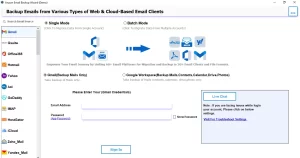
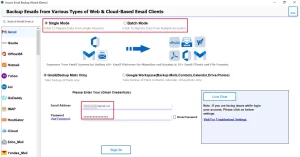
- Then select the mode – Single or Batch, and enter the input source chosen credentials (here, we use Gmail).
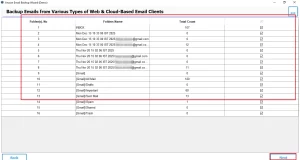
- Now, you can preview the mailbox data, select the folders to migrate, and click Next.
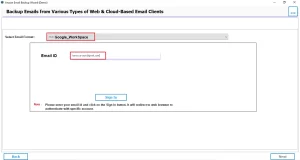
- Further, select Google Workspace as the email client to migrate data, then enter the Gmail address.
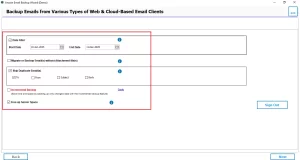
- After that, apply the additional filters like skip duplicates and date filter, and click Next.
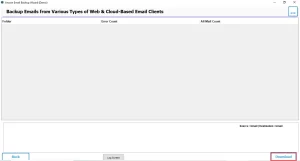
- And lastly, click on the Download button.
Benefits of Using this Professional Migration Tool
Therefore, some features of using an advanced tool to migrate Gmail emails to Google Workspace are as follows:
- This tool preserves email structure and metadata.
- Additionally, it provides faster and more secure email migration.
- Furthermore, it supports multiple Gmail accounts at once.
- Its simple layout is suitable for both individual and enterprise users.
- Moreover, it allows selective migration using filters.
Gmail vs Google Workspace – Key Difference
| Features | Gmail | Google Workspace |
|---|---|---|
| Usage | Personal | Business & Enterprise |
| Custom Domain | Not Available | Available |
| Admin Control | Limited | Full Control |
| Security | Basic | Advanced |
| Collaboration Tool | Limited | Integrated Suite |
Also, you can explore similar migration solutions, like migrate Gmail to Office 365 for cross-platform email transfer.
Conclusion
To wrap up, we have discussed the importance of migration and methods to move data to Google Workspace. Moreover, you can choose any of the methods according to your needs. This blog helps you to easily migrate Gmail to Google Workspace with proper working steps. For safe and secure migration, it is recommended to use a professional tool.
Frequently Asked Questions
Ans. The time depends on mailbox size and internet speed. Small accounts take minutes, while large ones may take several hours using the Email Backup Wizard Tool.
Ans. Common issues include login errors, slow internet, and API limits. The Email Backup Wizard Tool resolves them using secure login, pause-resume, and automatic error handling.
Ans. Yes, the Email Backup Wizard Tool runs migration in the background. Users can continue sending and receiving emails without interruption.
Ans. Manual methods have size and time limits. The Email Backup Wizard Tool supports large mailboxes, multiple accounts, and complete data without loss.
Ans. Yes, first check the internet connection, login credentials, and permissions. The Email Backup Wizard Tool offers logs and a resume option to restart failed migrations.
About The Author

Khushboo Maurya is a content and website optimization expert who helps blogs and websites grow naturally. She focuses on improving content quality and reaching more people through smart, simple strategies.

