
How to Easily Migrate AOL Mail to Office 365 in Simple Steps?
Overview: If you want to migrate AOL Mail to Office 365, the whole migration task may seem very hectic, but it’s not once you follow the right approach. In this blog, we will discuss two of the most accurate and practical approaches to migrating AOL Mail to Office 365 efficiently and securely. We’ll cover both manual methods for those who prefer hands-on control and an automated approach using the Aryson Email Backup Wizard. And if you are a complete beginner, you can refer to the Step-by-step tutorials provided to perform a secure migration.
Why Migrate AOL Mail to Office 365?
You can clearly see the advantages offered by the Office 365 email client, as shown in the table below.
| Reasons | AOL Mail | Office 365 |
| Security | Basic spam and virus protection | Advanced multi-layer security, encryption, and compliance |
| Storage | Limited mailbox size | Large mailbox with scalable cloud storage |
| Collaboration | Minimal | Real-time collaboration with Teams, SharePoint, and OneDrive |
| Accessibility | Web and mobile | Web, desktop, and mobile with offline access |
| Integration | Limited by other apps | Full integration with Microsoft apps and services |
Top solutions to migrate AOL Mail to Office 365
There are a number of ways available to perform the migration process, but here in this blog, we will explore only the two most effective ones. You can pick either of the two as per your need and convenience.
Method 1: Manual Solution to Migrate from AOL to Office 365
If you want to migrate AOL Mail to Office 365 without using any paid software, you can use MS Outlook’s built-in features. Below are the step-by-step instructions you can follow to move your data securely:
- Start the Microsoft Outlook application on your computer.
- Then, go to the File menu and click on the Add Account option.
- Now, log in to your AOL account with valid credentials.
- Once you are logged in, go to File >> Open & Export >> Import/Export.
- Now, select the Export to a file option and click Next.
- Choose the Outlook Data File of (.pst ) format and hit Next.
- Pick the specific AOL mailbox folders you want to export and click Next.
- Search for a location on your PC to save the PST file, and then click Finish.
- Again, navigate to File >> Add Account.
- Now, simply input your Office 365 login details to set up your account in Outlook.
- Finally, use the Import/Export wizard to import the PST file into your Office 365 mailbox.
Note: Although this method will work absolutely fine, it requires the installation of MS Outlook and decent technical knowledge for you to proceed. Along with that, it can take you long hours to migrate a large number of emails using this method.
User query: “I have been using AOL Mail for 2 years, and now I want to switch to Office 365. But unfortunately, I am unable to figure out how to migrate my emails from AOL Mail to Office 365. Can anyone tell me a secure way to do the same?”
Method 2: Automated Solution to Migrate from AOL to Office 365
If users want to manage their emails in a better way, they should use the Aryson Email Backup Wizard to move AOL Mail to Office 365 without affecting their data or attachments. Along with that, you can directly migrate from AOL Mail to Office 365, Gmail, G Suite, or IMAP. Moreover, it can export AOL emails to MBOX file, PDF, PST, and many more file formats. Additionally, it provides you with different built-in features to enhance your productivity and ease of work.
Steps to Migrate AOL Mail to Office 365
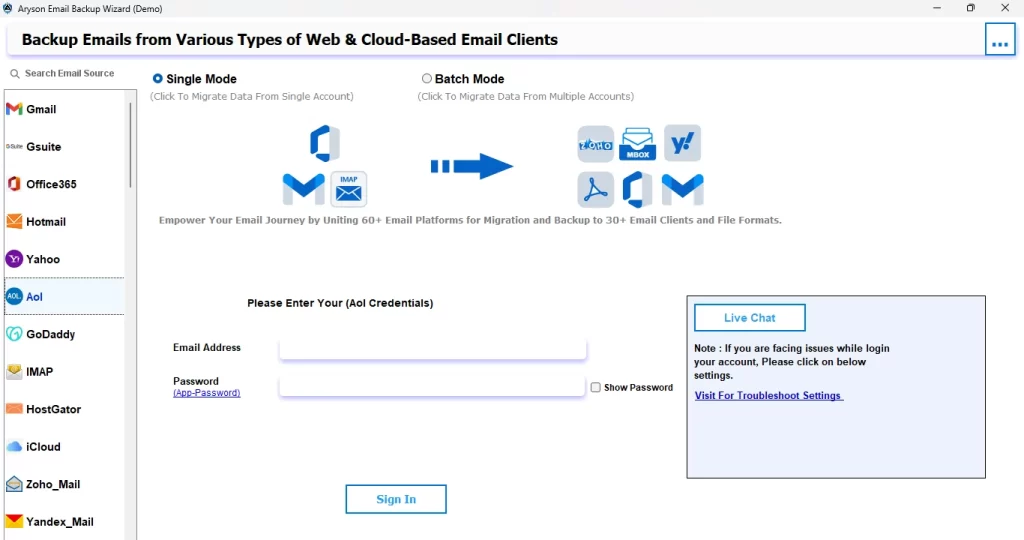
- Start the Aryson Email Backup Wizard & pick AOL as the source email client.
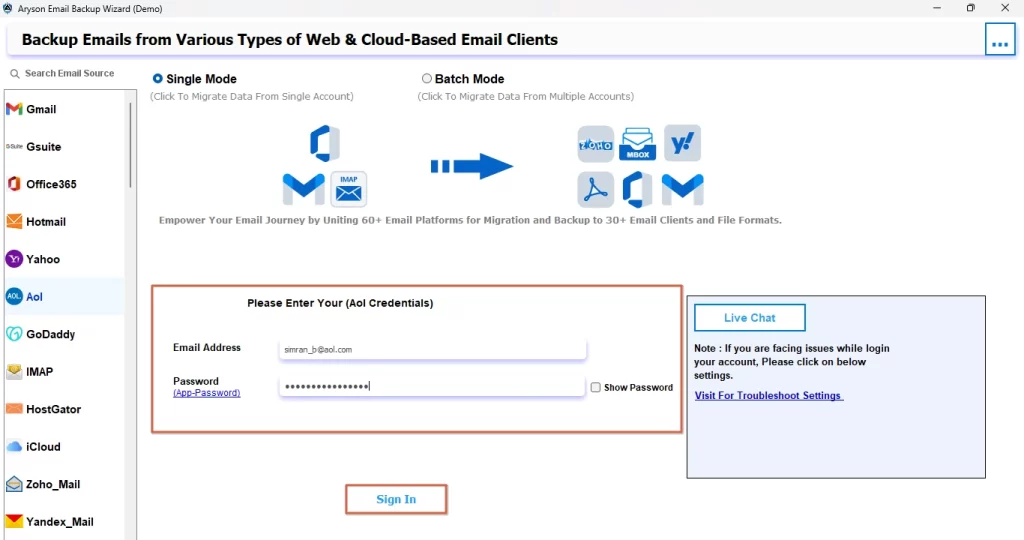
- Then, you have to Sign In to your AOL Mail account with your valid AOL credentials.
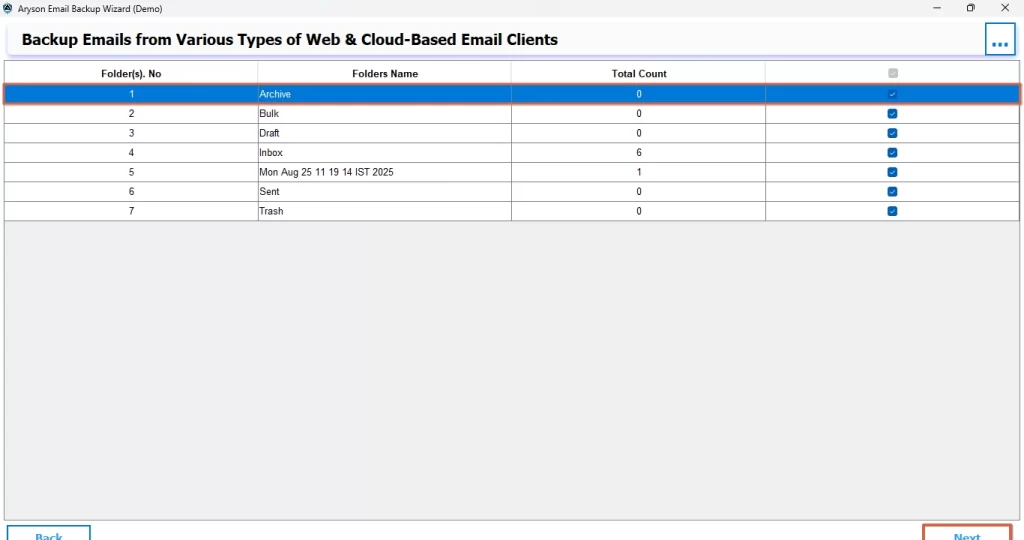
- Now, you can preview and select the desired AOL Mail files for migration.
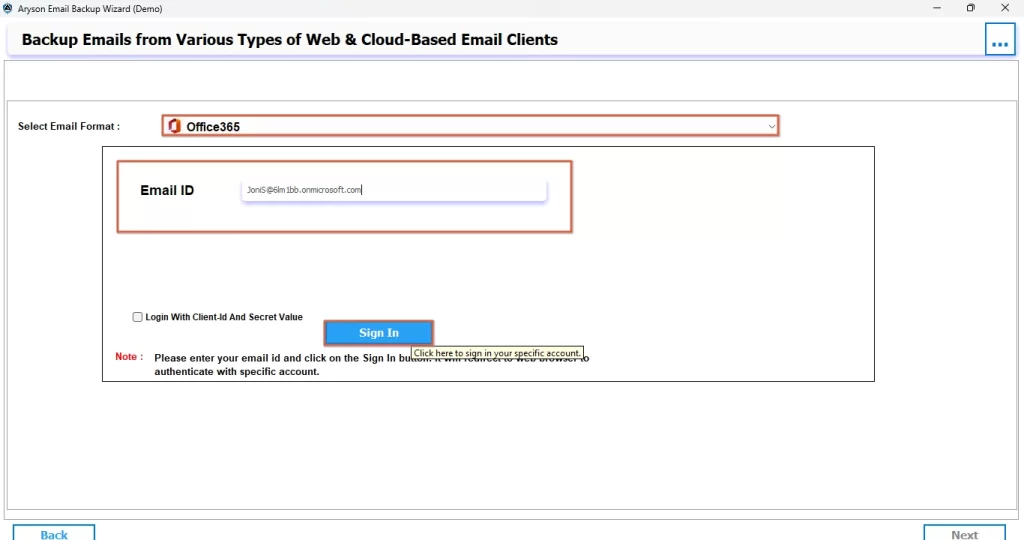
- Next, select Office 365 as the email client and log in to it.
- Use the additional built-in features of the software and hit Next to proceed.
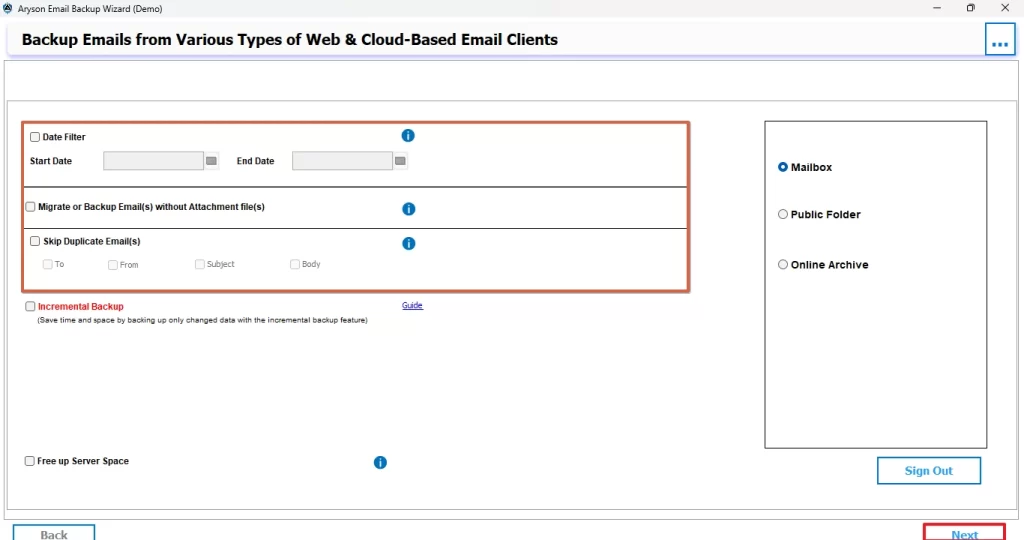
See, it is that simple to transfer emails from AOL Mail to Office 365 using the automated solution, keeping all your files and attachments intact. If you are following the right steps carefully, there will be no issues that you can face in migration.
Conclusion
In short, you can migrate AOL Mail to Office 365 using either of the two methods. If you already have MS Outlook installed in your system, you can try migrating a few files with the manual method. Whereas, if you are a complete beginner and don’t want to invest long hours to migrate a large number of files, you can use the automatic method. At the end of the day, the choice is all yours.
Frequently Asked Questions
Ans- No, if you are using the Aryson Email Backup Wizard, all your emails will remain secure during the AOL to Office 365 migration. Whereas, in the case of the manual method, there are chances of data loss.
Ans-Yes, with the right migration tool or guided method, even non-technical users can transfer AOL Mail to Office 365 smoothly without any need to set up complex fixes.
Ans: Common concerns include slow migration speed, incomplete data transfer, incorrect credentials, or connection errors. Ensuring a stable internet and accurate login details helps avoid these issues.
Ans- However, the migration time depends upon the size of the mailbox; if you are using the automated solution mentioned above, it will take you just a few seconds.
Ans- No, forwarding only sends new emails to Office 365. Migration transfers the entire mailbox, including old emails, folders, and attachments, ensuring a complete and permanent transition.
About The Author

Khushboo Maurya is a content and website optimization expert who helps blogs and websites grow naturally. She focuses on improving content quality and reaching more people through smart, simple strategies.

