How to Import MBOX to Office 365 Without Data Loss (2026 Guide)
Nowadays, moving emails from MBOX files to Office 365 is not always straightforward. MBOX works fine with some email clients, but Microsoft’s ecosystem is different. Office 365 doesn’t recognize the format directly, which leaves many users stuck trying to figure out how to get their data across without losing anything along the way. The right method makes a big difference when you switch platforms. This 2026 guide walks you through the most practical ways to get MBOX files into Office 365. We’ll look at manual options as well as the dedicated MBOX Migrator Tool to import MBOX to Office 365 in a secure way.
TL;DR: Users can’t directly import MBOX files into Office 365 because the platform doesn’t support the MBOX format. You can use the manual method or the enterprise-level software to complete the migration.
Why Migrate MBOX to Office 365?
Many organizations and individuals switch from the MBOX format to Office 365 due to its cloud-based advantages.
- Office 365 offers a centralized email management system to get everything in one place.
- Moreover, Office 365 also lets users check their emails from virtually any location.
- It has a smooth integration with Microsoft apps like Teams, OneDrive, etc.
As Office 365 does not support MBOX files directly. Therefore, migration is the only option to access your MBOX format files in Office 365.
What is an MBOX File?
An MBOX is a mailbox format that is used by many email clients, such as Thunderbird and Apple Mail. It stores multiple emails in a single file, so the direct import MBOX to Office 365 is impossible without conversion.
Pre-Migration Checklist
Before you begin the import MBOX to Microsoft 365 process, make sure the following points:
- Make sure to take a backup of all MBOX files.
- You need to verify the Office 365 account credentials.
- Moreover, must have a sufficient mailbox storage.
- Before starting the migration, check the internet stability.
- Additionally, you have to organize MBOX files into folders.
Important Note: These steps minimize the risk and make sure a smooth migration.
Method 01: Manual Approach to Import MBOX to Office 365
With the help of the manual method import MBOX file to Office 365 is possible, but it involves multiple steps and the use of intermediate email clients. Since Office 365 (now Microsoft 365) does not support MBOX files directly, you must first convert or move the data with a compatible application like Mozilla Thunderbird and then import it into Microsoft Outlook.
Below is a step-by-step manual method to migrate MBOX emails to Office 365:
Step 01: Install and Set Up Mozilla Thunderbird Account
- First, download and install Mozilla Thunderbird on your system.
- Afterward, you can launch the application & set up an email.
- Then, make sure Thunderbird is fully synced before proceeding.
Step 02: Load MBOX File Data into Thunderbird Mail Client
- Now, you need to install the ImportExportTools NG add-on.
- Thereafter, restart Thunderbird after installation.
- Next, right-click on Local Folders >> Select ImportExportTools NG >> Click Import MBOX file.
- Subsequently, you have to choose your MBOX file and import it.
- After that, the emails will now appear under Local Folders.
Step 03: Connect Office 365 with Thunderbird
- Next, in Thunderbird, navigate to the Account Settings.
- Moreover, you need to add your Office 365 account using IMAP credentials.
- Then, allow Thunderbird to sync all folders with the Office 365 server.
Step 04: Transfer Emails from MBOX to Office 365
- Thereafter, open the imported MBOX folder in Thunderbird.
- Likewise, select all emails (Ctrl + A) and drag and drop them into your Office 365 mailbox folders.
- Furthermore, wait for synchronization to complete the import.
Disadvantages of the Manual Method
- This method consumes a lot of time for the export.
- It includes a risk of data loss or file corruption.
- Moreover, there is no guarantee of folder hierarchy retention.
- Additionally, it is not suitable for the migration of emails in bulk.
Common Challenges During Migration
- There are high chances of email duplication.
- Folder attachments must be missing at the time of migration.
- The slow internet speed is one of the most common challenges.
These are the reasons users prefer professional software over the manual method.
Method 02: Professional MBOX to Office 365 Migration Tool
You can use the MBOX Migrator Tool, which can directly move your MBOX files to Office 365. This software is created to securely migrate users’ valuable data while maintaining the folder hierarchy. Its strictly adheres to the privacy policy. Apart from that if offers bulk migration of emails. This software provides the conversion to different file formats, such as you can convert MBOX to PST and other file formats. Moreover, its user-friendly interface makes the process easier for both technical and non-technical users.
Steps to Import MBOX to Office 365
- To initiate the process, first download the MBOX Migration Tool.

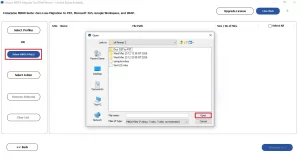
- After that, click on select file/folder and upload .mbox files >> Next.
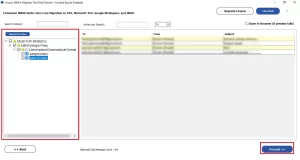
- Then, preview the MBOX files details with attachments >> Proceed to move ahead.
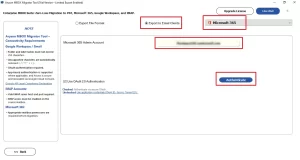
- Now, from the export to email client, select Office 365 and enter the login credentials.
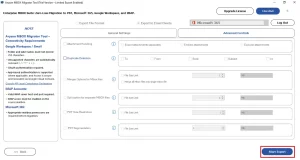
- Next, enable the filters in the General Settings and Advanced Control.
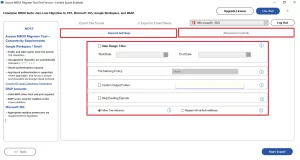
- At last, click on Start Export to begin the export of MBOX to Office 365.
Comparison of Manual Method vs Professional Method
| Features | Manual Method | Professional Software |
| Ease of Use | Complex | Easy |
| Data Safety | Medium Risk | High |
| Bulk Migration | Not Supported | Supported |
| Time Required | High | Low |
| Technical Skills | Required | Not Required |
| Original Folder Structure | May Break | Preserved |
Tips to Avoid Data Loss During Migration
- Always keep a backup of your MBOX files for future needs.
- It is recommended to use professional software to avoid loss.
- Do not interrupt the migration process for secure export of files.
- Check the MBOX files before you begin the export process.
Post Migration Checklist
- You must check the email count after the migration.
- Need to verify the attachments of the emails.
- Must validate the folder structure of the emails.
- Moreover, test the sending/receiving of emails.
Conclusion
To sum up, importing MBOX to Office 365 can be difficult due to its compatibility issues. While the manual methods are available, but it is suitable for small-scale conversion. Moreover, this comes with many limitations and a risk of data loss. Therefore, it is recommended to use advanced software for a secure and hassle-free experience to import MBOX to Office 365. If you are stuck in the migration process, then you can connect to our technical team via chat support.
Frequently Asked Questions
Ans. Yes, you can use a professional migration tool that directly imports MBOX files into Office 365 without needing Outlook.
Ans. It depends on file size, internet speed, and the method used. Tools can significantly reduce migration time compared to manual methods.
Ans. Yes, an active Office 365 subscription is required to store and access migrated emails.
Ans. Not directly. You’ll need to delete the imported data and re-run the migration using the correct settings or filters.
Ans. This tool offers data integrity, preview options, selective migration, and strong security standards. Always choose a trusted and well-reviewed solution.
About The Author

Khushboo Maurya is a content and website optimization expert who helps blogs and websites grow naturally. She focuses on improving content quality and reaching more people through smart, simple strategies.