How to Export Zoho Mail to PST Effortlessly
Nowadays, Zoho Mail is a widely used email service for personal and business communication. Sometimes, users must move their Zoho Mail emails to Microsoft Outlook for easy migration. Since Zoho Mail does not offer a direct way to export emails to PST format, the process may feel difficult or confusing. In this blog, we will explain the methods to export Zoho Mail to PST, including the Email Backup Wizard Tool.
Benefits of Zoho Mail to an Outlook PST File Conversion
Zoho Mail is a native format for email clients and supports the .eml file format. It is bundled in a .zip format that allows a local backup. As Zoho does not support the PST file format, it is essential to transfer Zoho Mail to PST. To know more about why you should convert to PST, read the given pointers:
- PST is the native format of Outlook, making it essential to move data to Outlook.
- It is a standard format that is easy to share with other operating systems.
- Due to its retention policy, sharing legal documents anywhere becomes easy.
- Unlike Zoho, users can access .pst data without internet connections.
- Also, it provides an archive of your emails to prevent data loss and account lockout.
You understand the importance of exportation. You can now move further to know the methods by which you can easily export Zoho Mail to Outlook PST.
Method 01: Use the Advanced Tool to Export Zoho Mail to PST
The Email Backup Wizard Tool is reliable for all users, as it has many email sources. This software is designed with a simple interface that is easy to use for every user. Moreover, its embedded features help users to convert or migrate only selective data from their entire mailbox data. Therefore, individuals and organisations who manage their data in bulk can use this software. Along with that, it will keep the folder structure and hierarchy intact.
Working Steps to Export Emails from Zoho Mail to PST
- First, download the Email Backup Wizard Tool and select Zoho Mail as the input email client.
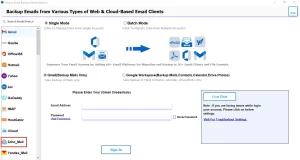
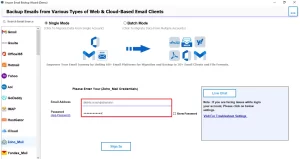
- Then, enter your Zoho Mail Email and its App Password and proceed further.
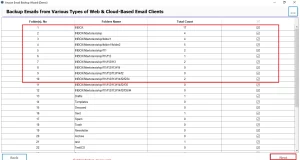
- It will fetch all your mailbox data, preview and select the file you want, and click Next.
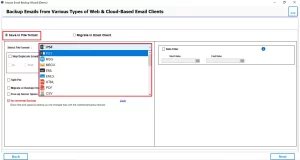
- After that, select PST as the file format from the drop-down menu.
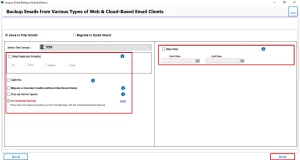
- Next, apply the additional filters, such as the Date Filter, Skip Duplicate File, and Split PST.
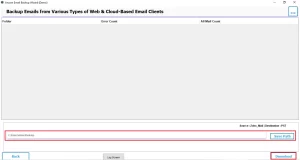
- At last, click on the Path to save for the resultant destination and click Download.
Why the Automated Approach is Best for You
- Before starting the export, you can preview the mailbox data.
- You can enable skip duplicate email to prevent repetitive emails in the folder.
- It will break the resultant PST to maintain the size.
- If you don’t want email attachments, you can migrate them with attachments as well.
- Apart from that, you can select the destination folder location for easy recognition.
- Also, you can migrate Zoho Mail to Office 365 and other email clients.
For users who have a small number of files to export emails from Zoho Mail to PST, they can use the next method.
Method 02: Transfer Zoho Mail to PST Using Zoho’s Built-in Feature
This is the free Zoho built-in feature by which you can convert Zoho Mail to Outlook PST file. Follow the steps to transfer emails:
- Open Zoho Mail and go to the Settings option.
- Then, from the list, select Import/Export and then Export.
- Now, open the folder you want to convert and give the Export Date.
- Next, click on Export to start the process.
- After completion, a download link is sent to your same Zoho Mail account.
- Save it as a ZIP file, and the extracted folder will be in EML format.
- Lastly, drag & drop the EML folder to the Outlook account.
Method 03: Using MS Outlook POP Configuration
To initiate with this method, first log in to your Zoho Mail account and enable POP access. Now, follow the steps to proceed with the exportation.
Step 01: Configure Zoho Mail in Outlook (POP)
- For this, open Outlook and go to the File option and then Add Account.
- Next, select the Manual Setup or additional server types.
- After that, choose POP or IMAP and click on the Next button.
Now, Enter Zoho POP Settings
- Name:- Your Name & Email Address:- Your Zoho email
- Account Type: POP3
- Incoming Server: pop.zoho.com & Outgoing Server: stmp.zoho.com
- Username: Full Zoho email address & Password: Zoho password or App password
Advanced Settings
- Incoming Server (POP3): Port 995
- Encryption: SSL/TLS
- Outgoing Server (SMTP): Port 465 or 587
- Enable My outgoing server requires authentication
- Click OK, then Next to finish setup.
Step 02: Download Zoho Email into Outlook
- Now, Outlook will download Zoho emails locally using POP.
- Wait till the synchronisation is complete and all your Zoho mail appears in Outlook.
Step 03: Export Zoho Mail from Outlook to PST
- In Outlook, navigate to File >> Open & Export >> Import/Export.
- After that, select Export to a file >> Next.
- Then, select Outlook Data File (.pst) and then Next, and select Zoho Mail.
- Now, check Include Subfolders and select the destination location, and click Finish.
Step 04: Verify the Exported PST File
- After that, in Outlook, go to File tab, then Open & Export option >> Open Outlook Data File.
- Next, browse and open the exported PST file, and Confirm emails are intact.
Disadvantages of Method 1 & Method 2
- Additionally, both methods are lengthy and time-consuming.
- Users have to perform several steps to complete the conversion.
- Further, the user must have an Outlook configuration before proceeding with the methods.
Conclusion
Here, we have discussed all the possible methods to export Zoho Mail to PST. According to your requirements, you can opt for any method. Therefore, it is important to choose the right approach; this blog contains three methods. Whereas, it is suggested that you use the professional methods that will securely export your data.
Frequently Asked Questions
Ans. Yes, Email Backup Wizard allows exporting Zoho Mail emails directly into PST format, making them easily accessible in Microsoft Outlook.
Ans. Yes, the demo version allows limited export, while a complete backup requires a licensed version.
Ans. No, Zoho Mail does not provide direct PST export for all users. Whereas, the Email Backup Wizard enables secure and flexible PST export.
Ans. Export time depends on mailbox size, email count, and internet speed. Therefore, small mailboxes take minutes, while larger mailboxes may take longer.
Ans. Yes, the Email Backup Wizard supports batch migration, allowing multiple Zoho Mail accounts to be exported into a single PST file.
Ans. Yes, the exported PST files are compatible with all major Microsoft Outlook versions, including Outlook 2010, 2016, 2019, and Microsoft 365.
About The Author

Khushboo Maurya is a content and website optimization expert who helps blogs and websites grow naturally. She focuses on improving content quality and reaching more people through smart, simple strategies.

