How to Convert EML to MBOX on Mac Without Data Loss?
Summary: Are you looking for a safe method to convert EML to MBOX on the Mac operating system? Numerous users encounter compatibility problems while opening EML files on macOS. With the increasing use of Mac, converting EML to MBOX is necessary for easy access. Users are looking for a safe and correct way to do this conversion. In this blog, we described both the manual method and a professional EML Converter Tool to ensure the safe handling of data. Use the described tool to convert your EML file into an MBOX file format with ease.
Reasons to Convert EML to MBOX on Mac
Below are the primary reasons to import EML to MBOX on Mac, particularly for users working with large email quantities or transitioning between email clients:
- MBOX format is accessible by most popular email clients, allowing for easier import and access to your messages.
- In contrast to EML, which saves single messages, MBOX is capable of keeping multiple messages in a single file, making handling and transfer much easier.
- Upon migrating from Windows to macOS, MBOX is a more compatible and secure bridge format.
- As far as backup is concerned, MBOX files are simpler to categorize and restore than multiple EML files.
- The majority of Mac email clients natively support MBOX, whereas EML files often require alternative support.
Manual Method to Convert EML to MBOX
Here is the manual method to convert your EML file into MBOX format, using the Mozilla Thunderbird application.
- Start by downloading the Mozilla Thunderbird application from the official website and installing it on your computer.
- After that, go to the gear section and click on it to open the settings tab.
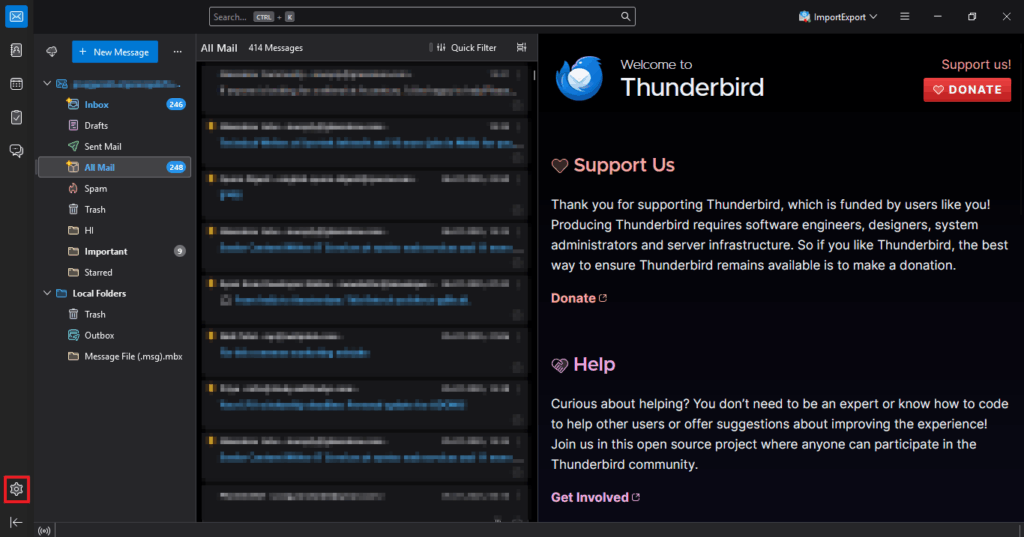
- Under the settings tab, choose the Add-ons and Theme option.
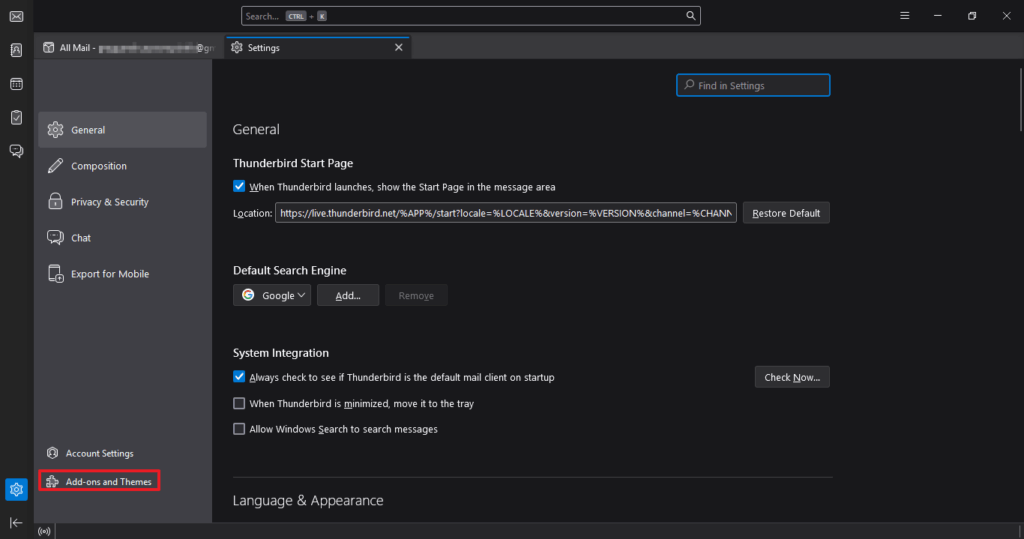
- In the search panel, search for ImportExportTool NG add-ons.
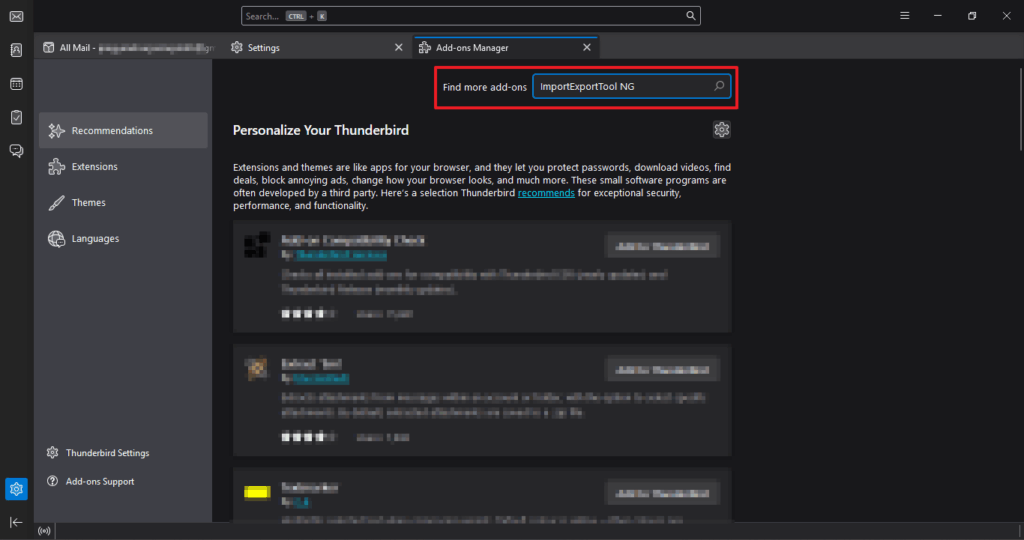
- Follow the on-screen instructions to install the add-ons on the application.
- After that, create a subfolder in the local folder.
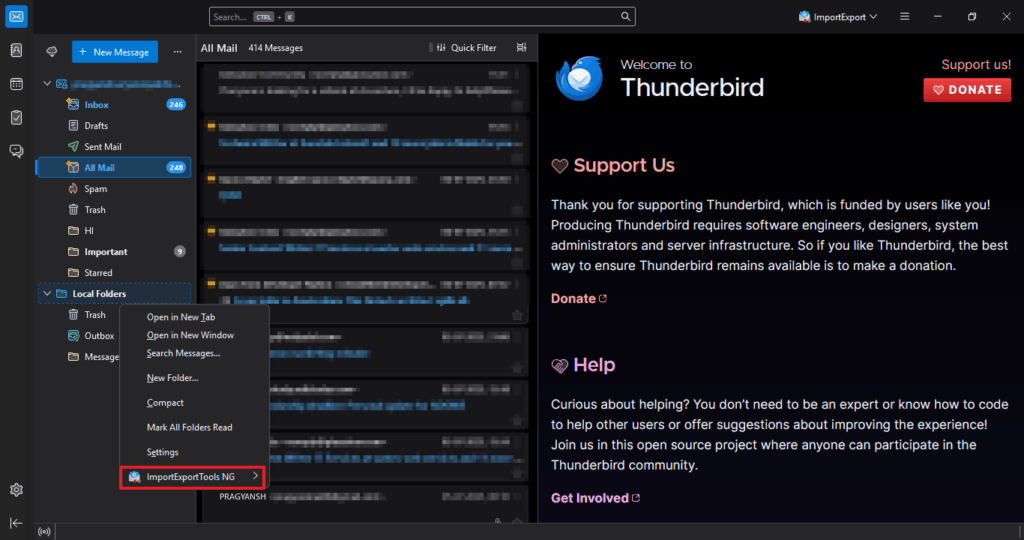
- After installation, right-click on the Local Folders section in the left sidebar.
- Next, right-click on it and choose the ImportExportTools NG option.
- Now, choose the Import EML Messages option and choose Individual EML messages.
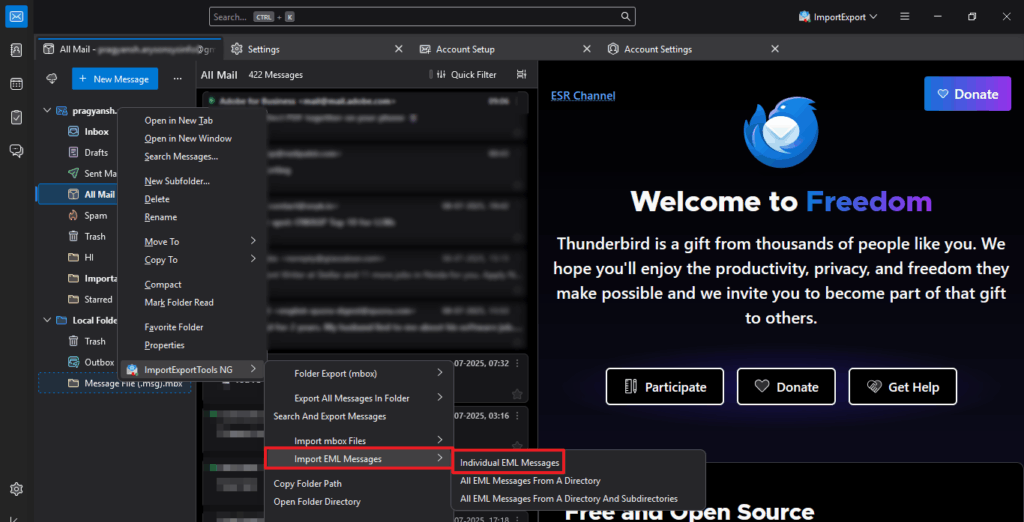
- Browse and select the desired EML file from your local drive.
- Navigate to and choose the EML file you want to export as an MBOX.
- After that, select ImportExportTools NG > Folder Export (mbox).
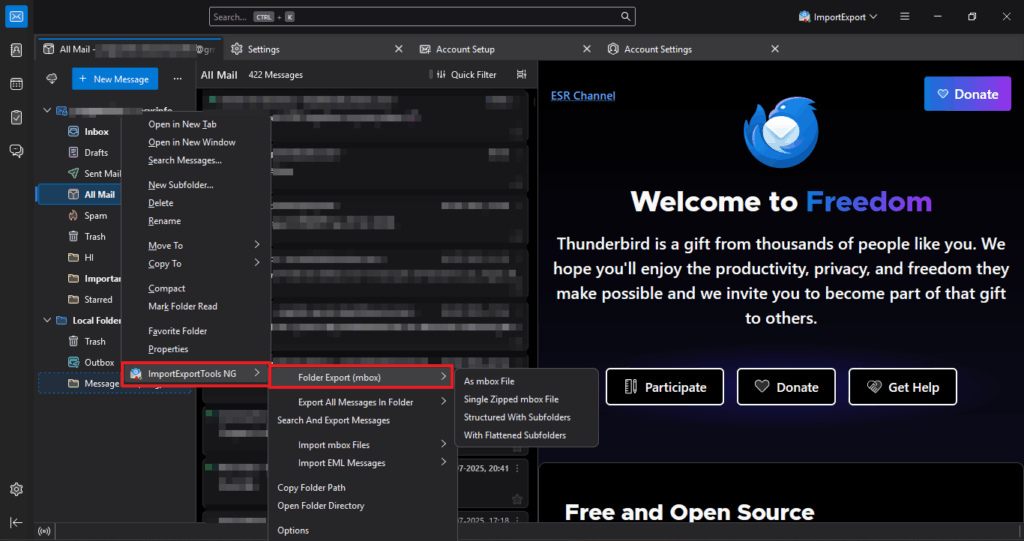
- Browse and select the desired location on your local drive to save the output.
- In the end, make sure all your data is intact and safe throughout the process.
Effortless Solution to Convert EML to MBOX
The EML Converter Tool offers a dependable and user-friendly solution for converting your EML files into MBOX format. It supports bulk data migration while maintaining complete data integrity and ensuring privacy throughout the process. Moreover, the tool is equipped with the latest and most innovative algorithm that can convert EML to AOL Mail, Yahoo Mail, Mozilla Thunderbird, and many more email clients. Additionally, the tool features an intuitive and user-friendly interface, making it easy for users of all experience levels to navigate without any difficulty.
Steps to Convert EML to MBOX File in Bulk
- Begin by downloading and installing the EML Converter Tool on your computer.
- Launch the tool and click on either Select File or Select Folder, based on your need.
- After that, locate and load the EML files from your local storage.
- Preview the email content and pick the specific files you want to convert.
- From the output format options, select MBOX as the target format.
- After that, apply any filters or settings as required.
- Choose the destination folder and click Convert to begin the process.
Conclusion
In a nutshell, EML to MBOX conversion on Mac is easy, secure, and convenient using the proper approach. Manual steps provide control, but automated tools guarantee speed and accuracy, particularly for mass conversions. Whether you’re migrating email or taking backups, the MBOX format is a safe and platform-independent format. Utilize reliable tools so as not to lose data and preserve folder organization and email integrity along the way. Select the one that best suits your needs and experience hassle-free mail management on Mac.
Frequently Asked Questions
Ans: You can convert EML files to MBOX using either a manual approach or a dedicated professional tool. For enhanced security and accuracy, it’s recommended to use a reliable professional solution.
Ans: Yes, you can export EML files to MBOX by applying the professional tool. The software exports your partially inaccessible or corrupted EML files in a single click.
Ans: Here’s a clear comparison of EML and MBOX formats:
| Feature | EML | MBOX |
| File Type | Individual email file | Single file storing multiple emails |
| File Extension | .eml | .mbox |
| Structure | Stores one email per file | Stores all emails from a folder in one file |
| Used By | Outlook Express, Windows Live Mail, etc. | Thunderbird, Apple Mail, Eudora, etc. |
| Ease of Transfer | Harder to manage in bulk | Easier to transfer and back up |
| Compatibility (Mac) | Limited | Widely supported |
| Storage Efficiency | Takes more space (many small files) | More compact (single file for many emails) |
About The Author

Khushboo Maurya is a content and website optimization expert who helps blogs and websites grow naturally. She focuses on improving content quality and reaching more people through smart, simple strategies.

