Effortlessly Export Office 365 To MBOX: A Complete How-To Guide
User query: “Today I wanted to export Office 365 to MBOX, but didn’t know any way to securely export all my emails. Do you know any reliable method to perform the export process?”
Overview: Want to export Office 365 to MBOX but unsure where to begin? This guide makes the process simple and hassle-free. Here, we will cover two practical methods: a manual approach and a fully automated, trustworthy solution, such as Aryson Email Backup Wizard. Each method is explained step-by-step so that you can successfully export all your emails without losing attachments or data. Whether you go for the manual method or proceed with the software solution, this write-up ensures an effortless and error-free export.
Why should a user Convert Office 365 Emails to MBOX?
Exporting Office 365 emails to MBOX is a simple way to secure and manage your data efficiently.
- You can save all your emails locally to protect them from accidental loss.
- Move emails effortlessly between different email clients whenever you want.
- The user can access all emails without needing an internet connection.
- Keep all your emails sorted by folders and dates for easy use.
- You can preserve emails for audits, compliance, and official purposes.
Looking at these benefits of the MBOX format, you should convert Office 365 emails to MBOX using the steps given below.
Best Solutions to Export Office 365 to MBOX
You can backup Office 365 Email to MBOX in two ways. In this part, we will explore both manual steps and the automated solution, so you can pick the best one for you as per your requirements.
Solution 1: Export Office 365 to MBOX Using Mozilla Thunderbird
Manually exporting Office 365 emails to MBOX allows you to back up your mailbox using Mozilla Thunderbird without need to install any extra software. You have to simply connect your account, move emails to a local folder, and save them as an MBOX file. You can export emails from Office 365 to MBOX using the steps given below:
- First, Run the Mozilla Thunderbird >> Tools >>Account Settings >> Add Mail Account.
- Then, enter your valid Office 365 credentials. Thunderbird will automatically configure the account.
- Right-click your account >>New Folder >>name it >>click Create Folder.
- Select emails from the Inbox or Sent Items & drag and drop them into the local folder.
- Right-click the local folder >> Export >> choose a location >> name the MBOX file >> Save.
Solution 2: Automatic Solution to Export Office 365 to MBOX
Aryson Email Backup Wizard is the most trustworthy way to export Office 365 emails to MBOX. Using this software, you can back up your emails without worrying about loss of data or attachments. It also offers helpful features like skipping previously migrated emails, freeing up server space, and applying a date filter to export only the emails you need. On top of that, the software lets you export Office 365 emails to EML, PDF, MSG, and many more file formats.
Simplified Tutorial to Export Office 365 to MBOX
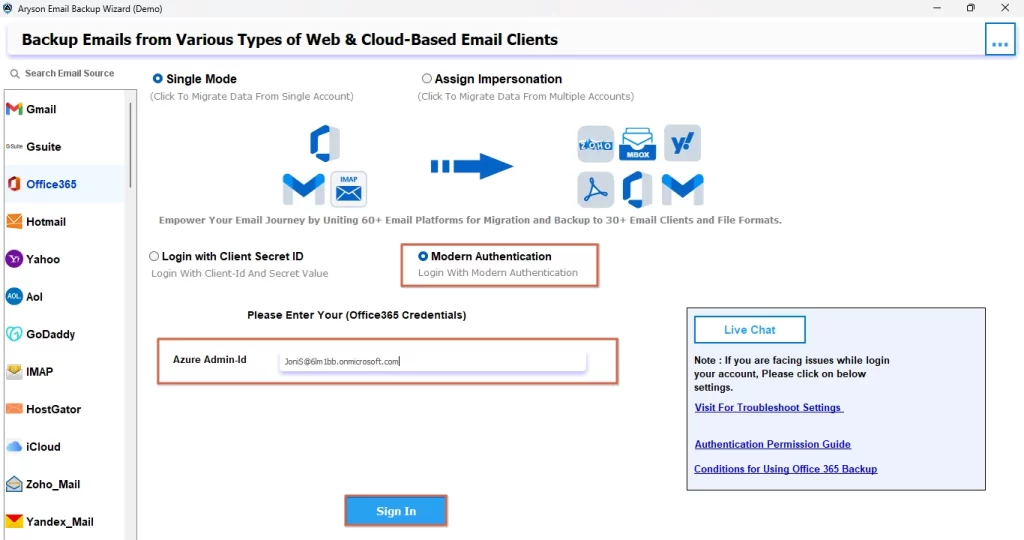
- Open the Aryson Email Backup Wizard and log in with your Office 365 account.
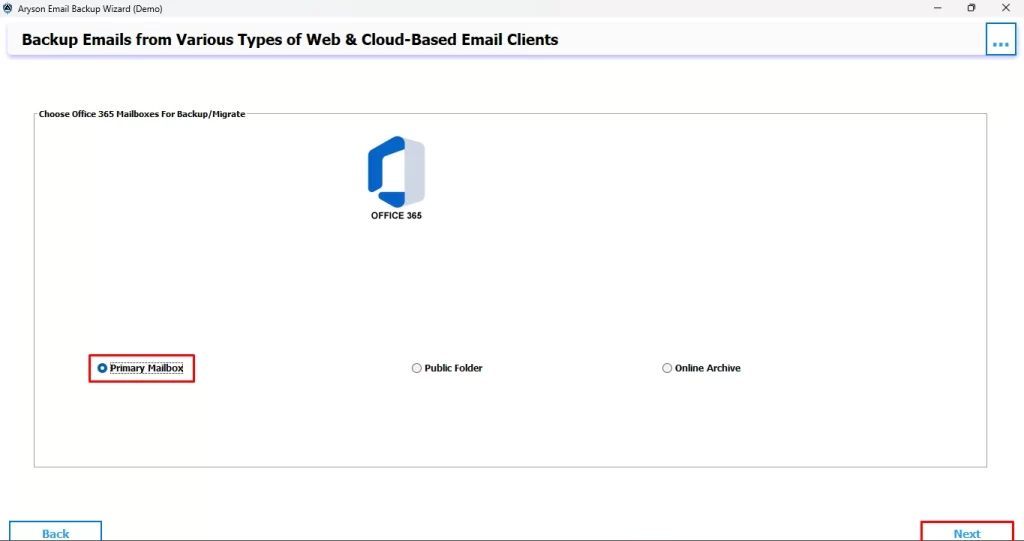
- Mark the radio button of the primary mailbox folder and click Next.
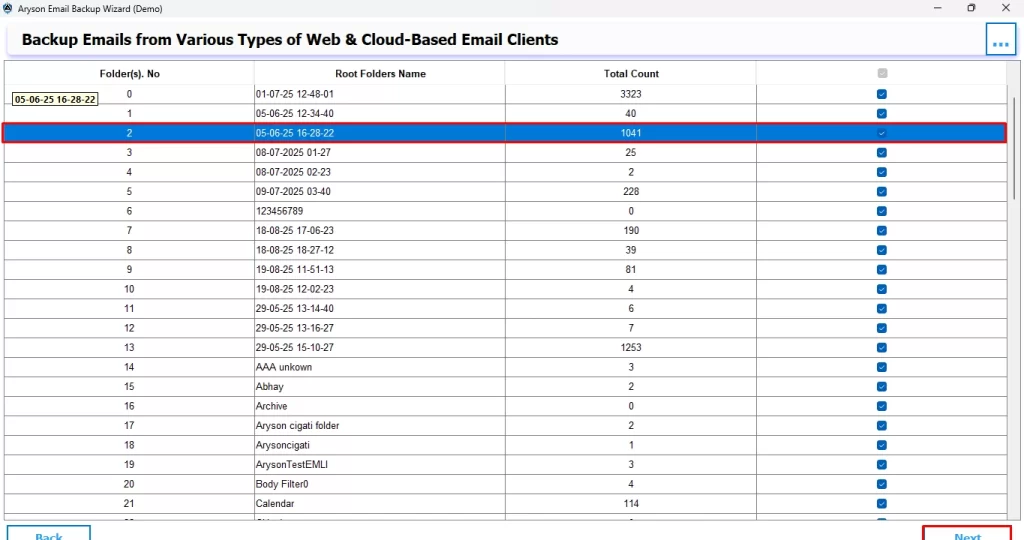
- Preview the emails of the primary mailbox folder and select whichever email you want to export.
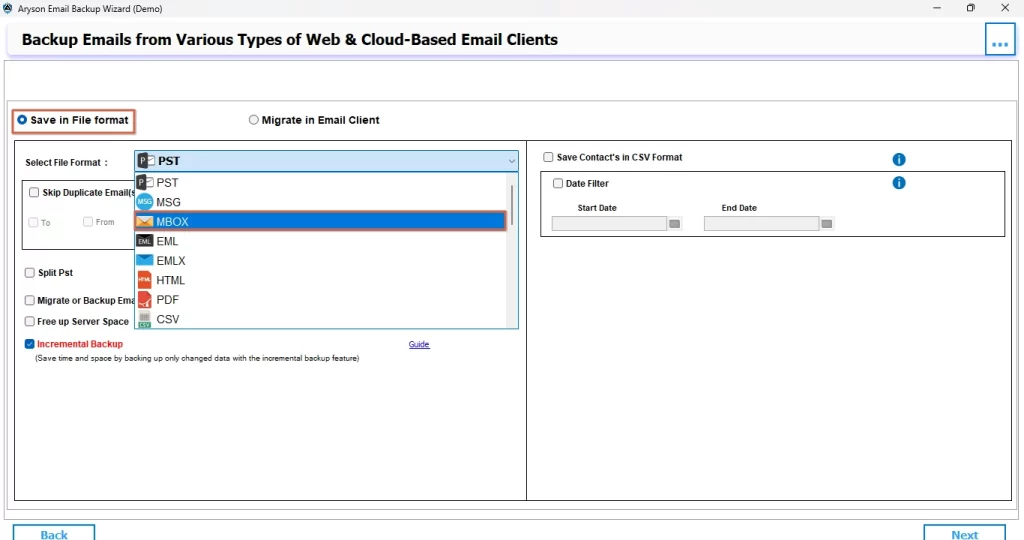
- Choose MBOX as the file format for the export process.
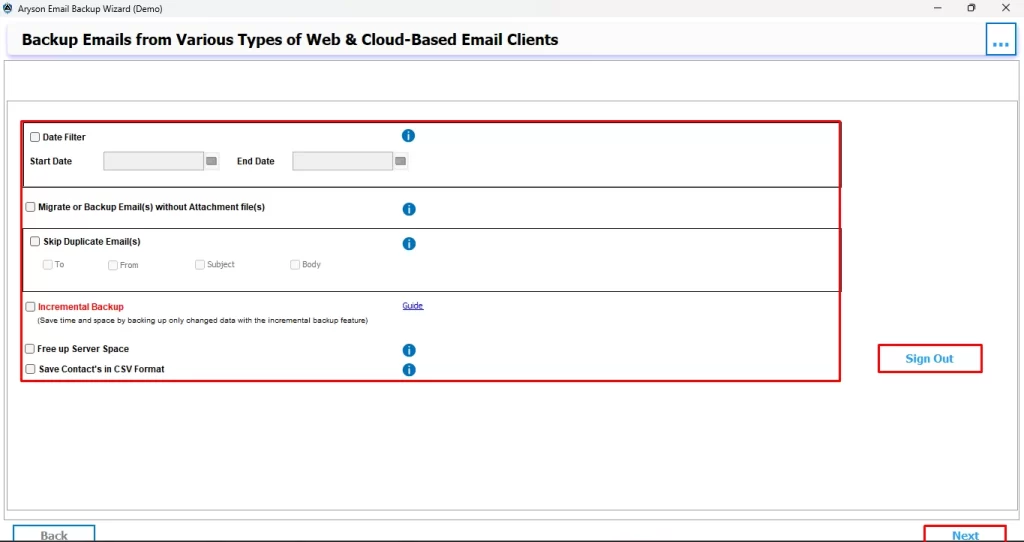
- Apply any extra options if required, then click Next to start.
Conclusion
In the above blog, you got to know about two different effective ways to export Office 365 to MBOX. The choice of the method depends completely on the user’s requirement. For a small number of emails, the user can go for the manual method. Whereas, for bulk export of large volumes of data, you should go for the automatic method.
Frequently Asked Questions
Ans- The time depends on mailbox size and email count. Small mailboxes take minutes, while larger ones with GBs of data may take hours. However, the software discussed above is speed-optimized and works faster than manual methods.
Ans- No, using Aryson Email Backup Wizard ensures 100% data integrity. All emails, attachments, and metadata can safely Migrate Office 365 mailbox into MBOX without any loss.
About The Author

Khushboo Maurya is a content and website optimization expert who helps blogs and websites grow naturally. She focuses on improving content quality and reaching more people through smart, simple strategies.