
How to Transfer Hotmail to Gmail in 2026 (Complete Guide)
Are you planning to transfer Hotmail to Gmail in 2026? If yes, you are not alone; many people switch to Gmail. Most of the users prefer Gmail because of its simple interface, and it offers integration with tools like Google Drive, Meet, and Docs. The conversion of Hotmail emails to Gmail is useful for organizations that rely on communication and collaboration. Moving to Gmail offers better email accessibility from anywhere and on any device. In 2026, there are a handful of ways to operate, some quick and manual, others more hands-off once you get them running. Further, we will discuss how the Professional Email Backup Wizard Software helps to import Hotmail emails without any data loss.
TL;DR:
- Enterprise transfer Hotmail to Gmail for smooth integration with Google tools and easy email management.
- This can be done with a manual built-in POP3 option, or by forwarding new emails.
- Use the professional software for fast and secure migration.
Comparison Between Hotmail & Gmail
| Features | Hotmail | Gmail |
| Free storage | 15 GB (shared with OneDrive & Office) | 15 GB (shared with Drive & Photos) |
| Paid storage | Up to 1 TB via Microsoft 365 | Up to 5 TB via Google One |
| Integrations | Tight with Microsoft 365, Teams, and OneDrive | Tight with Google Workspace, Meet, Drive |
| Calendar | Outlook Calendar; robust scheduling | Google Calendar; better third-party sync |
| Mobile app | Outlook app (iOS & Android); feature-rich | Gmail app (iOS & Android); simple, fast |
| Import from another email | Limited native import options | Built-in Mail Fetcher for IMAP import |
| Best for | Microsoft 365 users, business environments | Google ecosystem users, productivity-focused |
Why Transfer Hotmail to Gmail?
Listed below are the most common reasons why industry professionals prefer Gmail over Hotmail in 2026.
- Gmail provides better integration with Google tools that make everyday tasks easier.
- Likewise, some users move to Gmail to improve spam and security features.
- Moreover, when people switch environments, Gmail is considered the flexible option.
- Storage management is simple in Gmail & provides an option to expand space.
- In addition, the user finds the Gmail interface intuitive, & the inbox looks clear & manageable.
Manual Methods to Migrate Hotmail to Gmail
There are two free and effective ways through which you can move your Hotmail emails to Gmail. The first manual method uses the built-in POP3 option. On the other hand, the second manual method will only transfer new emails.
Manual Method 01: Add a Hotmail Account to Gmail
This method is free and allows Gmail to automatically transfer Hotmail to Gmail. For this, first you have to set up an active Gmail account, and then it will fetch Hotmail emails.
Step 01: Set Up an Active Gmail Account
- First, enter your valid Gmail credentials to log in to an active Gmail account.
- After that, click on the Settings icon and then go to See all settings.
- Then, open the Account and Import tab and click on Add a mail account.
- Now, enter your Hotmail email address.
- Next, select Import emails from my other account (POP3).
- Thereafter, enter the following details:
- Username: Your Hotmail email
- Password: Your Hotmail password
- POP Server: outlook.office365.com
- Port: 995
- Always use a secure connection (SSL)
- Click Add Account.
Step 02: Gmail Fetch Hotmail Email
- Afterward, Gmail will start fetching emails from your Hotmail account.
- Likewise, the process may take some time, depending on the mailbox size.
- Now, all your required emails will appear in your Gmail inbox gradually.
Manual Method 02: Enable Auto Forwarding
If you want only new emails to go to Gmail, then follow this method to transfer emails from Hotmail to Gmail:
- To initiate the process, log in to your Hotmail account.
- Then, go to Settings >> Mail >> Forwarding.
- After that, enable email forwarding & then enter your Gmail address.
- At the end, click on Save changes.
Note: This method does not transfer old emails. Also, only new incoming emails forward Hotmail emails to Gmail.
Drawback of the Manual Method
- This method does not migrate contacts and calendars.
- It slows down for the large mailboxes.
- Moreover, some emails may get missing at the time of sync.
- In this method, the folder structure may not be preserved.
- To perform the transfer process, you must have a stable internet connection.
Professional Software for Hotmail to Gmail Migration Tool
If you want to import your entire Hotmail email into Gmail in a single operation, then use Email Backup Wizard Software. It is useful for the flexibility it offers when saving your data; you can export Hotmail Emails to PST, PDF, EML, or MBOX, depending on what suits your workflow. The interface doesn’t demand any technical knowledge, which is a relief for everyday users. It provides features like date range and batch backup process to keep the user’s data safe.
Steps to Transfer Hotmail to Gmail
- First, download & launch the Email Backup Wizard Software on your PCs.
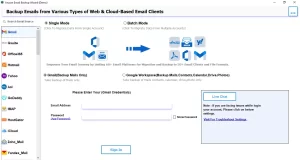
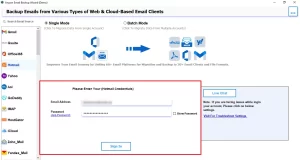
- Thereafter, enter the Hotmail email address & password >> login.
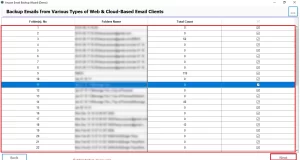
- Then, it will fetch your Hotmail emails folder and then click on Next.
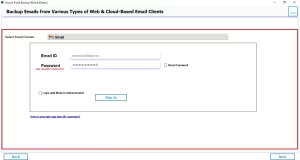
- Now, from the email client, select Gmail and enter your login credentials.
- Next, enable the filters for selective migration and then tap on Next.
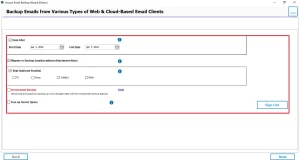
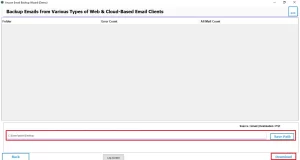
- Finally, click on Download to import Hotmail emails to Gmail.
Comparison Table: Manual Method Vs Professional Method
| Features | Manual Method 01 | Manual Method 02 | Professional Software |
| Purpose | Import existing emails from Hotmail to Gmail | Forward only new incoming emails | Complete Hotmail to Gmail migration |
| Ease of Use | Moderate | Easy | Very Easy |
| Folder Structure | Not properly maintained | Not applicable | Maintain original hierarchy |
| Attachment Handling | Limited | Yes | No size limitations |
| Selective Migration | Not available | Not available | Available |
| Duplicate Email Handling | Possible duplicates | Possible duplicates | Remove duplicates |
| Best for | Small mailbox & basic needs | Only future email forwarding | Complete, accurate migration |
Conclusion
To wrap up, we discussed all the aspects of why users transfer Hotmail to Gmail. With the correct approach, you can also import your Hotmail emails to Gmail without any loss. In this blog, we discuss three methods. Based on your requirements, choose the suitable method and fulfil your needs. As the manual method has limitations, it is recommended to use professional software.
Frequently Asked Questions
Ans. No, you cannot import Hotmail emails into Gmail once the Hotmail account is permanently closed. Gmail requires active access to the source account to fetch or transfer emails.
Ans. The time required depends on the size of your mailbox. Manual methods like POP3 import may take several hours. In contrast, use the above-discussed professional software to complete the migration much faster.
Ans. Yes, Gmail supports Hotmail email migration using built-in features like POP3 (Mail Fetcher) and email forwarding. Also, you can use the Email Backup Wizard Software.
Ans. Some emails may be missing due to several reasons, such as large attachment size limits, sync interruptions, incorrect POP3 settings, or Gmail’s fetch restrictions.
About The Author

Khushboo Maurya is a content and website optimization expert who helps blogs and websites grow naturally. She focuses on improving content quality and reaching more people through smart, simple strategies.

