How to Effortlessly Export G Suite to PDF in Minutes?
User query: “Hello, I’m Oliver from Manchester. I’d like to download all my Google Workspace emails into PDF format for compliance reasons. Can someone advise on the best way to export my G Suite data to PDF efficiently, without any data loss?”
Overview: Recently, Oliver from Manchester inquired about the best way to export G Suite to PDF. Is this exactly what you’re concerned about? If yes, continue reading this write-up. Here, we will discuss not just one, but two ways to perform the export process, including the Aryson Email Backup Wizard. Once you pick one of the provided methods, you can proceed with the step-by-step tutorials provided. Just go through all the methods carefully to perform the export process successfully.
What Makes Exporting G Suite Data to PDF Important?
Before starting the export process, we must be well aware of the reasons why we even need to export emails from G Suite to PDF. Given below are some of those reasons:
- Universal Access Provided – PDFs can be opened on any device without needing any special software or email client, which allows you to open your emails anytime and anywhere you want.
- Security offered – You can simply protect your PDFs using passwords to avoid any unauthorized access.
- Offline Access – View your saved emails anytime, without needing an internet connection.
- Effortless Sharing – You can easily share your emails, which are saved as PDFs, without concerns about formatting errors or platform compatibility.
- Long-Term Backup – It’s better to store all your crucial emails permanently in a format that doesn’t get altered over time.
We are well aware of the advantages offered by the PDF format. Now, the next step is to export G Suite to PDF. For that, refer to the export solutions provided below.
Proven Solutions to Export Emails from G Suite to PDF
There are several ways to export your emails from G Suite to PDF easily. We are going to discuss two of them. The first method is the automated one. In contrast, the second one is a manual approach. You can proceed with either option as per our preference and needs.
Now, let’s understand both of them in detail.
Advanced Automation Approach: Aryson Backup Wizard Tool
Aryson Email Backup Wizard is the simplest and most reliable way available today to export G Suite to PDF in bulk. This software allows you to perform the export process within a few seconds while keeping the data and directory structure intact. Moreover, it provides you with some built-in features like Free Up Server Space, Skip Duplicate Emails, incremental backup, etc., which you can use as per your needs and convenience. Also, this software doesn’t just export G Suite files to PDF, but you can also export G Suite Mailbox to PST. Now, to proceed with this method, you can follow the steps below:
Easy-to-follow steps to download G Suite emails to PDF are as follows:
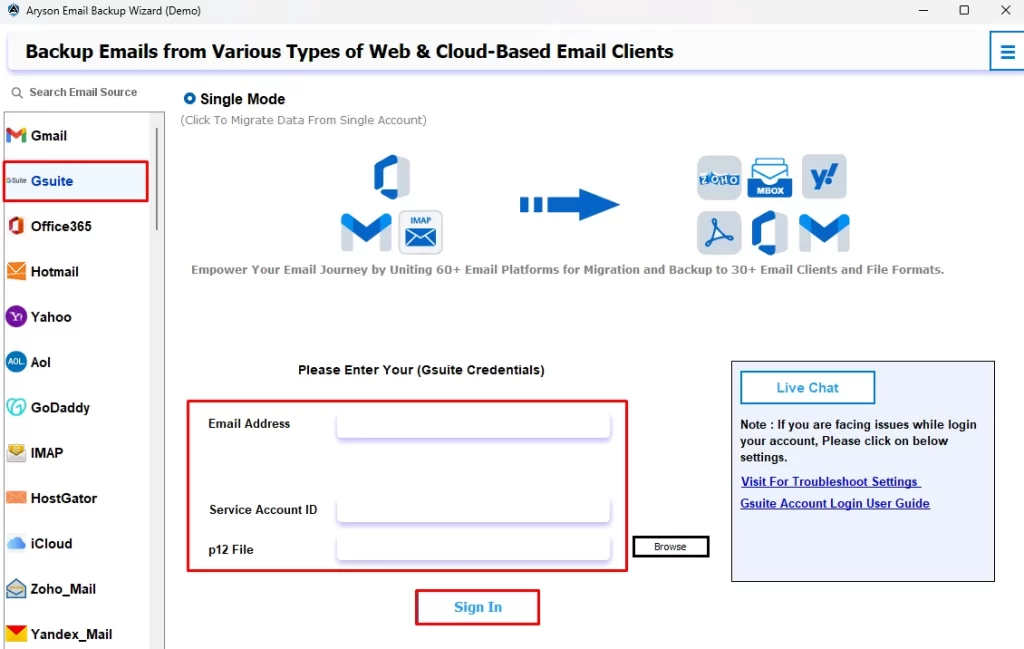
- Start the Aryson Email Backup Wizard and sign in with your G Suite credentials.
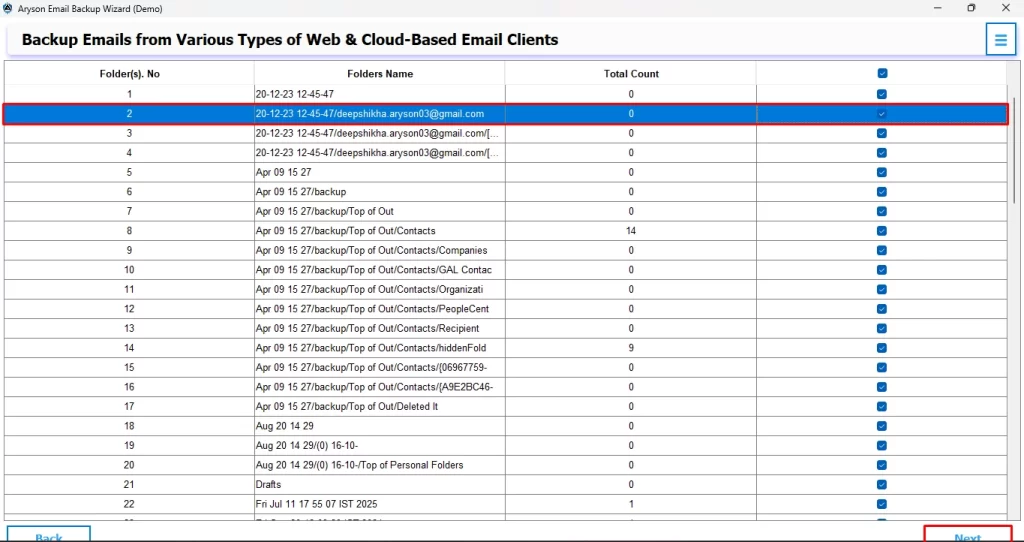
- Now, you can cross-verify and select your desired files to export and click Next.
- Then, simply mark the Save in File Format radio button and select the PDF option from the listed file formats.
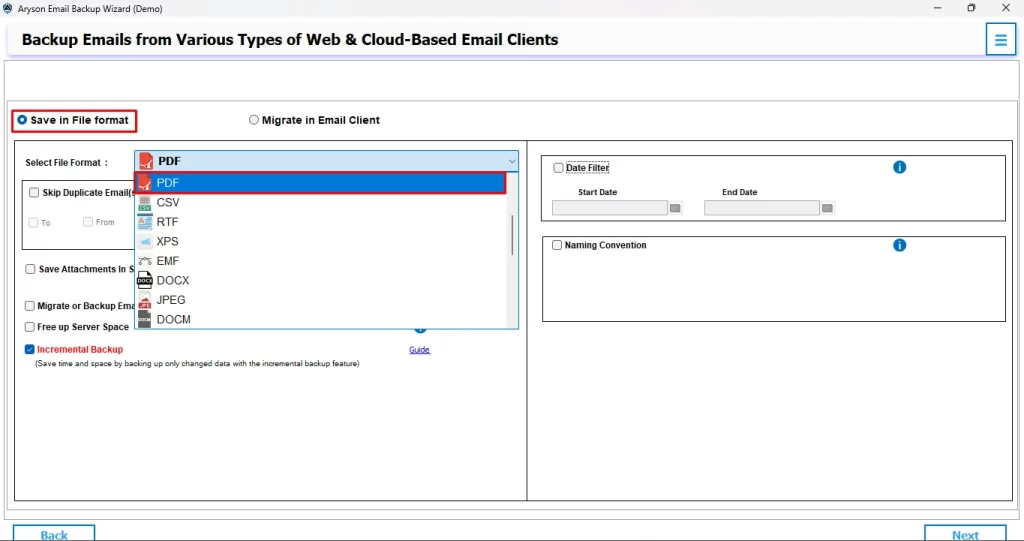
- You can also utilize the additional features if you want and click Next to proceed.
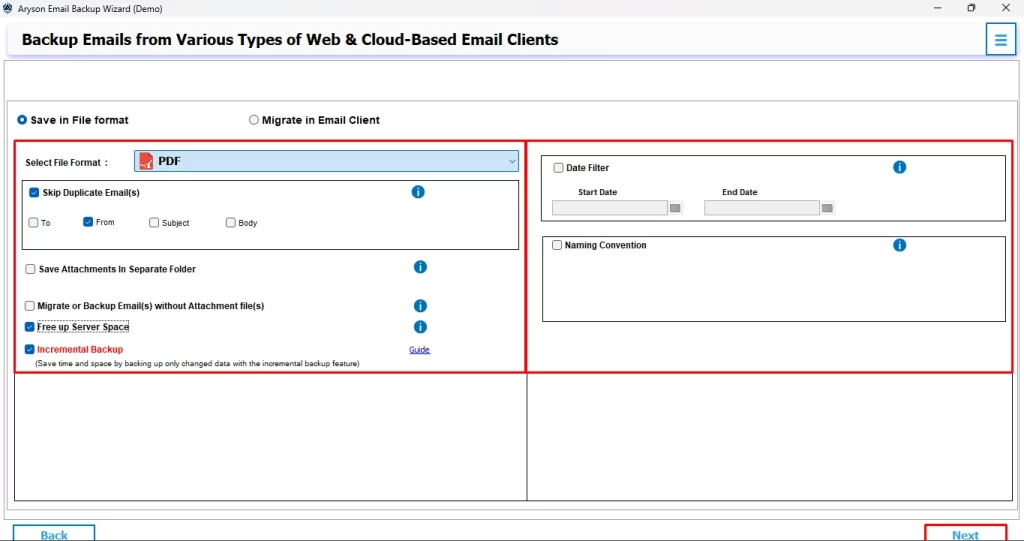
- You can provide the desired file location and then press the Download button.
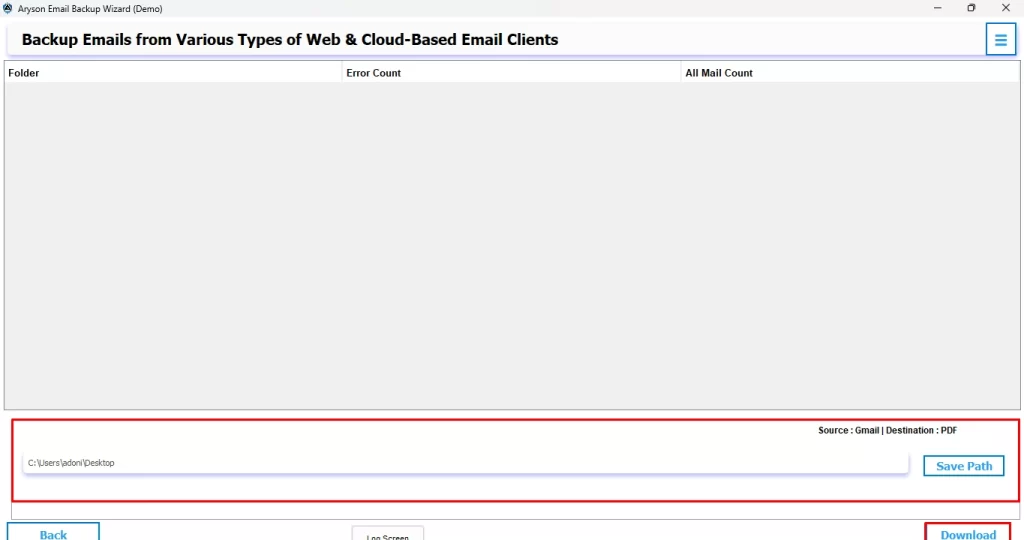
Note: The most effective way to export G Suite to PDF is explained here. A manual method is also available, but since it requires strong technical skills and more time, it’s best suited only for advanced users. In case you acquire good technical skills and knowledge, you can probably go for this manual method.
Traditional Manual Approach to Export G Suite to PDF
The manual solution to save G Suite emails to PDF takes 6 stages to complete. In these 6 steps, you have to sign in to your account, open each email, and save it individually as a PDF file. Although this process is straightforward and requires no additional tools, it is quite time-consuming if you have volumes of emails to save. Therefore, this method is suitable for someone with just a few emails to export. So, now let’s take a look at the steps to perform the manual method.
Stage 1: Sign in to G Suite
- Open your preferred browser on your system.
- Go to the official [Google Workspace login page].
- Enter your account credentials and successfully sign in to your G Suite account.
Stage 2: Opening the Required Email
- After signing in, navigate to your Gmail account.
- Next, go to your inbox, locate the specific email, and open it to begin the export process into PDF format.
Stage 3: Accessing the Print Feature
- Click on the three-dot icon or a printer icon at the top-right corner of the email.
- Simply click on it to open the Print window.
Stage 4: Pick the “Save as PDF” option.
- In the print dialog box, simply navigate to the Destination section.
- Select “Save as PDF” from the listed printers.
- Next, adjust the settings according to your requirements.
Stage 5: Save the Email in PDF Format
- After confirming the settings, click the Save button.
- Just choose a location on your computer where you want to store the email as a PDF file.
- Provide a custom name for the file and confirm.
Stage 6: Repeat the same process.
- If you want to export emails in bulk using this approach only, you have to repeat the same process for each file.
Conclusion
In this write-up, we explored two practical approaches to export G Suite emails into PDF format: Aryson Email Backup Wizard for a quick, automated solution and the traditional manual method as an alternative. While the automated software delivered us the reliable results within a few clicks, the manual solution is more time-consuming and error-prone, as you have to resolve it all by yourself. Now, the choice is all yours. You can go for any of the two ways according to your need and knowledge of technical stuff. At last, don’t forget to refer to the FAQs section provided below.
Frequently Asked Questions
Ans- Yes, you can surely export Google Drive files like Docs, Sheets, and Slides to PDF in no time using the Aryson Backup Wizard tool without any data loss or corruption.
Ans- Yes, all your attachments will remain intact while exporting your emails to PDF, only if you export G Suite/Google Workspace emails to PDF through the automated tool mentioned above. The manual method is prone to errors and data loss.
About The Author

Khushboo Maurya is a content and website optimization expert who helps blogs and websites grow naturally. She focuses on improving content quality and reaching more people through smart, simple strategies.

