How to Transfer AOL Emails to iCloud Mail Account Easily?
Overview: We all know AOL, or American Online, is one of the oldest and most recognized email services available. Still, many users now look to transfer AOL Emails to iCloud Mail accounts for its cloud-based storage, which has advanced features and an interactive user experience. In this blog, we will discuss two reliable methods to move AOL emails to iCloud, along with the Aryson Email Backup Wizard, to perform a secure and risk-free migration. But before the actual migration, let’s see whether you need it or not.
Scenarios Where Users Need to Transfer AOL Emails to iCloud Mail Account?
There are different scenarios where the user may need to migrate AOL emails to iCloud. Some of them are listed below.
- The user wants to manage emails in a single mailbox instead of working on multiple accounts like AOL and iCloud.
- You want to easily access your AOL emails from anywhere.
- The user wants to leverage Apple’s security and two-factor authentication.
- You may want to manage your emails better using iCloud Mail.
- The user wants better storage, categorization, and easier search for their old emails.
In case any of these scenarios match yours, you should definitely perform the migration. For that, refer to the solutions section below.
Best Solutions to Transfer AOL Emails to iCloud Mail Account
Although there are numerous ways to transfer emails from AOL to iCloud, in this blog, we will discuss only the two most reliable ones. However, it is up to the user to pick the one that is suitable as per their work and convenience.
Solution 1: Manual method to transfer AOL Emails to iCloud Mail Account
The first solution we are discussing is the manual approach of migration. This approach helps you transfer AOL emails to iCloud Mail Account. But it requires the user to have some technical knowledge. This solution takes two steps to complete. Firstly, you have to convert your AOL emails to a PDF file format and then import those emails to iCloud.
Step 1: Save AOL Emails as PDF
- First, sign in to your AOL Mail account using any web browser.
- Then, open the specific email you want to move.
- Now, click on the Print option to open the print preview window.
- In the Destination field, select Microsoft Print to PDF.
- Now, press the Print button.
- Enter a file name, choose a saving location, and click Save to store the email as a PDF.
Step 2: Upload PDF Files to iCloud
- Now, transfer these saved AOL email PDFs to your Mac system.
- Then, open the PDF using any PDF reader or browser.
- Next, click on the Export option from the menu.
- After that, select Save to Files and choose iCloud Drive as the destination.
- Now, click on Add to confirm the upload.
- And your AOL email is now successfully available in your iCloud Mail account.
Through this manual approach, you can easily transfer AOL email to an iCloud mail account. However, as you can see, the above solution has a limitation.
Points to be Noted: You cannot migrate multiple AOL emails to an iCloud account at once. Along with that, there are many other restrictions associated with the manual method, like time consumption, errors occurring, and the risk of data loss and corruption. So, in case you mind these limitations, it is better to move forward with the automated solution discussed below.
User query: “I have a large number of emails stored in my primary mailbox of AOL Mail. And, I want to migrate that mailbox to iCloud for better management of the emails. But the manual method will take me long hours to migrate, so is there any way to perform batch migration in a few seconds?”
Solution 2: Automated method to Transfer AOL Emails to iCloud Mail Account
If the manual solution is not suitable for you and you want a quick and error-free way to move AOL Mail to Office 365, you should consider the Aryson Email Backup Wizard. Multiple businesses consider using this software for their batch migration needs, as it keeps the data and attachments intact. Along with that, it makes sure that your data is not lost or corrupted during the migration. Moreover, this software comes with advanced features like skip previous migration, date filter, free server space, etc., to filter out the emails to migrate. Along with iCloud, you can directly migrate AOL Mail to Office 365, Gmail, G Suite, or IMAP. So, this software is a one-stop solution for every kind of migration. Below are the steps to perform the actual migration through this software.
Steps to perform the migration:
- Download and run the Aryson Email Backup Wizard & choose AOL as the source from the left panel.
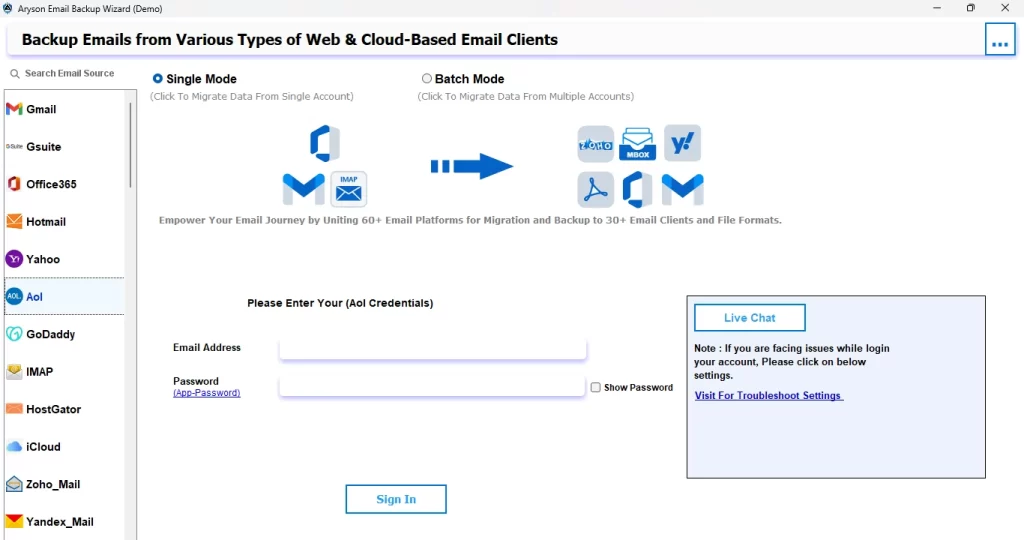
- Then, input your valid AOL credentials. And click the Sign In button.
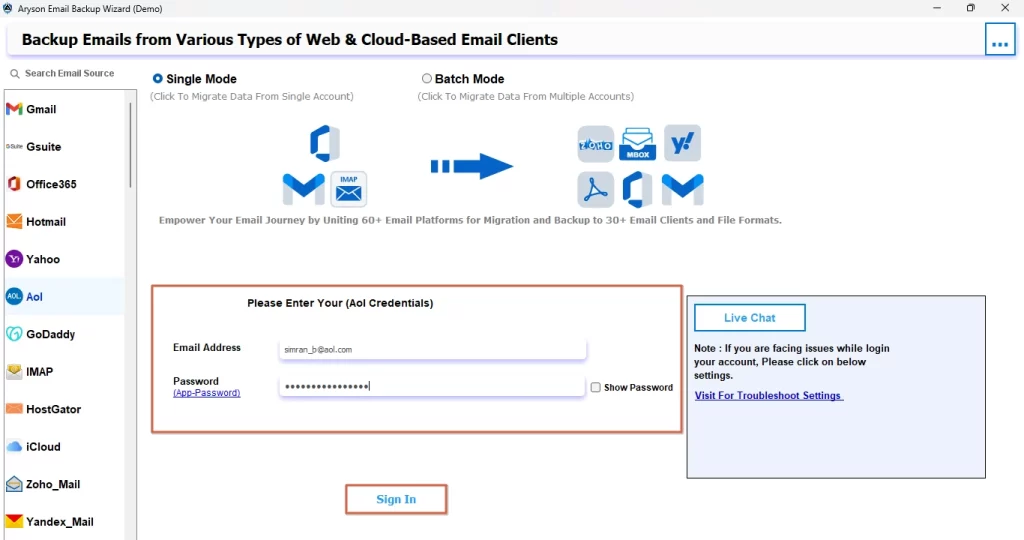
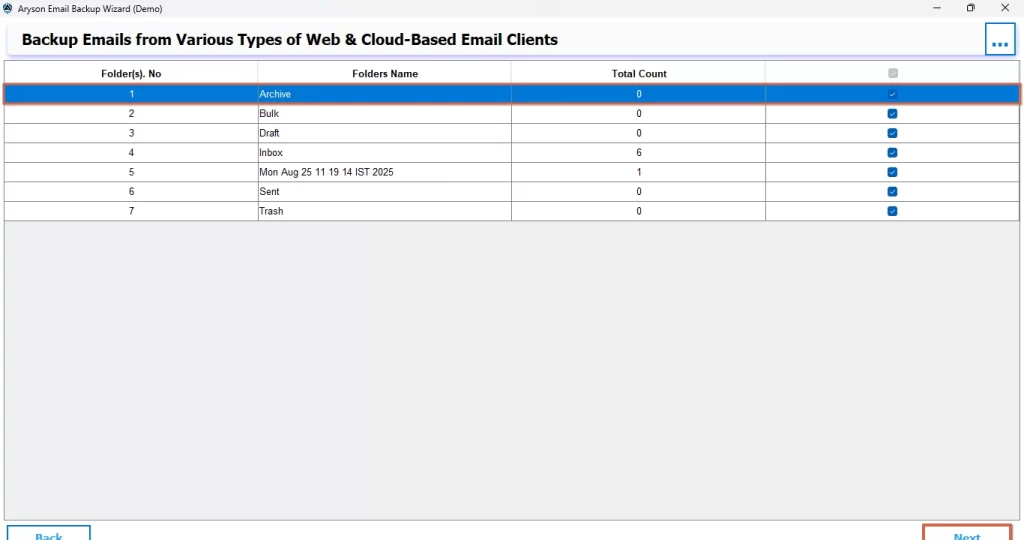
- Now, all your AOL files will appear on the screen, & you just have to select the desired files for migration.
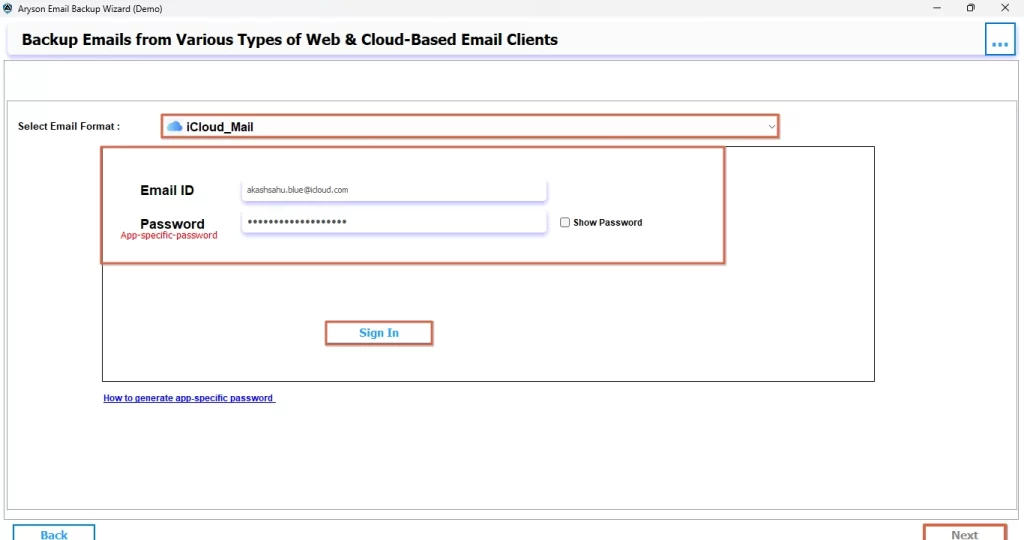
- Next, select the iCloud option among all listed email clients & hit the Sign In button.
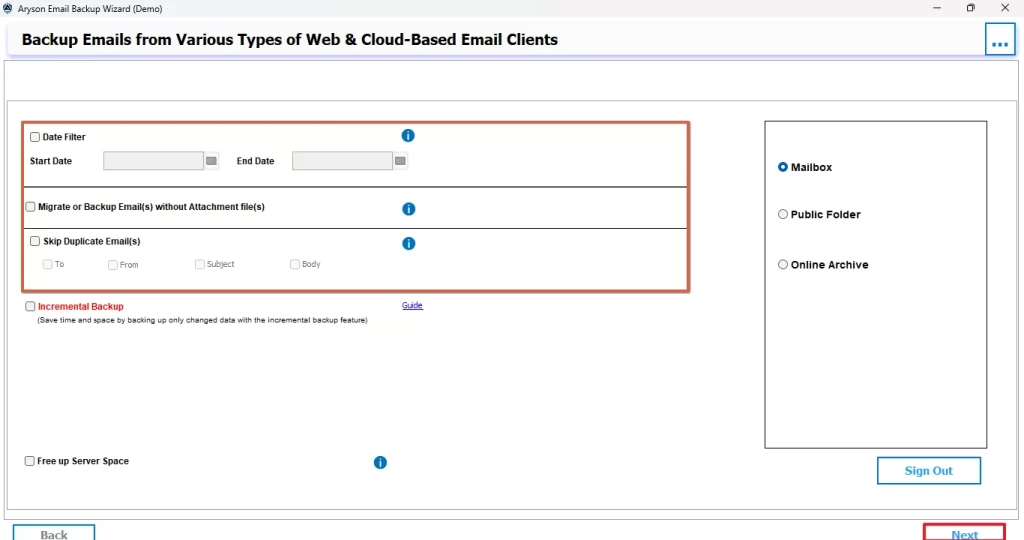
- You can use the filters that will appear on the screen,
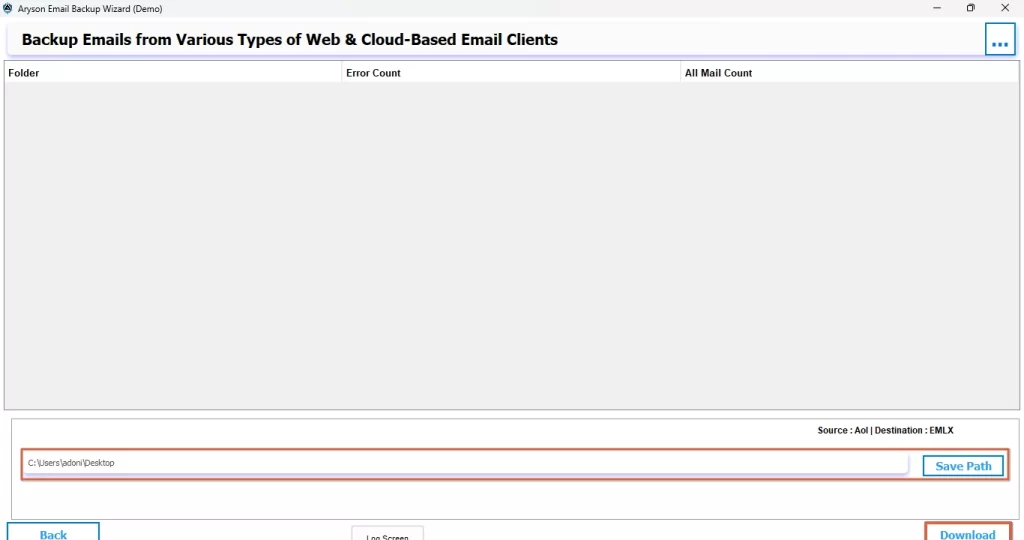
- Finally, provide a file path and hit the Start Migration button.
Let’s Wrap up
In a nutshell, the above blog discussed different methods to transfer AOL Emails to iCloud Mail Account. Both methods had their own advantages and limitations. Now, it is up to the user to choose the one that suits their requirements the best. But the user has to make sure to follow all the steps of migration very carefully to avoid any kind of data loss.
Frequently Asked Questions
Ans- Some emails may not appear in iCloud due to sync delays, large file sizes, or incompatible formats. Also, incorrect IMAP settings or unstable internet connections can interrupt the process, leaving certain messages unsynced or missing.
Ans- No, there are no limits on the number of emails a user can move using the Aryson Email Backup Wizard. In fact, the first 50 emails are absolutely free to migrate.
Ans- Yes, you can keep your AOL email address even after transferring messages to iCloud. Your AOL account remains active, and you’ll still receive new emails there unless you completely stop using or remove the AOL account.
Ans- Yes, to perform a secure AOL Mail to iCloud Migration and make sure to maintain the data integrity, you must use the Aryson Email Backup Wizard.
Ans- However, it depends upon the size of the mailbox., If you use the manual method, the whole process will take you many hours to complete. But, with the help of Aryson Email Backup Wizard, it will take you just a few seconds to perform the migration.
About The Author

Khushboo Maurya is a content and website optimization expert who helps blogs and websites grow naturally. She focuses on improving content quality and reaching more people through smart, simple strategies.