How to Migrate Zoho Mail To Office 365 In Simple Steps
Many users often want a proficient way to migrate their Zoho Mail data to Office 365, so we will discuss the 2026 best methods that help users to access advanced collaboration tools. Although the process may seem complex, you can complete the Zoho Mail to Office 365 migration easily by following the right steps. This guide explains a simple and reliable method to migrate Zoho Mail to Office 365 without data loss or technical difficulties. For simple migration, you can opt for the Email Backup Wizard Tool, which provides secure migration.
Reasons to Migrate Zoho to Office 365
There are several reasons to convert your Zoho Mail data to Office 365. Some factors are given below for better understanding to transfer emails from Zoho Mail to Microsoft 365:
- Firstly, Office 365 collaborates with Outlook, Teams, OneDrive, and SharePoint.
- Next, Office 365 integrates with Microsoft Excel, Word, and PowerPoint.
- Office 365 allows organisations to add or manage users and storage without limitations.
- As compared to Zoho Mail, Office 365 offers large mailbox storage.
- Further, Office 365 offers cross-platform access on Windows, Mac, Mobile, etc.
- Office 365 provides a better backup and recovery option.
Now, we will proceed further with the migration methods that will help you transfer your Zoho Mail data to Office 365.
Method 01: Zoho Mail to Office 365 Migration Manually
Many users seek a manual method to migrate from Zoho Mail to Office 365, but there is no direct manual solution available. The only alternative is to export Zoho Mail emails as EML files and then convert or import them into Office 365 using a supported method or tool. Below are the steps to perform the migration:
Step 01: Export Data from Zoho Mail
- To start with, first log in to your Zoho account.
- Then, click on Settings and navigate to Mail Settings >> Import/Export emails.
- Further, from the Export option, choose the mailbox folder you want to export.
- Now, after the selection, click on the Export button to continue.
- At last, you will get a link to the same email account with the ZIP file link.
- Extract the ZIP file in .eml format to a local folder.
Step 02: Import Data to Office 365
- Install and configure Microsoft Outlook with your Office 365 account.
- Drag & drop the extracted EML file into the Outlook folder.
- In Outlook, go to File >> Open & Export >> Import/Export.
- Now, choose Import from another program or file and select Outlook Data File (.pst) and import it into the Office 365 mailbox.
- Finally, log in to Office 365 Outlook Web and verify that the attachments and folder structure are intact.
Shortcomings of the Manual Method
- These methods lead to data loss and a missing folder hierarchy.
- Transferring data manually takes significant time.
- Most importantly, there is no professional support available.
- This method required repetitive steps and full focus during migration.
As this method does not support bulk conversion, move further with a professional tool.
Method 02: Migrate Zoho Mail to Office 365 Professionally
To overcome the limitations, use the Email Backup Wizard Tool. This tool offers several features for selective data migration and ensures folder hierarchy. Also, it is beneficial for large mailbox data migration and frees up the server space. This software consists of multiple email sources from which you can migrate data. Using this tool, you can export Zoho Mail to PST and other file formats as well. Follow the steps to migrate the data.
- Firstly, download and launch the Email Backup Wizard tool on your system.
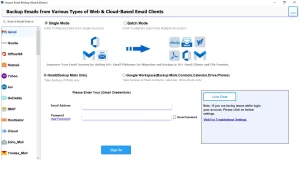
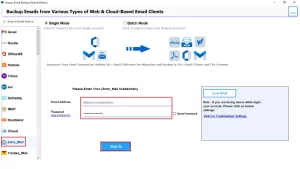
- Now, select Zoho Mail from the left panel and enter your Zoho Mail login credentials, such as your Email Address and App Password, and click Sign in to continue.
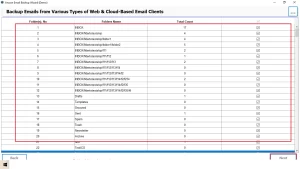
- Next, you can preview the mailbox data and proceed further by clicking Next.
- Further, select the Migrate in Email Client, from the drop-down menu, select Office 365.
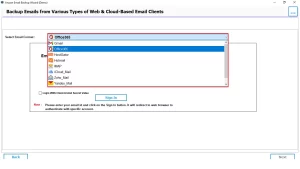
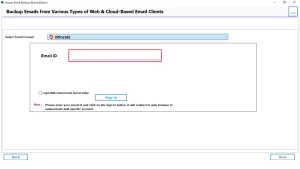
- Further, enter the credentials of your Office 365 and log in.
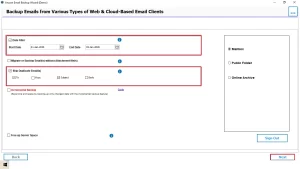
- Apply the advanced features, such as the Date filter and Skip duplicate emails, free up server space, and then click Next.
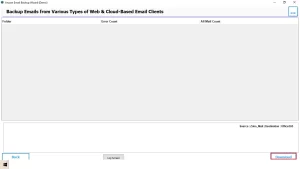
- Lastly, click on the Download button to start the migration process.
Why you should opt for this Professional Method
- It offers 10+ file formats in which you can export your data.
- During the backup process, it maintains the folder hierarchy.
- Its simple layout makes it feasible for both tech and non-tech users.
- Moreover, it offers safe authentication to ensure data integrity.
Suggestion by Users
Here, we have discussed the importance of data migration to Office 365. You can follow any method to migrate Zoho Mail to Office 365 based on your data size. The manual method is feasible for you if you have a smaller amount of data, as it is a free method. For individuals or organisations that have large amounts of mailbox data, they can opt for the professional tool. A reliable solution that will maintain the folder structure and prevent data loss.
Frequently Asked Questions
Ans. All Zoho Mail data, including emails, folders, attachments, and metadata, can be migrated using the Email Backup Help Wizard.
Ans. The migration time depends on mailbox size and internet speed, but the tool performs a fast, automated migration.
Ans. No, individual user credentials are sufficient. Admin access is optional for bulk migration.
Ans. During the migration process, data loss, folder mismatch, and authentication issues are common, all of which are handled efficiently by the tool.
Ans. No, the tool is designed for non-technical users with an easy-to-use interface.
Ans. Check migrated emails, folders, attachments, and timestamps in your Office 365 account.
About The Author

Khushboo Maurya is a content and website optimization expert who helps blogs and websites grow naturally. She focuses on improving content quality and reaching more people through smart, simple strategies.