How To Migrate Gmail To Outlook: Step-by-Step Guide
Summary: In today’s time, many users face problems when managing Gmail emails in Outlook due to platform differences and data accessibility issues. This step-by-step guide explains how to migrate Gmail to Outlook safely and efficiently. To make your data safe and secure, migrate Gmail to Outlook. For the specific data migration with additional features, you can use the Email Backup Wizard Tool. That will migrate data with ease and maintain folder structure and metadata.
Why you should Import Emails from Gmail to Outlook
Gmail is free, and it can be accessed through an internet connection. Basically, users should transfer their Gmail to Outlook to gain better email organisation and offline access. Moreover, some more factors are given below:
- Better Email Management: Outlook offers advanced filtering and organised mailbox management.
- Offline Access: The user can access email without an internet connection.
- Advanced Security: It provides enterprise-level security and data protection.
- Business Compatibility: Further, it is ideal for Exchange and corporate email environments.
- Centralised Data Control: Above all, it provides a better backup, archive, and data management options.
Moving further, below we will discuss the method to migrate Gmail account to Outlook.
Solution 01 – An Automated Way to Migrate Gmail to Outlook
Migrating your Gmail emails using the Email Backup Wizard, which will migrate your data to different email clients. The large organisations and enterprises with large mailbox data should use this tool for easy migration. This software is embedded with several features that allow you to perform selective migration. You can follow the given pointers for better understanding:
Here are some advantages of the Email Backup Wizard Tool:
- It provides different input sources in one place.
- Suitable for all users because of its easy interface.
- Further, it offers data migration to different email clients, such as Gmail, Hotmail, etc.
- Embedded with multiple filters for selective migration.
- Highly recommended for enterprises and business-level users.
Steps to Migrate Gmail to Outlook
- Download and launch the Email Backup Wizard Software on the system.
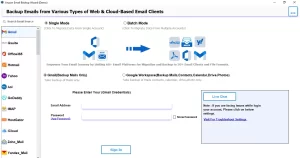
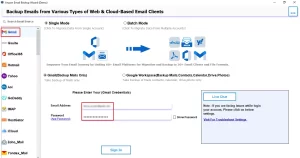
- Now, select Gmail as the input source and enter Gmail credentials (name and app password).
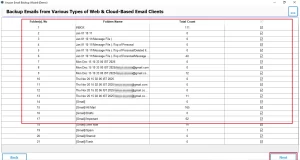
- Furthermore, you can Preview the mailbox data, along with the total number of files in the folder, and click the Next button.
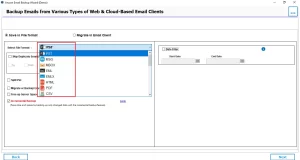
- Next, select the file format as PST and apply additional filters.
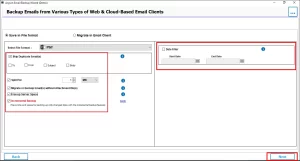
- For the selective range data, apply Date filters and click Next.
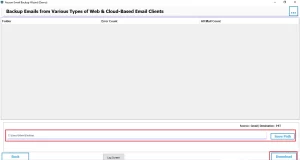
- Choose the Path to save files and click on the Download button.
- Then, after successfully migrating data to PST, import it into Outlook.
Note: To import a PST file to Outlook, go to File >> Import & Export >> Import/Export>>Import from another program or file>>Outlook Data File (.pst). Browse the PST file and select the Destination, and click Finish.
Also read this: Migrate Gmail to Google Workspace
Solution 02 – Export Gmail Emails to Outlook Manually
This manual approach uses IMAP to connect your Gmail account with Outlook. Although this method works, it has some limits, which are explained later. Follow the steps carefully:
Step 1: Enable your IMAP in Gmail
First, you need to turn on IMAP in your Gmail account.
- Sign in to your Gmail account.
- Then, click the Gear icon and open See all settings.
- Now, go to the Forwarding and POP/IMAP tab and enable IMAP.
- Finally, click the Save Changes option.
Step 2: Add your Gmail Account to Outlook
Now, add your Gmail account to Outlook.
- Next, open your Microsoft Outlook.
- Then, click File and select Add Account.
- Enter your Gmail email address and choose IMAP as the account type.
- Enter the server details:
- Incoming server – imap.gmail.com, Port – 993, Encryption – SSL/TLS
- Outgoing server – smtp.gmail.com, Port – 587, Encryption – TLS
- Enter your Gmail credentials or app password and click Finish.
Step 3: Sync Gmail Emails into Outlook
- Once the account is added, Outlook will start syncing emails automatically.
- All Gmail folders (Inbox, Sent, Drafts, Labels) will appear in Outlook.
- Further, depending on mailbox size, syncing may take time.
- Keep Outlook open until the process finishes.
Limitations of Using this Method
- This is a slow process; hence, it consumes a lot of time.
- No contacts will migrate; you need to migrate them separately.
- It may fail to transfer Gmail to Outlook metadata, labels, and formatting.
Solution 03 – Migrate Gmail Contact to Outlook Account Manually
For the Gmail contacts, follow this method, as the above method does not import your contacts. To proceed with this method, follow the given steps:
- To start, navigate to Google Contacts and click on the Export button.
- Then, select the Outlook CSV and Export.
- Further, open Outlook and navigate to File >> Open and Export >> Import/Export.
- Now, select the ‘Import from another program or file’ and then ‘CSV’.
- Afterward, select the downloaded CSV file and import it.
Conclusion
To finish up, we have covered all the aspects that will help you migrate your data. Furthermore, based on your requirement, select the solution. By following the correct solution, you can easily migrate Gmail to Outlook. Moreover, for the large organisations, it is suggested to opt for the automated solution that will migrate large mailbox data with ease and minimise your effort.
Frequently Asked Questions
Ans. Yes, Email Backup Wizard securely migrates Gmail to Outlook while maintaining email integrity, folder structure, and attachments without data loss.
Ans. The migration time depends on mailbox size and internet speed, but Email Backup Wizard ensures a fast and smooth transfer process.
Ans. Yes, once migration is complete, you can access and receive Gmail emails in Outlook without affecting your original Gmail account.
Ans. Yes, Email Backup Wizard supports Gmail to Outlook migration on both Windows and Mac systems.
Ans. No, you do not need to disable 2-Step Verification; you can use an App Password to authenticate Gmail securely during migration.
About The Author

Khushboo Maurya is a content and website optimization expert who helps blogs and websites grow naturally. She focuses on improving content quality and reaching more people through smart, simple strategies.