How To Export Office 365 Emails To PST Quickly And Safely?
User query: “As an IT admin, I tried exporting Office 365 emails via eDiscovery, but it was slow and confusing; I need a faster, safer way to export to PST without data loss.”
Overview: Microsoft Office 365 is one of the most widely used platforms for managing business emails and data. However, many users still prefer to export Office 365 emails to PST for backup, migration, or local access. A PST file safely stores emails, contacts, calendars, and attachments offline. While manual export options exist, they are time-consuming and prone to errors. Hence, using the Aryson Email Backup Wizard is the most efficient and reliable way to export emails from Office 365 to PST with complete data integrity.
Understanding the need to export Office 365 Emails to PST?
Before you start the actual export process, it is advised to first understand why we even need to export our emails to PST format.
- Exporting to PST creates a local backup to protect important emails.
- Allows easy migration of emails to other platforms or clients.
- Helps users to archive old emails and free up Office 365 mailbox space.
- Helps follow laws and rules by keeping important records safe and organized.
- Provides offline access to emails, contacts, and calendars.
Manual Method to Export Office 365 Emails to PST
Easily export your Office 365 emails to PST using the native eDiscovery method. This method takes you through 5 stages to complete the conversion. It is perfect for users who want full control over their email backup without using any extra software. Here are the steps to save Office 365 Mailbox to PST:
Stage 1: Admin Login
- Sign in to your Office 365 Admin account.
- Open the Exchange Admin Center.
Stage 2: Check eDiscovery Permissions
- Go to Admin Centers >> Security & Compliance >> Permissions >> eDiscovery Manager.
- Ensure you have the Export role; add it if missing.
Stage 3: Create a Content Search
- Navigate to Microsoft Purview >> Content Search >> New Search.
- Select mailbox locations (Exchange, Teams, SharePoint).
- Add filters if needed (keywords, date, message type), or leave blank to export all emails.
Stage 4: Run the Search
- Click Submit >> Done.
- Track progress in the Search tab until it completes.
Stage 5: Export Emails to PST
- Click Action >> Export Results.
- Customize settings (include encrypted files if needed).
- Don’t enable Deduplication if you want a single PST file.
- Copy the Export Key, open the eDiscovery PST Export Tool, paste the key, choose a folder, and start exporting.
Limitations of the Manual Method
Here are some of the drawbacks of using the manual method.
- Takes too long for large mailboxes.
- Requires admin rights and technical expertise.
- Does not allow selective or scheduled export.
- High chances of export errors or incomplete backups.
- Limited control over attachments and folder structure.
Automated Solution to Export Office 365 Emails to PST
Managing emails from multiple platforms can be overwhelming, especially when you want to save them in a universally accessible format like PDF. This software simplifies the process by allowing users to export Office to PST effortlessly, including attachments, without losing data. It supports batch backup from various web and cloud email clients and even enables direct migration to Gmail, G Suite, Office 365, or IMAP. Users can filter by date, skip duplicates, save attachments separately, and assign impersonation for multiple accounts. For a similar solution, check out how to export Office 365 to MBOX. With an intuitive interface and no technical expertise required, this tool makes email management smooth and efficient.
Quick Steps to Export Office 365 Emails in Bulk to PST
- Open the Aryson Email Backup Wizard and select Office 365 as the source.
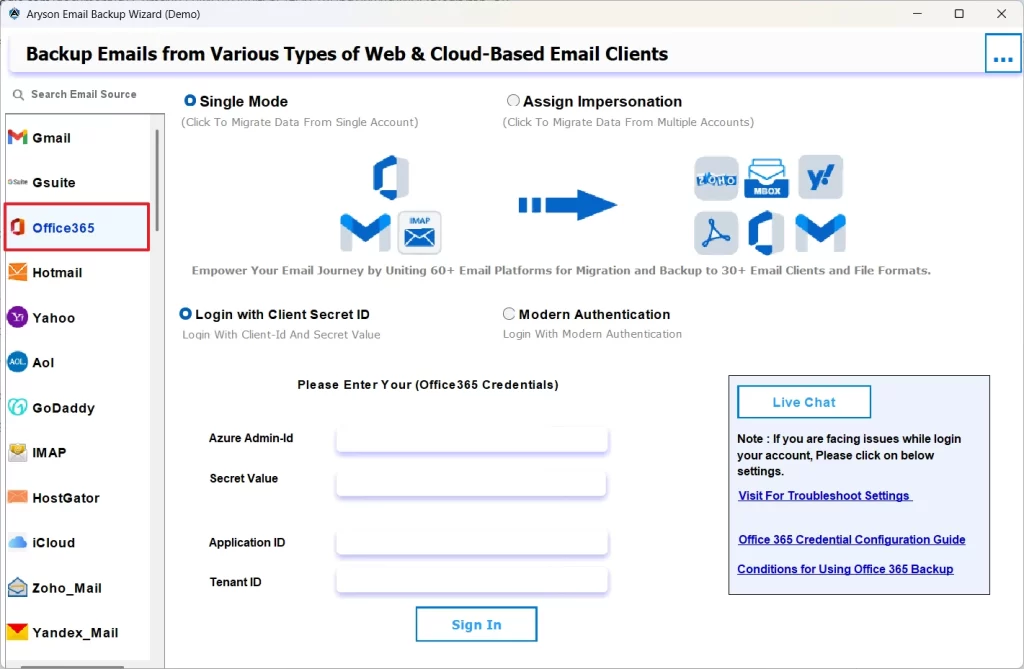
- Then, log in to your Office 365 account using valid credentials and hit Next.
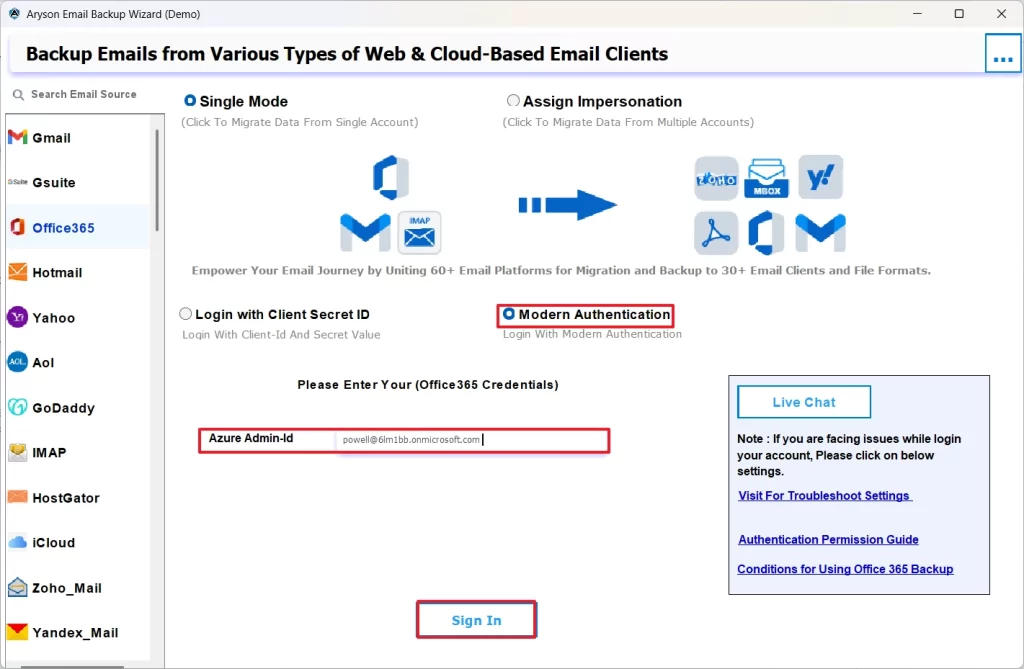
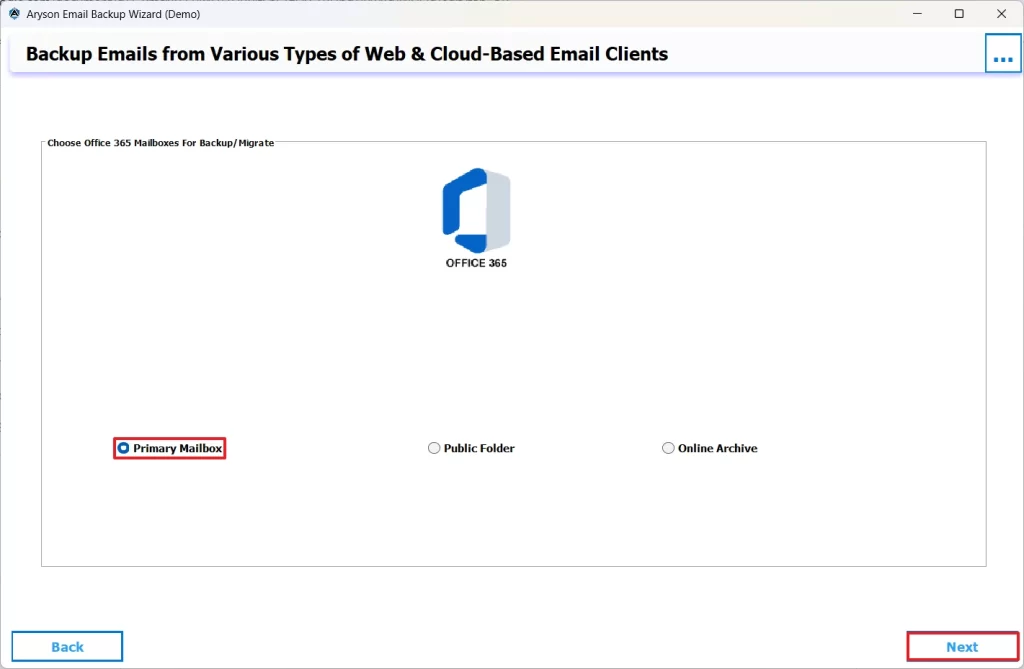
- Now, select the displayed Office 365 Mailbox files you want & click next to proceed.
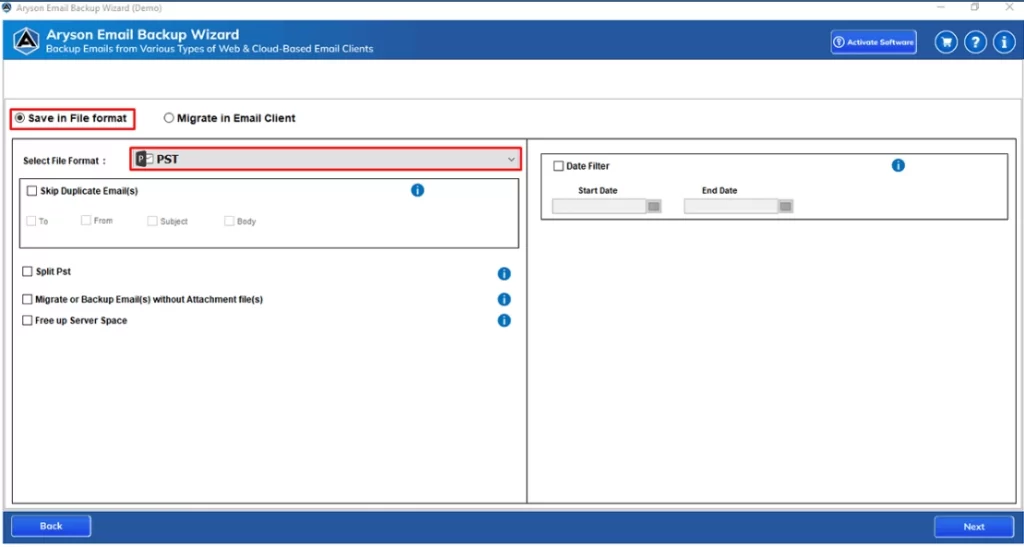
- Select PST from the given drop-down list of the file formats.
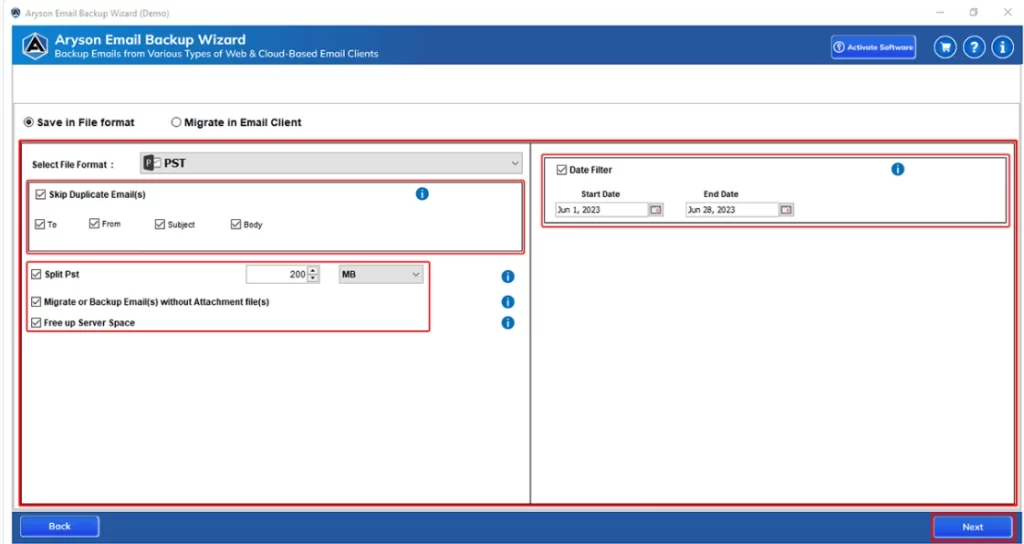
- After that, you can utilize the additional features provided as you wish.
- Select the destination file path and Start Migration.
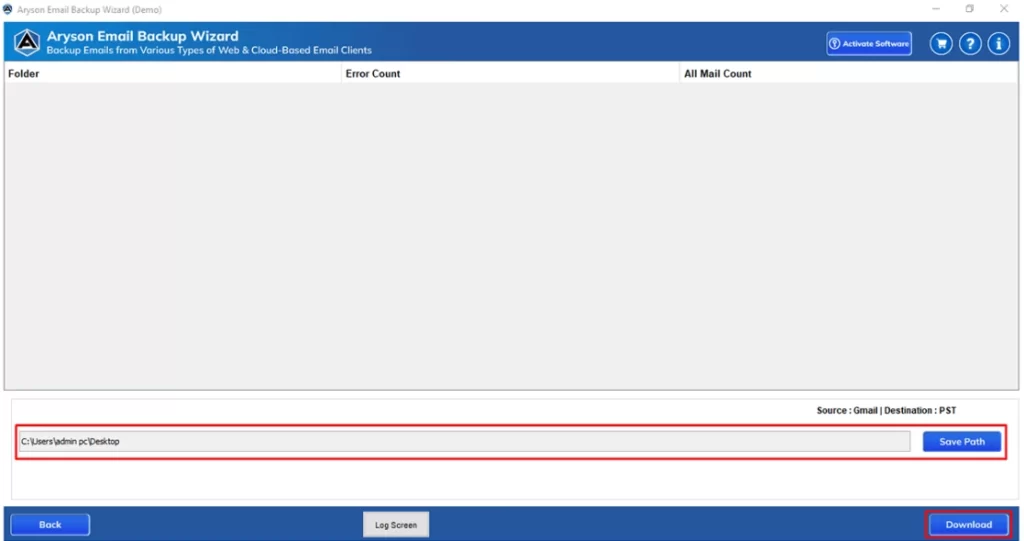
Within minutes, all selected Office 365 emails will be exported to PST files securely on your system.
Exclusive Benefits of the Tool
- This software can export Office 365 mailbox emails to PST quickly and safely.
- Also, it supports batch export of multiple mailboxes at once.
- Moreover, it maintains folder hierarchy, attachments, and email metadata.
- Offers multiple saving formats like PST, MBOX, EML, and PDF.
- And it allows skipping duplicates and scheduling exports as needed.
- Also, it ensures zero data loss or corruption during migration.
Conclusion
Exporting Office 365 mailbox emails to PST manually can be time-consuming, complex, and error-prone, especially for large mailboxes. A professional tool like the Aryson Email Backup Wizard simplifies the process and ensures quick, safe, and accurate export. It helps users export Office 365 emails to PST without any data loss, making it a perfect solution for efficient backup and migration.
Frequently Asked Questions
Ans- Yes, the Aryson Email Backup Wizard allows bulk export of multiple mailboxes simultaneously.
Ans- The time depends on mailbox size and network speed, but the tool greatly reduces export duration.
Ans- Manual exports may fail due to permission errors or large mailbox sizes. The automated tool prevents such issues entirely.
Ans- No, the export process only creates a backup copy — it doesn’t modify or delete your original Office 365 mailbox.
About The Author

Khushboo Maurya is a content and website optimization expert who helps blogs and websites grow naturally. She focuses on improving content quality and reaching more people through smart, simple strategies.