
How to Migrate Google Workspace to Microsoft 365—Step-by-Step Guide
User Query: Recent reports showed that over 65% of businesses switch their cloud platforms to improve their collaboration and data security. For better management and strong compliance features, most organizations moved from Google Workspace to Microsoft 365. However, migrating your important emails or files can be difficult without the right approach. In this blog, we will guide you through the easiest ways to migrate Google Workspace to Microsoft 365. Along with that, we will discuss how Email Backup Wizard makes the error-free process of migration.
Reasons to Migrate Google Workspace to Office 365
Before starting the migration, you need to know the common reasons why organizations are moving to Microsoft 365:
- You can use Outlook for professional email management with an accessible user interface.
- Users can collaborate with Microsoft tools like Teams, OneDrive, and SharePoint.
- Moreover, you will get strengthened security with advanced encryption, compliance, and admin controls.
- Users will be able to manage multiple users and accounts conveniently from a single dashboard.
- Subsequently, you can access your emails and files both online and offline across all devices.
- During migration, you can keep your email structure, attachments, and calendar information intact.
- Also, you will get increased team productivity and improved communication across departments.
Now, you must have understood why the process of migration is a suitable choice for a business organization.
Migrate From Google Workspace to Office 365 Manually
The manual approach is helpful for users who have a small amount of data and want to manage the migration. Below, we have discussed the process of migration under 3 stages:
Stage 1: Account Setup & API Access
- Simply sign in to the Microsoft 365 Admin Center >> verify your domain.
- After that, you have to add all users and assign the required licenses.
- Then, log in to Google Admin Console and activate the Gmail API.
- Create a service account in Google Cloud Platform >> generate a JSON key.
- After this, you need to grant domain-wide delegation to the service account.
Stage 2: Migration Setup & Batch Creation
- Firstly, open Exchange Admin Center > Migration > Endpoints.
- Then, select Google Workspace (Gmail) and provide the service account key.
- After that, validate the connection to confirm access.
- Now, go to the Migration section and click New Migration Batch.
- After that, you need to upload your CSV with the source and target mailboxes.
- Now, you need to choose scheduling, email forwarding, and notification options.
Stage 3: Run Migration & Final Setup
- Initiate the migration batch in the Exchange Admin Center.
- After that, monitor the progress, and you need to address any failed items.
- Then, add your login details and fix any failed or skipped items.
- Now, update MX records at your domain registrar to point to Microsoft 365.
- After that, wait up to 48 hours for DNS changes to take place globally.
- Then, you need to confirm that all data has been migrated and backed up.
- After validation and backup, decommission or cancel Google Workspace if no longer needed.
Drawbacks of the Manual Approach
Although the manual approach works without any additional software, it has some limitations that you should know:
- The process of migration can take a long time when handling large mailboxes.
- Users need a good technical understanding and careful handling to prevent issues.
- Subsequently, your important emails, attachments, or calendar entries may get skipped.
- Moreover, this approach can create network problems or access errors, which can stop the process in between.
- Also, if you make any small mistakes, then it can cause damage to your data transfer.
Automated Approach to Migrate Google Workspace to Microsoft 365
The Email Backup Wizard Software is a reliable solution for users who want to migrate their Google Workspace to Microsoft 365 without any data loss. It maintains the original folder structure and provides filters such as selective data range and duplicate email removal. It simplifies the entire process of migration and provides 100% accurate data transfer. Additionally, you can try the trial version of this software to migrate your 50 emails per folder and check out its filters and features.
Also, using this software, you can export Google Workspace to MBOX and other file formats.
Simple Steps for Google Workspace to Microsoft 365 Migration
- To begin, download and open the Email Backup Wizard software on your system.
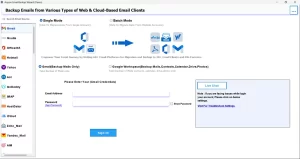
- After that, select G Suite as the required email source from the list.
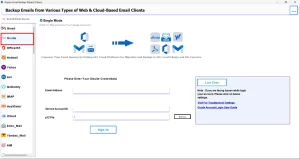
- Now, enter the required details, select the P12 file, and click Sign In.
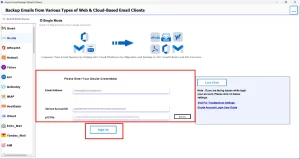
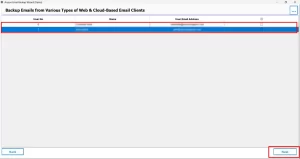
- Then, preview your mailbox data and select the file to migrate >> Next.
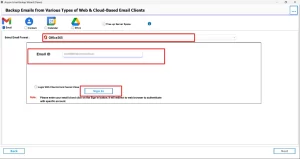
- Next, choose Office 365 as the output format, >> enter credentials, >> Sign in.
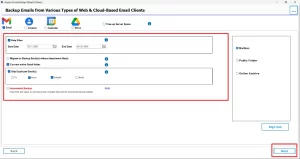
- After that, apply the filters accordingly, such as data range >> Next.
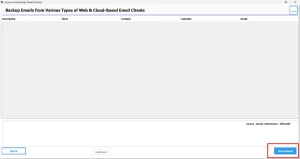
- At the end, press Download to migrate email from G Suite to Office 365.
Conclusion
In this blog, we discuss an effective approach to migrate Google Workspace to Microsoft 365. The discussed manual and automated approaches have their own benefits depending on the size and complexity of the data. The manual approach works well when you have a small migration, while the automated approach helps in an accurate and safer migration. Opting for the appropriate approach that fits your requirements can make the process of migration smooth without any data loss.
Frequently Asked Questions
Ans. Using Email Backup Wizard, you can migrate Gmail emails, along with their folders/labels and attachments, from Google Workspace to Microsoft 365 mailboxes safely.
Ans. The migration time depends on the mailbox size, number of users, and internet speed, and selected filters during the migration process.
Ans. Yes, admin access is recommended, especially for migrating multiple users. Admin credentials allow the tool to access mailboxes securely and perform bulk migration without interruptions.
Ans. Active Google Workspace and Microsoft 365 accounts, admin credentials, stable internet connection, and pre-created Microsoft 365 mailboxes are required.
Ans. Email Backup Wizard Tool supports large mailbox migration efficiently. You can use date filters or selective migration options to migrate data in parts, reducing load and improving performance.
Ans. No, downtime is not required, and users can continue accessing their Gmail accounts throughout the migration process.
About The Author

I write blogs about databases, data recovery, file management, e-mail recovery, and migration solutions as a technical expert. Also, my skills enable me to work in a challenging environment, and I am excited to contribute to the growth of the organization.