How to Migrate Zoho Mail to IMAP Quickly and Securely?
User Query: “Hi, I’m Michael from Texas. I tried migrating my Zoho Mail account to IMAP manually, but the process is too slow and keeps showing connection errors. What’s the fastest and safest way to complete the migration without losing any emails or attachments?”
Overview: In the query above, Michael is seeking a quick, error-free way to migrate Zoho Mail to IMAP without losing his email attachments. Are you also frustrated by the long hours this migration process takes? If yes, don’t worry. Here, in this blog, we will discuss some of the simple ways to perform the migration, which also includes the Aryson Zoho Mail Migration Tool. All the relevant queries are also explained in this article.
Benefits of Switching Zoho Mail to IMAP
Migration of Zoho Mail to IMAP will provide you with different benefits in terms of access, storage, synchronization, and security. Some of those benefits are listed below:
- Global Access to Emails – Enabling IMAP, you can access your emails from any corner of the world through multiple devices like laptops and smartphones.
- Transfer data securely – The migration allows you a secure data transfer as IMAP supports SSL/TLS encryption.
- Full Synchronization – Once you move Zoho Mail to IMAP, whatever changes you make to your data will surely get reflected on all devices.
- No Compatibility Issues – Native Zoho Mail setup generally can’t integrate with many third-party email clients, so moving on to the IMAP is necessary for that.
- Easier Migration – You can easily transfer your emails from Zoho to other platforms without losing attachments or folder structure.
- Efficient Storage Management – Emails will be moved to the server, reducing the need for local storage. Still allowing full access to the mail.
Considering all the benefits the migration process offers, you must perform the migration process. Let’s move to the techniques to export Zoho Email to IMAP server.
Techniques To Migrate Zoho Mail to IMAP
In this section, you will explore different approaches to migrate Zoho Mail to IMAP. The optimized approach will save your time, and it’s more secure. Whereas the manual method is suitable for you if you have a few emails to export.
Let’s dive into both of these methods.
Quick and Secure Way to Switch Zoho Mail to IMAP
Suppose you are looking for the fastest and safest way to transfer Zoho Mail to IMAP without losing your email attachments. In that case, the Aryson Zoho Mail Migration Tool is the most suitable solution. This software can also migrate Zoho emails to PDF, DOC, DCOM, and JSON document formats. Moreover, the hierarchy of Zoho mailboxes is also not disturbed in the process. You can refer to the step-by-step guide provided below to perform the migration.
Steps for Zoho Mail to IMAP Migration:
- Download the Aryson Zoho Mail Migration Tool on your PC.
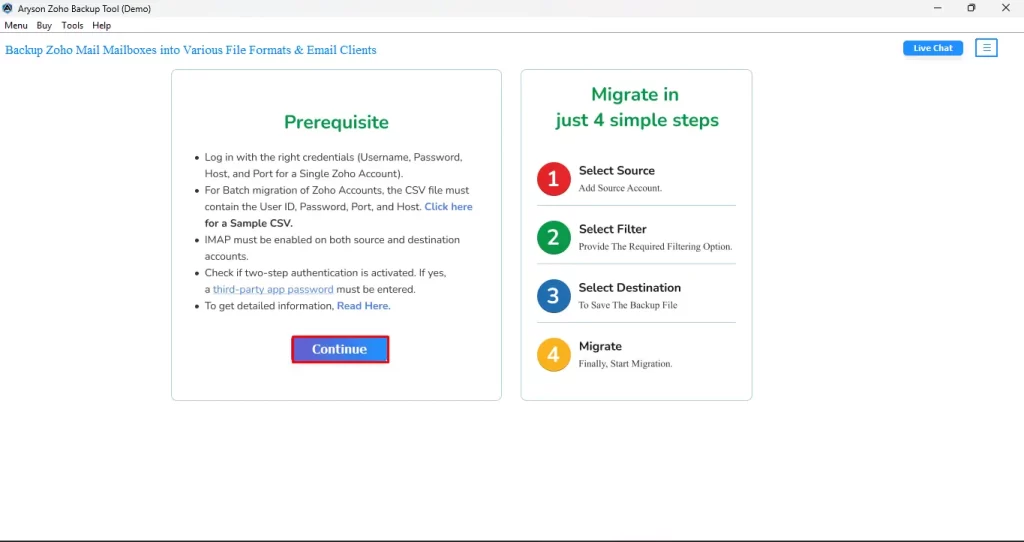
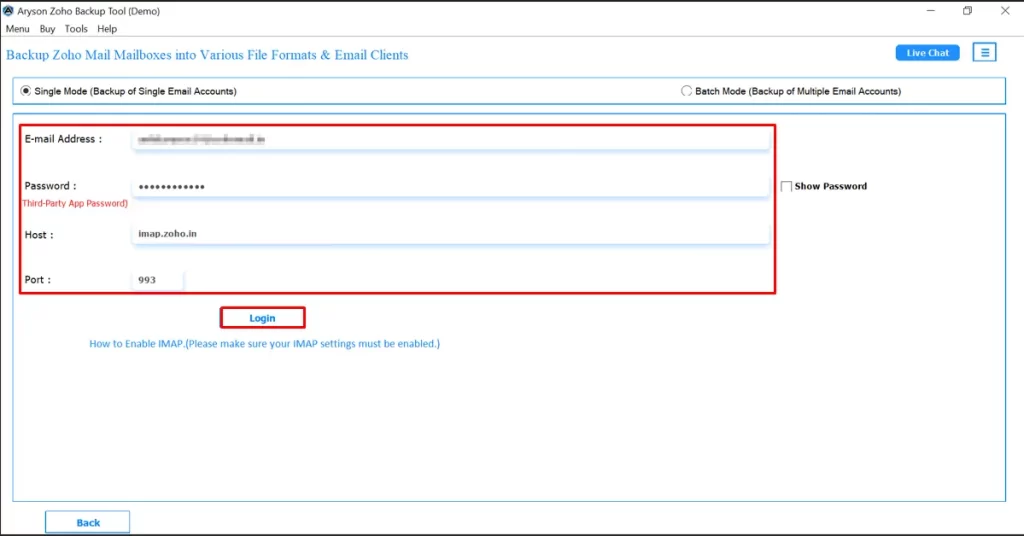
- Then, input your Zoho login credentials and click the Login button.
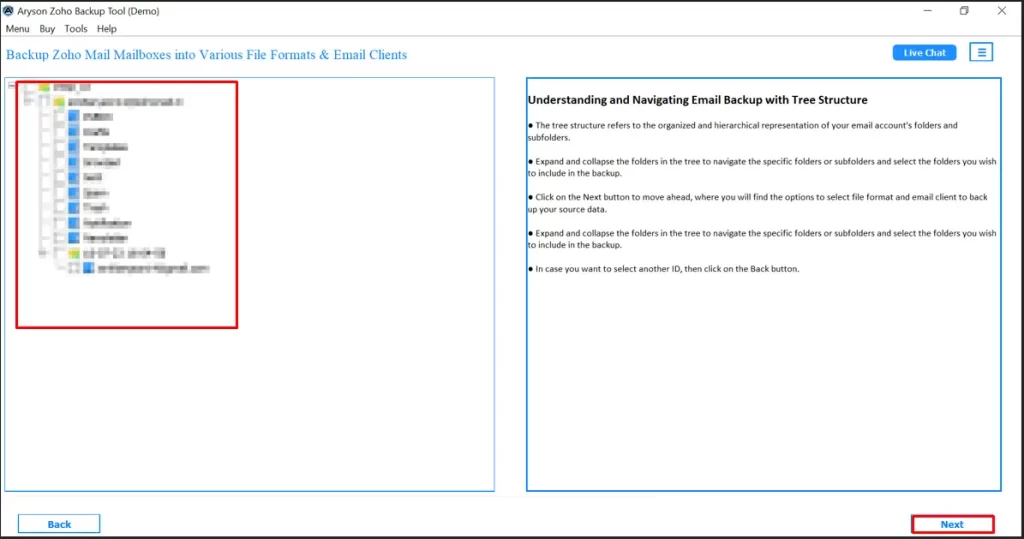
- From there, pick the mailboxes you want to migrate and click on the Next button.
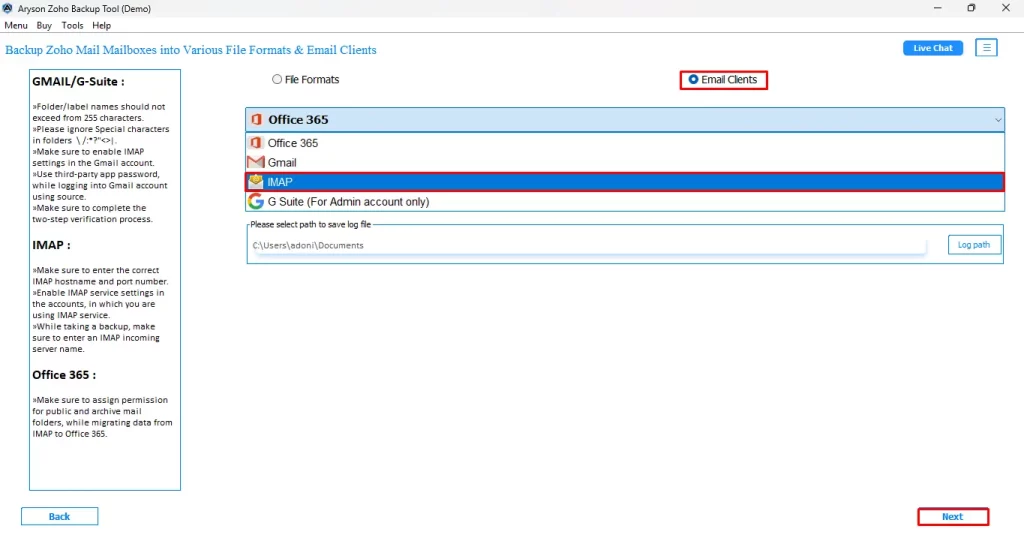
- Now, mark the Email Clients radio button and select IMAP >> Next.
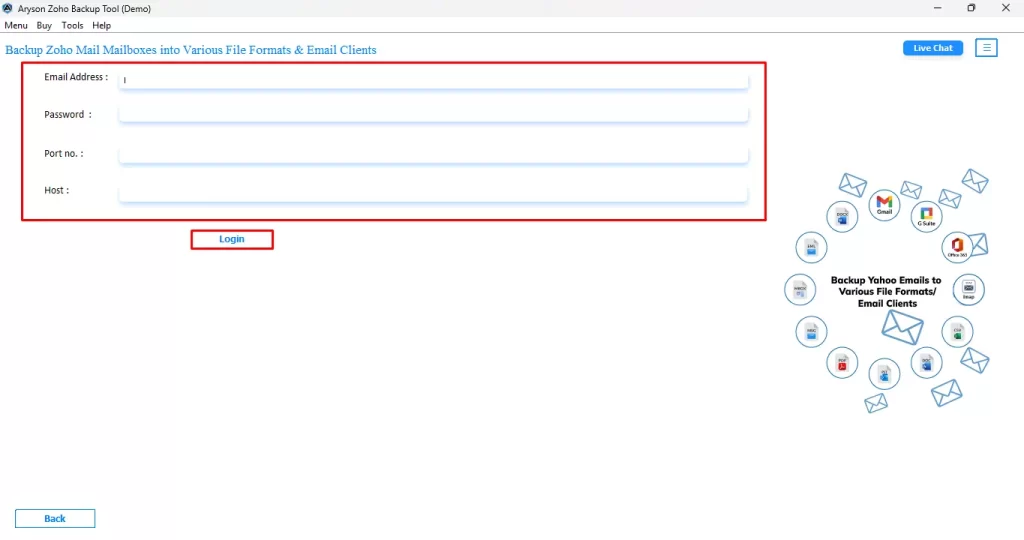
- Then, just enter your credentials and proceed by clicking the Login option.
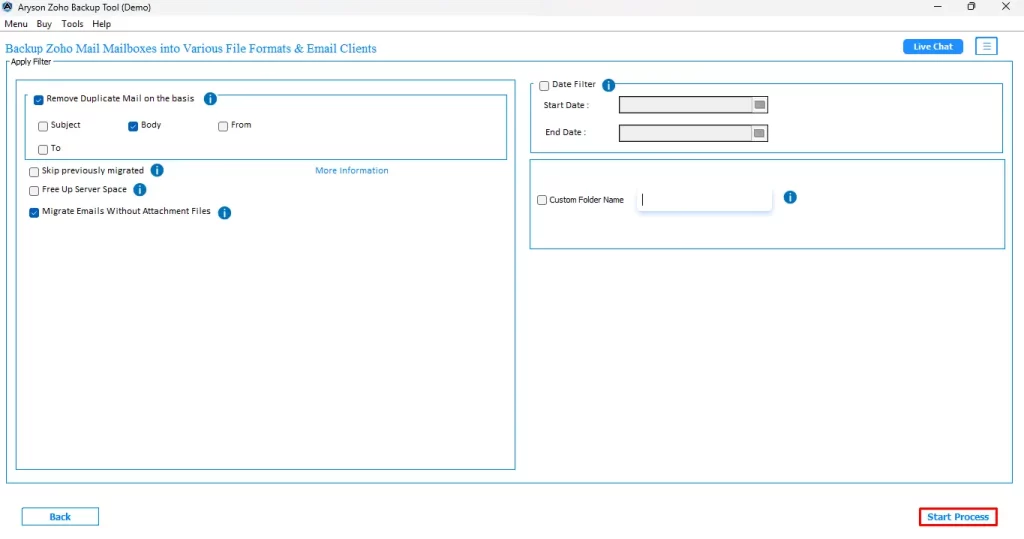
- After that, several additional features will appear on the screen, and you can pick them as per your preference.
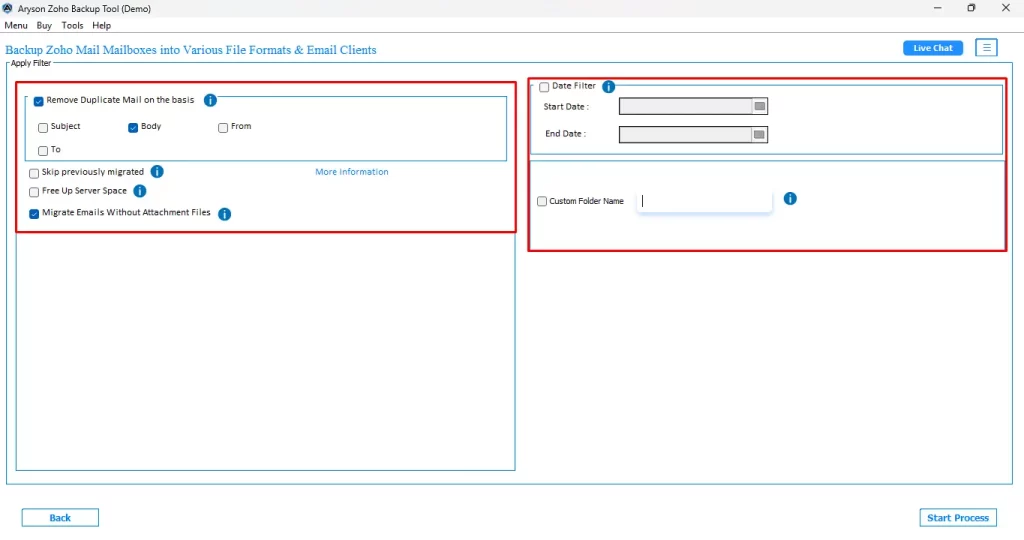
- Finally, click on the Start Process button to start the migration.
Additionally, a Zoho user can migrate Zoho Mail to Office 365 using Aryson Zoho Mail Migration Tool. It will effortlessly transfer your Zoho emails to Office 365, providing you access to all its functionalities, collaboration, security, global access, etc.
However, this method is the most suitable approach to follow, but if any of the scenarios below match yours, you can proceed with the manual method. Some of the scenarios are as follows:
Scenarios for Using the Manual Approach
- If you have just a few emails to export, you can go for this method.
- In case you acquire decent technical knowledge.
- You are willing to invest long hours to perform Zoho Mail to IMAP migration.
- The user is not concerned about losing your email attachments.
- Despite knowing that this method will disturb the hierarchy of your Zoho mailboxes, you want to proceed.
Migrate Zoho Mail to IMAP using Thunderbird:
Zoho doesn’t allow you to export emails to an IMAP server manually; therefore, you can use Mozilla Thunderbird to manually transfer all your emails to an IMAP server. Installing Thunderbird is a prerequisite for performing this method, so in case you don’t have it downloaded on your system, you can’t perform this method. Once Thunderbird is ready, you’ll need to connect your Zoho Mail account using the correct IMAP settings.
Let’s have a look at the steps of manual migration:
- Log in to your Zoho Mail account on your existing system.
- After that, simply click on the Settings option.
- Then, just choose your mail accounts.
- Now, click IMAP Access and ensure that it is not turned off.
- Following that, choose the manual setup option.
- Next, select IMAP as the account type.
- Then, follow the settings below:
| Incoming Server (IMAP): imap.zoho.com In Port: 993 In Security: SSL/TLS Outgoing Server (SMTP): smtp.zoho.com In Port: 993 In Security: SSL/TLS Username: Enter your complete Zoho Mail address (e.g., username1@zoho.com) Password: You can use your Zoho account password or an application-specific password in case the two-factor authentication (2FA) feature is active. |
- Finally, you just have to drag & drop your Zoho emails into Thunderbird.
Conclusion
In the article above, we explored different ways to migrate Zoho Mail to IMAP. Also learned that migration through the Aryson Zoho Mail Migration Tool would not take more than 5 minutes, and that too while keeping the directory structure and email attachments safe. Whereas the manual migration through Thunderbird would take long hours, and that too at the cost of losing attachments and disturbing the directory structure of the Zoho mailbox. Still, the choice is all yours. Which one would you want to pick, as per your expertise and need? Still, in case you are left with any doubts, explore the FAQs section below:
Frequently Asked Questions
Ans- No, when you configure your Zoho Mail with IMAP, it only syncs your emails with the email client you’re using and does not remove them from Zoho’s servers. However, if you delete your email, due to the two-way protocol of IMAP, it will also be deleted from your Zoho account.
Ans- Depends upon the method you use, as it can take you long, never-ending hours to manually migrate emails, while the Aryson Zoho Mail Migration Tool can do the same task in a few clicks.
About The Author

Khushboo Maurya is a content and website optimization expert who helps blogs and websites grow naturally. She focuses on improving content quality and reaching more people through smart, simple strategies.