Migrate Gmail to Zoho Mail Quickly and Securely—Step-by-Step Tutorial
Summary: Zoho Mail and Gmail are popular mail services with robust features and user bases. Numerous users want to migrate from Gmail to Zoho Mail for access to more features and exclusive functionalities. It provides enhanced customization, privacy, and integration for business and personal requirements. This blog outlines established methods for securely transferring Gmail data to Zoho Mail. You will also know about a professional Gmail Backup Tool for quicker, simpler migration. It accomplishes your task without downtime and preserves your email data during the process.
Reasons to Transfer Emails from Gmail to Zoho Mail
Here are key reasons to transfer emails from a Gmail mailbox to Zoho Mail, especially for businesses or individuals:
- Zoho Mail offers a cost-effective price for business purposes as compared to Gmail.
- By migrating Gmail to Zoho, you can facilitate the support of a custom domain.
- You can also customize the option of how your data is being stored.
- It offers a streamlined business email experience by using different software.
- Zoho Mail comes with a clean user interface that provides a better experience.
- Offers better data privacy and does not use data for ad targeting.
Manual Method to Migrate Gmail to Zoho Mail
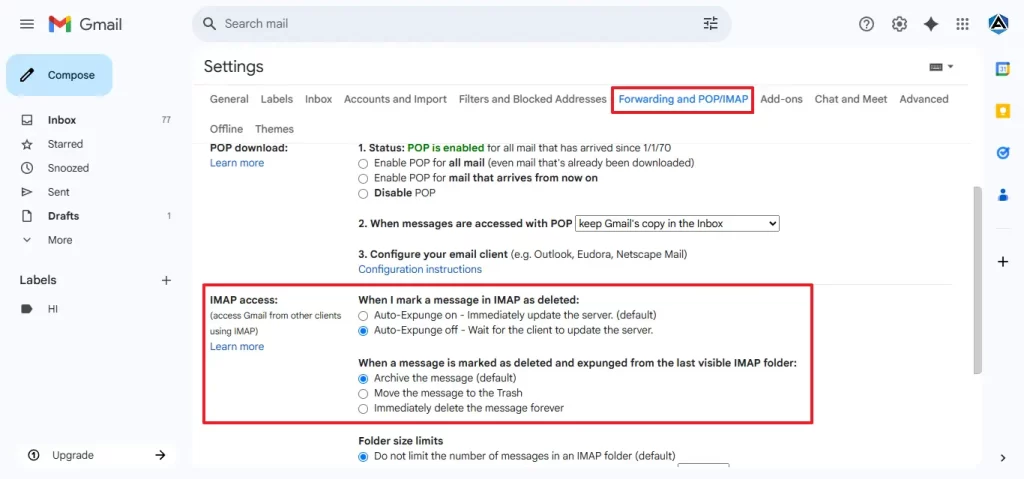
Both email clients use the IMAP protocol to send and receive email communication. To migrate your Gmail data to Zoho Mail without restrictions, enable the IMAP protocol in the Gmail interface. Follow this step-by-step process to safely transfer your Gmail data.
Step 1: Download and install the Gmail application.
- Begin by downloading and installing the Gmail application on your system.
- After installation, log in with your Gmail admin credentials.
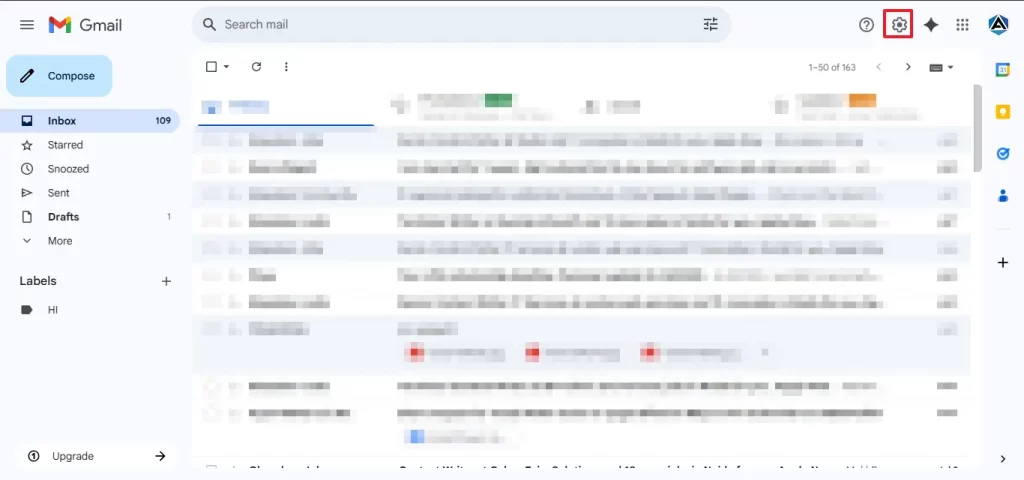
- Then, click the gear icon in Gmail to open the settings menu.
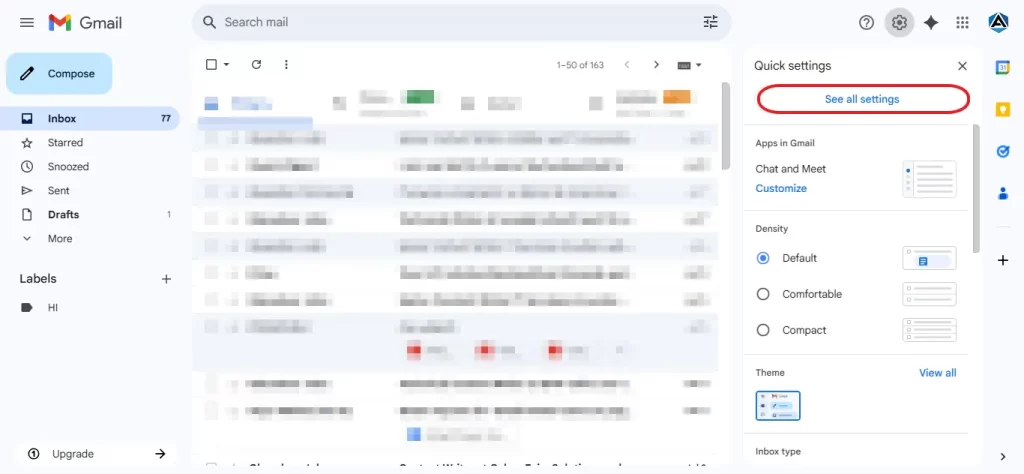
- Now, select See all settings and navigate to the Forwarding and POP/IMAP tab.
- From there, make sure the IMAP option is enabled to allow synchronization.
Step 2: Configure Gmail in Zoho Mail
- Download and install the Zoho Mail application on your system.
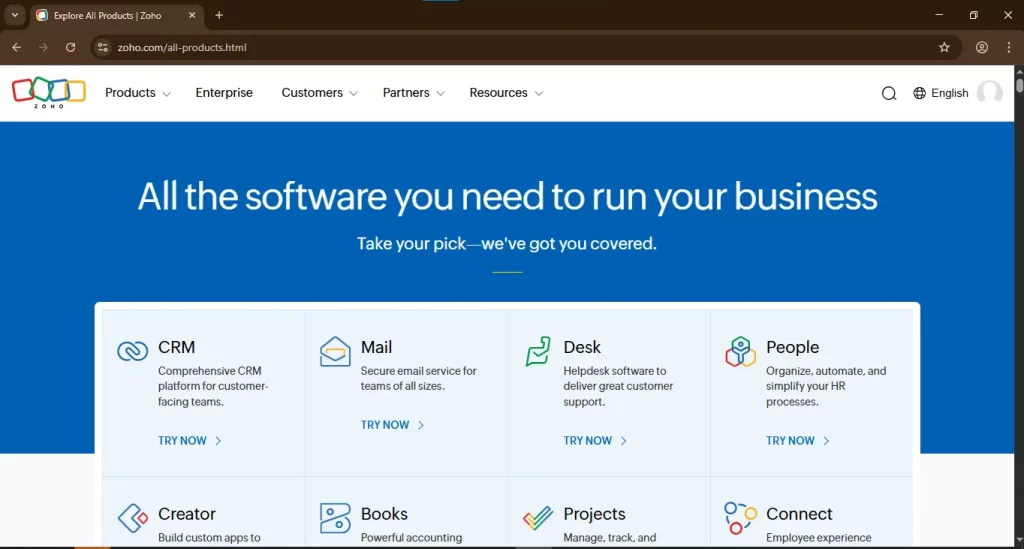
- Then, launch the app and log in using your Zoho admin account to proceed.
- After that, go to Settings > Mail Accounts, then click Add Mail Account.
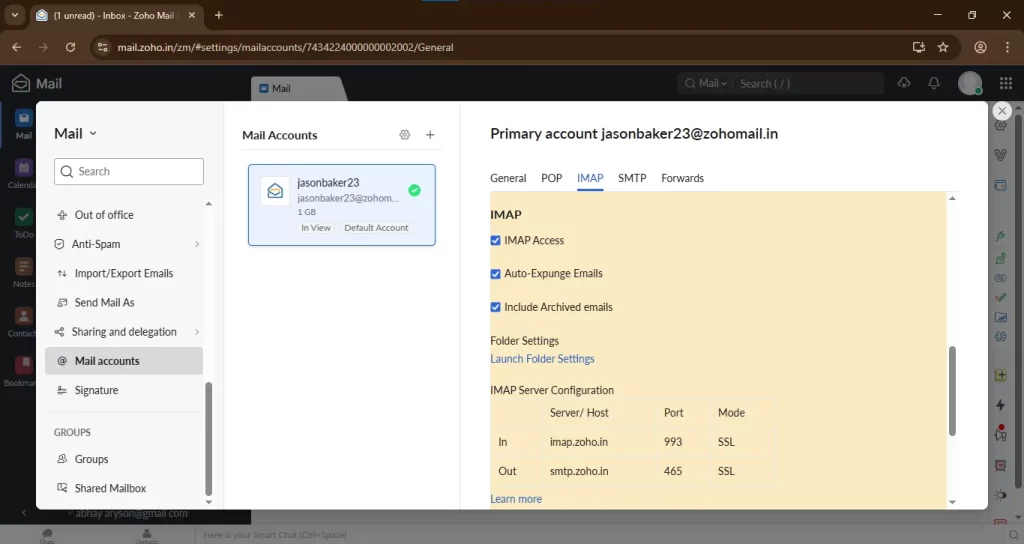
- After that, choose Gmail from the list of available services.
- Use the OAuth authentication method to verify your Gmail credentials securely.
- Once verified, Zoho Mail will begin syncing with Gmail using the IMAP protocol.
Step 3: Email Migration from Gmail to Zoho Account
- Allow some time for the synchronization process to complete, as it may vary depending on the volume of emails.
- Here, transfer all the required data from Gmail into the Zoho Mail application.
- After syncing, double-check to ensure that no emails, attachments, or metadata have been lost during the transfer.
Limitations of the Manual Method
There are lots of limitations associated with the Gmail to Zoho Mail migration.
- Migrating a large number of emails can take a significant amount of time.
- Users must have some technical knowledge before proceeding.
- You can’t utilize the principle of selective filters and opt in.
- Any incorrect misconfiguration leads to data loss.
- Due to complex steps, attachments do not migrate properly.
Professional Method to Migrate Gmail to Zoho Mail
The Gmail Backup Tool offers a secure and fast way to back up Gmail emails to your preferred email client. The tool supports multiple email clients, such as Thunderbird, Outlook, iCloud, and many others, for extensive data access. The software can also export Gmail to PST, PDF, EMLX, and other data files. Also, it allows selective downloading of emails based on date range, folder, or sender/receiver filters. Nonetheless, the original folder hierarchy and email attributes are preserved during backup. Additionally, it comes with a simple and easy-to-use interface suitable for beginners as well as experts. Moreover, scheduled backups provide for automatic saving of data at fixed intervals with no effort. The tool keeps data completely secure and private during backups.
Steps to Import Emails from Gmail to Zoho Mail Account
- Get the Gmail Backup Tool and install it on your computer.
- After that, log in using the credentials to authorize yourself.
- Next, open your mailbox and select the data you wish to migrate.
- Then, from the email client list, select Zoho Mail.
- After that. Authenticate yourself by applying or entering the credentials.
- Then, apply the filters and functionalities as needed.
- In the end, click on the Next button and make sure all your data is safe.
Conclusion
Moving Gmail data into Zoho Mail seems easy with the proper approach. The manual steps are viable but require technical expertise. They take significant time and can also lose data. However, employing a professional tool simplifies the process. It guarantees data security and saves your time. You can even set filters and migrate Gmail to Zoho Mail as per your choice. Additionally, the professional software is easy for beginners to use and secure. Choose the option that best fits your needs and comfort.
Frequently Asked Questions
Ans: By utilizing the manual method, you cannot transfer all your mail in bulk. However, if you want to transfer your Gmail into Zoho Mail in bulk, use a professional tool. The tool transfers your entire data while ensuring that no attachments are lost during the process.
Ans: By employing the professional tool, you can lose any single bit of data during migration. The tool is equipped with the latest and most innovative algorithm that protects your data easily throughout the process.
About The Author

Khushboo Maurya is a content and website optimization expert who helps blogs and websites grow naturally. She focuses on improving content quality and reaching more people through smart, simple strategies.