
How to Migrate AOL Email to Gmail Easily (Step-by-Step Guide)
User Query: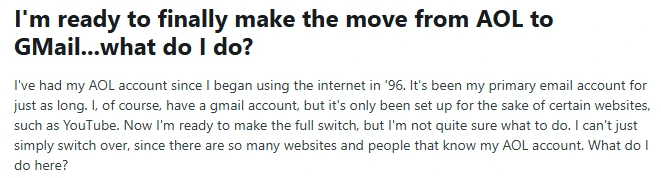
Summary: In the year 2026, there are still many users who use AOL Mail. We will discuss a simple way to migrate AOL Mail to Gmail without data loss. In this guide, we discuss the most preferred approach that accomplishes the migration process, including Email Backup Wizard Software. With the right approach, you can migrate your AOL emails in hassle free way.
Why User Choose Gmail Over AOL Mail
| Features | AOL Mail | Gmail |
| Storage Space | It offers limited mailbox storage, which may vary by account type and usage. | It provides 15 GB of free storage shared across Gmail, Google Drive, and Google Photos. |
| Email Access Protocol | Supports both POP3 and IMAP. Allows basic email access on third-party clients. | Fully supports IMAP and POP3 with advanced sync options. |
| Security & Spam Protection | Basic spam filter and security measures. | Industry-leading spam, malware, and phishing protection powered by Google AI. |
| Mobile Support | Limited features with a basic user experience. | Gmail mobile app provides powerful search, smart labels, and Google integration. |
| Search & AI Tool | Simple keyword-based search with limited filtering. | Smart search uses AI to rank relevant emails and conversations. |
Best Approaches for AOL to Gmail migration
We will discuss the most appropriate approaches to accomplish the migration process:
- Manual Method
- Automated Method
Approach 01: Free Way to Transfer emails from AOL to Gmail
For this method, users have to configure AOL Mail and Gmail. As this is a free way to import your AOL emails, it takes time depend on the mailbox size. Now, follow the mentioned steps for migration:
Step 01: Login AOL Mail & Gmail
- First, log in to your AOL Mail account on your system >> Account Security.
- After that, generate an app password.
- Now, you have to log in to your Gmail Account and then click on See all settings.
- Next, move to the Account and after that Import tab.
Step 02: Add AOL Account
- For this, you have to click on “Add a Mail Account” under Check Mail from other accounts.
- Afterward, enter your AOL email address and select Import email from other account (POP3).
- Then, enter AOL POP details: Username: your full AOL email address, Password: AOL App Password, POP Server: pop.aol.com, Port: 995, and Check Always use SSL.
- At last, click on Add Account, and Gmail will import your AOL emails.
Limitations of this Method:
- The process may take a long time to import your AOL Mails.
- Not suitable for a large mailbox size to import your emails.
- Also user must have knowledge of the POP server for configuration.
Approach 02: Automated Solution to Import AOL email to Gmail
The Email Backup Wizard Software is for users and organisations that require a secure and accurate way to transfer AOL emails to Gmail. The Email Backup Wizard Software is made to simply maintain the email folder structure and data integrity. Additionally, it safely transfers emails along with attachments, folders, and metadata without data loss. This approach is ideal for a large mailbox and multiple user accounts, with minimal downtime.
Easy Steps to Forward AOL Mail to Gmail
- To initiate, on your computer, download theEmail Backup Wizard Software.
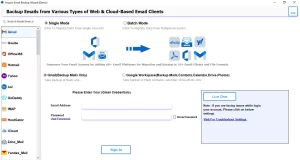
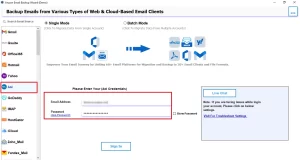
- Select AOL Mail from the left-side panel and enter your login credentials.
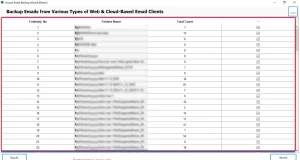
- Now, you can preview the mailbox folders and click Next to proceed further.
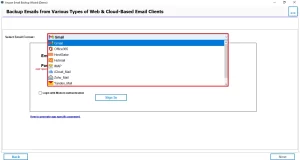
- After that, select Gmail as the output destination from the drop-down menu.
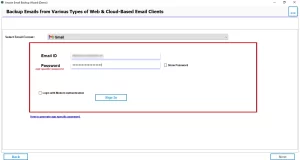
- Next, enter the login credentials for Gmail to transfer AOL Mail data.
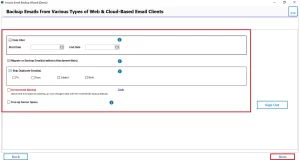
- Then, you have to apply the specific filters for selective data migration >> Next.
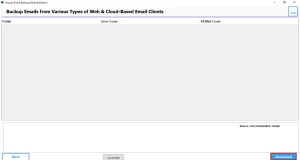
- At last, click on the Download button to start the migration process.
- Its simple interface helps users to understand this software.
- This software makes sure secure login and handles data during the migration process.
- With the help of this software up can save emails in different formats, such as PST, PDF, etc.
- You can also transfer AOL Mail to Yahoo Mail and other email clients.
- Apart from that, it will skip duplicate emails to avoid repetition of the emails in the folder.
- Also, it allows selective data backup using date range and folder filters.
Advantages of using this software:
Conclusion
In this blog, we explained easy ways to migrate AOL email to Gmail. Both manual and automated methods have their own use, which depends on how many emails you need to move. The manual method works fine for small mailboxes, while the automated method is better for large or important data. Also, follow the right approach based on your needs that helps you to complete the migration smoothly without any data loss.
Frequently Asked Questions
Ans. Email Backup Wizard processes emails quickly and handles large AOL mailboxes efficiently.
Ans. Yes. Aryson Email Backup Wizard keeps all attachments, email formatting, metadata, and folder structure intact during migration.
Ans. For complete migration of old and new emails, Email Backup Wizard provides a more reliable solution.
Ans. Yes, the Email Backup Wizard ensures a secure, accurate, and hassle-free AOL to Gmail migration without technical complexity.
Ans. Generally, common issues include missing emails, attachment loss, folder mismatch, and login errors.
About The Author

Khushboo Maurya is a content and website optimization expert who helps blogs and websites grow naturally. She focuses on improving content quality and reaching more people through smart, simple strategies.