How to Import Yahoo Mail to Gmail in 5 Easy Steps
In today’s digital era, email migration has become common as users move from one email platform to another for better security. Most of the users plan to switch from Yahoo Mail to Gmail because Gmail offers an advanced interface and a range of productivity tools. Several approaches are available to import Yahoo Mail to Gmail. In this guide, we explain how to transfer your emails along with the Email Backup Software for hassle-free migration.
Why you must Transfer Emails from Yahoo Mail to Gmail?
It is important to understand why migrating from Yahoo Mail to Gmail is necessary.
- Gmail offers a spam filter that prevents harmful emails from reaching the inbox.
- Moreover, it can be accessed from any device, such as smartphones and laptops.
- Compared to Yahoo, Gmail provides a large space for emails and attachments.
- Additionally, Gmail includes a powerful search tool for better email management.
Solutions to Import Emails from Yahoo to Gmail
Continue to learn how you can transfer your Yahoo Mail to Gmail. The first method involves Gmail’s built-in features. While the second method uses professional software for better migration.
- Manual Method
- Professional Software
Method 01: Manual Method to Import Yahoo Mail to Gmail
Now, let’s walk through the methods that will migrate your Yahoo Mail emails to Gmail.
Step 01: Sign in to your Gmail account
- First, you need to open a web browser and then go to Gmail.
- After that, log in with your Gmail account and password.
Step 02: Access Gmail Settings
- Now, click on the gear icon in the top-right corner.
- Next, you have to select All Settings from the drop-down menu.
Step 03: Switch to Account Tab and Import Section
- In Gmail settings, click Account and then Import.
- Thereafter, look for the option Import Mail and Contacts.
Step 04: Enter your Yahoo Email Address
- Subsequently, you have to click on Import Mail and Contacts.
- Now, enter your Yahoo Mail email address and click on Continue.
- Next, you have to sign in with your Yahoo Mail when prompted.
Note: This allows Gmail to access your Yahoo Mail mailbox for migration.
Step 05: Select Import Options
- Afterward, you will find options such as Import Contact and Mail.
- Finally, select the options you need and click Start Import.
Once the process begins, Gmail will start the import of Yahoo Mail to Gmail.
Drawbacks of the Manual Method
- The import process may take several hours to complete the migration.
- In the manual method, Gmail may not successfully import large Yahoo mailboxes.
- Moreover, email attachments or folders may not migrate properly.
- The transfer process depends on a stable internet connection.
- Furthermore, users with a non-tech background may face authentication errors.
Method 02: Professional Yahoo to Gmail Migration Tool
As an alternative to the manual method, you can use the Email Backup Software. This software allows users to move Yahoo emails and attachments, keeping the formats intact. Moreover, its main capabilities include bulk email migration that supports transferring email for large mailboxes. This enterprise-level solution is often the best choice for organisations that manage multiple mailboxes. Additionally, it provides secure authentication to protect users’ data.
Steps to Import Yahoo Mail to Gmail
- First, install the Email Backup software on your system.
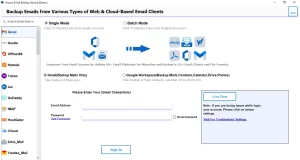
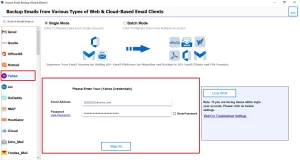
- Thereafter, select Yahoo Mail from the given input source and enter credentials.
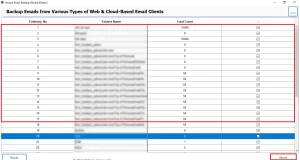
- Next, preview the fetched mailbox data & select the item you want to migrate >> Next.
- After that, select Gmail as the email client and enter your Gmail login credentials.
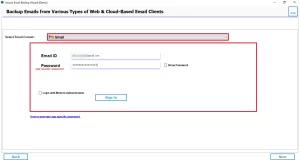
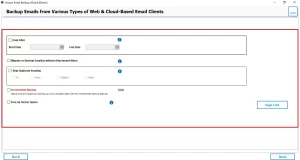
- Finally, apply the filters and click on the Download to start the migration process.
Related Resource – If you want to migrate Yahoo emails to another email service, you can also read a detailed guide on Migrate Yahoo Mail to IMAP Server, which explains a secure method for email migration.
Benefits of this Professional Software
- It enables bulk email migration to transfer Yahoo Mail to Gmail.
- This software supports several email clients for migration.
- Moreover, before migration, you can preview the mailbox data.
- Furthermore, it provides advanced filters for selective migration.
Conclusion
In conclusion, we covered all the aspects to import Yahoo Mail to Gmail. Migrating emails from Yahoo Mail is straightforward when you use the right method. The built-in import feature allows users to transfer emails and contacts. However, it is recommended to use the automated software for the secure migration of Yahoo Mail.
Frequently Asked Questions
Ans. If the import fails, Gmail usually displays an error message. You can retry the process, check login credentials, or verify Yahoo account permissions before starting again.
Ans. Yes. Importing emails does not delete them from Yahoo. The process simply copies emails into your Gmail account.
Ans. The time required depends on the mailbox size and internet speed. Small mailboxes may import within minutes, while large mailboxes may take several hours.
Ans. Gmail does not specify a strict limit, but extremely large mailboxes may take longer or occasionally fail during the import process.
Ans. Yes. While setting up the import, Gmail provides an option to import new emails for the next 30 days, allowing you to receive incoming Yahoo messages in Gmail temporarily.
About The Author

Khushboo Maurya is a content and website optimization expert who helps blogs and websites grow naturally. She focuses on improving content quality and reaching more people through smart, simple strategies.