A Complete Step-By-Step Guide: Import OST To Office 365
Overview: An OST file is an Outlook offline data file that stores the mailbox data of the users and allows them to work even offline. However, users nowadays choose to import OST to Office 365 for better portability, security, and accessibility. In case you are also here, looking for a reliable way of importing OST files to Office 365, continue reading. This write-up will guide you on how to use the Aryson OST to PST Converter to securely import OST files in bulk.
Why Import OST Files to Office 365?
There are various reasons why a user would want to import OST files to Office 365. Have a look at some of them:
- Importing OST files helps users access old Outlook data in the cloud.
- It makes it possible to migrate mailbox items even during system or profile changes.
- Users can easily recover data from a corrupt or inaccessible OST file after the import.
- Accessibility of OST files becomes easier across multiple devices.
- The import makes sure of the backup and continuity of mailbox data.
Quick And Reliable Approach – Using Aryson OST to PST Converter
Aryson OST to PST Converter is the simplest yet most effective method used to import OST to Office 365. This software allows users to effortlessly perform OST to Office 365 migration without any data loss. Moreover, it keeps the emails, attachments, and folder structure intact. Along with that, users can preview their selected OST files/folders before importing them. Along with that, it can import OST to Gmail, G Suite, IMAP, and many more email clients. Not just this, this software offers many more benefits. Let’s have a look at them.
Exclusive Benefits of the Software
- This software can directly migrate mailbox data to Office 365, Gmail, G Suite, IMAP, and more.
- It can import multiple OST files all at once, saving time and increasing efficiency.
- This software has the Impersonation login method to back up multiple Office 365 user accounts at once.
- Moreover, it provides features like Remove Duplicate Mails, Skip Previous Migration, etc.
- Allows users to apply date filters to migrate data from a specific date range.
- It provides saved attachments separately or migrates emails without attachments for attachment handling.
Quick Steps to Import OST to Office 365
- Download and open Aryson OST to PST Converter on your system.
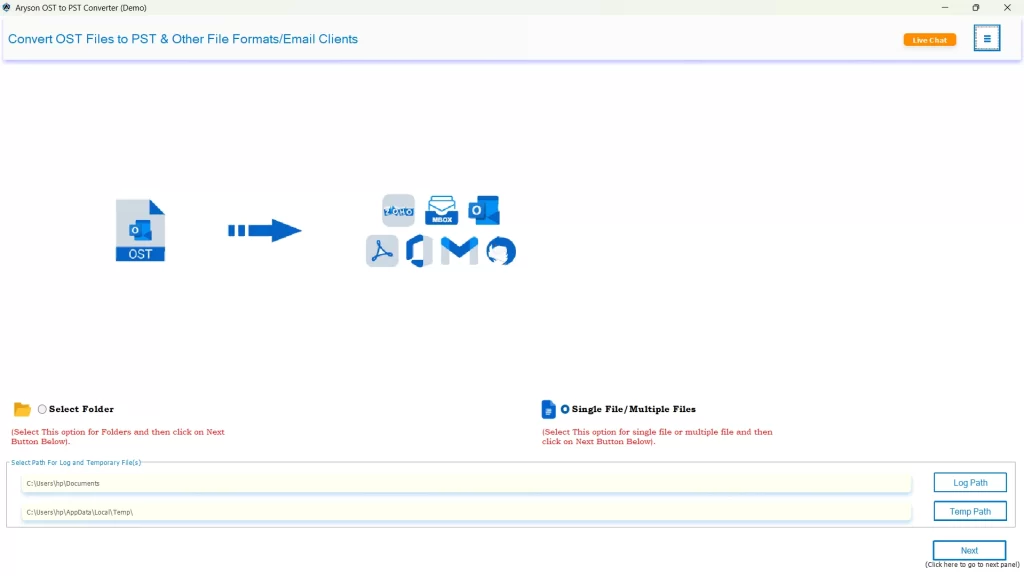
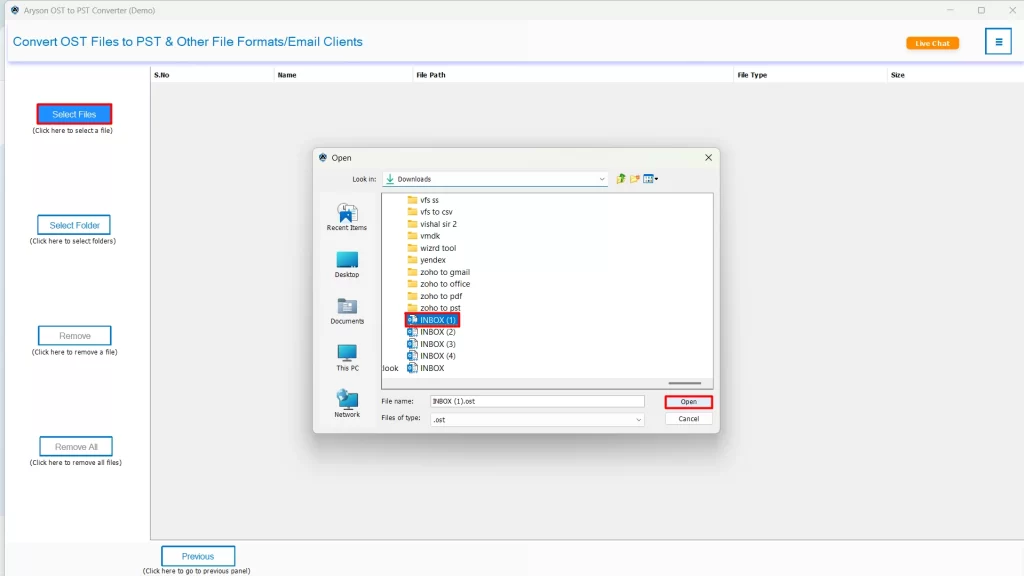
- Then, click on Select Files/Folders to add your desired OST files.
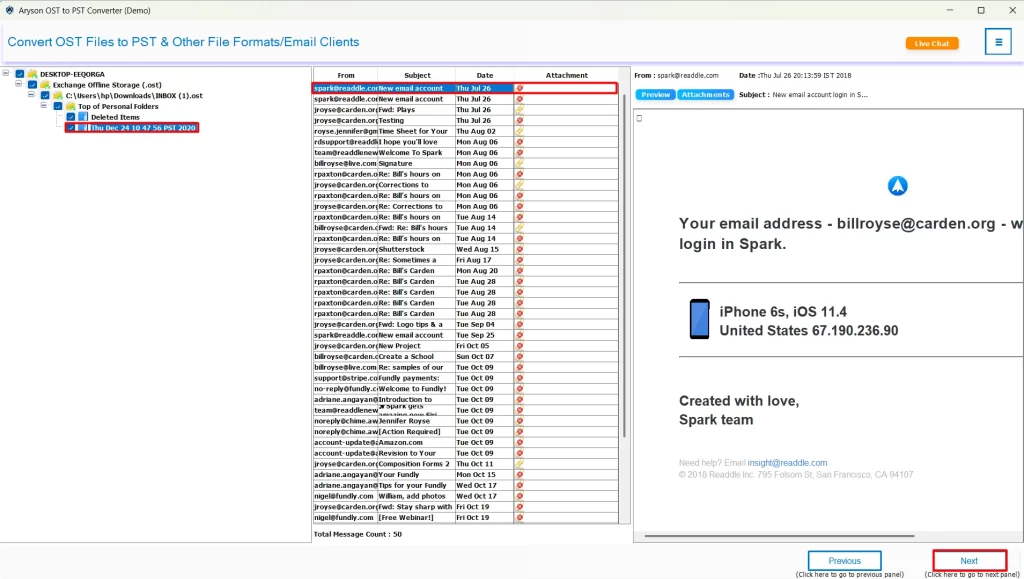
- After that, select and preview your selected OST files and click Next.
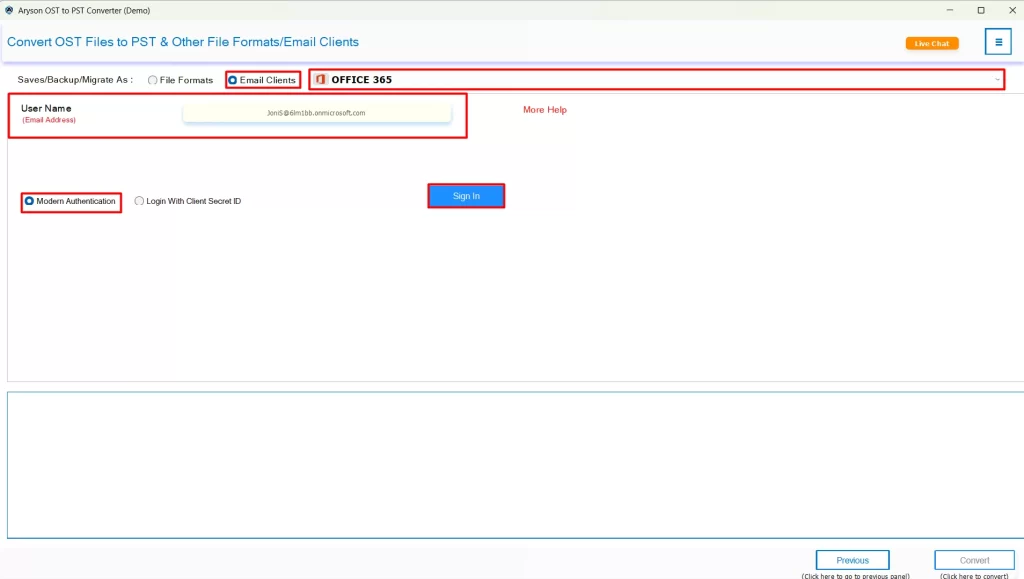
- Now, choose Office 365 under email clients and log in to it.
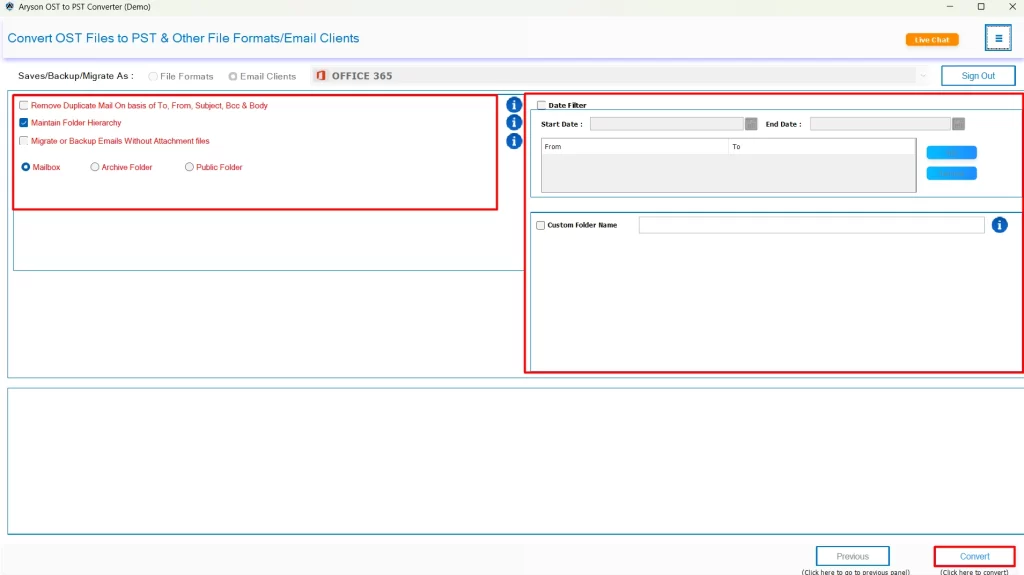
- Utilize the additional features if required and hit the Convert to Convert OST to Office 365.
Conclusion
In the above blog, we discussed why individuals as well as businesses prefer to import OST to Office 365 for better portability and accessibility. Whether you are a complete beginner or an advanced user, you can easily import these OST files within a few seconds, using the automated software above. Make sure to follow the importing steps carefully to avoid any kind of errors.
Frequently Asked Questions
Ans- You need to import Outlook OST to Office 365 for better portability, security of data, and accessibility.
Ans- Yes, you can easily import multiple OST files to Office 365 at once using the Aryson OST to PST Software
Ans- It will take just a few seconds to migrate OST files to Office 365 if you are using the automated software.
Ans- Yes, the Aryson OST to PST Converter preserves the folder hierarchy and attachments.
Ans- At the end of the migration, the software allows users to download a log report of the whole procedure; you can simply download it.
Ans- You can contact our Tech Support Team in case you get stuck during the import process or the process fails.
About The Author

Khushboo Maurya is a content and website optimization expert who helps blogs and websites grow naturally. She focuses on improving content quality and reaching more people through smart, simple strategies.