How To Import OST To Gmail Safely Without Data Loss?
Ella’s Question: “I have just exited my previous job and have a backup of my Outlook data on an OST file but no longer have access to my previous Exchange account. I would like to access all of my emails in Gmail, keeping in mind not to lose any attachments or folder structure. I attempted to do a manual export, but it was convoluted and took a lot of time. Is there a quicker and more reliable way to import my OST file directly into Gmail?”
Introduction: If you’ve used Microsoft Outlook in offline mode, you may have used OST files. These files maintain mailbox data locally and help you use Outlook without an internet connection. Problems arise when you want to access the data from the offline Outlook files outside of Outlook, say to access your emails on Gmail. Importing OST to Gmail is the best option. Gmail is more accessible, it syncs across devices, and it’s based in the cloud, which is secure and reliable for individuals and businesses alike. In this article, you will learn how to import an Outlook OST file into Gmail without losing a single email. We will cover different approaches along with Aryson OST to PST Converter to import OST to Gmail in a hassle-free manner.
What Is an OST File
An OST (Offline Storage Table) file is an Outlook data file that hosts a copy of your mailbox information on your local drive, allowing you to work offline. When you reconnect, Outlook syncs your changes with your Exchange or IMAP server.
Why Import OST to Gmail?
OST files are linked to the Outlook profile or account that created them. This means that if your Exchange account has been deleted or you have decided to switch to another email platform, your OST data becomes unavailable. Here are the reasons why users want to import OST File Emails to Gmail:
- Access Anytime, Anywhere: Once uploaded into Gmail, users will have access to their data anytime, anywhere
- Transitioning Accounts: When moving from an organization Outlook account to a personal Gmail account, importing data into Gmail will ease the account transition process
- Backup and Disaster Recovery: Gmail offers a secure cloud backup environment for your data
- Easy Connectivity: Gmail has a straightforward integration process to other apps offered by Google to help manage workflow
How to Import OST to Gmail – Manual Method
Before using any advanced application, let’s begin with the manual method to transfer OST emails to Gmail. This process consists of two parts: first, you will convert the OST file to a PST file, and then this PST file will be imported into Gmail via Outlook. Follow these steps to convert OST files to Gmail:
Step 1: Convert the OST file to PST using Outlook
As Outlook does not allow an OST file to be imported directly, it must first be exported to Salesforce using a PST file. These are the steps that are required:
- Access Microsoft Outlook on the device.
- Go to the path File > Open & Export > Import/Export
- Choose the option Export to a File and select Next.
- Select the PST option, Outlook Data File (PST), and select Next.
- Select the mailbox folders you wish to export and then select Next again.
- Select a location where you want to save the PST file.
- Click Finish.
Step 2: Link Gmail Account to Outlook
- After getting the PST file, you need to add your Gmail account to Outlook before importing it.
- Open Outlook and select File > Add Account.
- Type your Gmail email, and click Connect.
- Type your Gmail password, and finish the setup.
- Outlook will automatically sync your Gmail account when you are done.
Step 3: Import PST File into Gmail Account
Having configured your Gmail account in Outlook, the PST data can now be imported into that Gmail account.
- Select File > Open & Export > Import/Export.
- Select Import from another program or file and click Next.
- Select the Outlook Data File (.pst) and find the file you exported.
- Select the Gmail mailbox that will be selected as your mailbox to import to.
- When finished, your Outlook data from the OST file will now be in your Gmail mailbox.
Drawbacks of the Manual Process to Import OST File to Gmail
While the manual process is effective, it does not work for all users. Here are some reasons why:
- It needs Outlook installed and an existing account with Gmail set up.
- The importation means any additional users are going to have to go through a long and arduous process.
- You can’t import a corrupted or orphaned OST file.
- However, if you experience an interrupted import, there is a chance you could lose data, and the migration will be incomplete.
- If you have more than one OST file, the manual import process doesn’t support bulk migration.
- To solve issues like this, utilizing a tool is a better alternative that is both reliable and a significant time saver.
Migrate Outlook OST to Gmail Using Aryson OST to PST Converter Tool
Aryson OST to PST Converter enables users to import OST files directly to Gmail, preserving the original hierarchy of folders, along with the metadata and attachments. This software successfully recovers each of the designated files completely without the need for recovery and will not lose any data during the migration process. The software is user-friendly and converts smoothly for either technical or non-technical users when migrating data from Outlook.
Quick Steps to Import OST to Gmail Using the Aryson Tool
- First, download and install the Aryson OST to PST Converter on your PC.
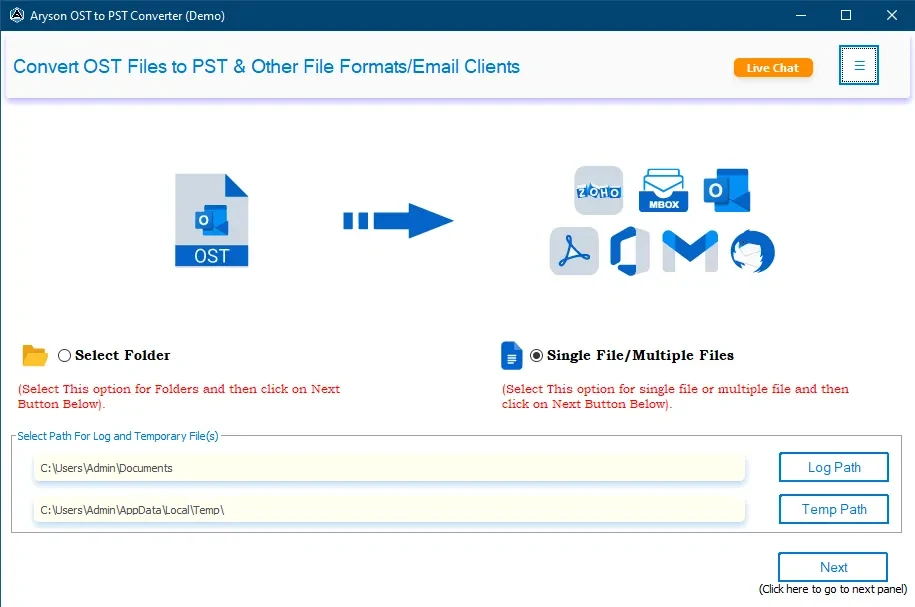
- Then, click Open and navigate to your OST file.
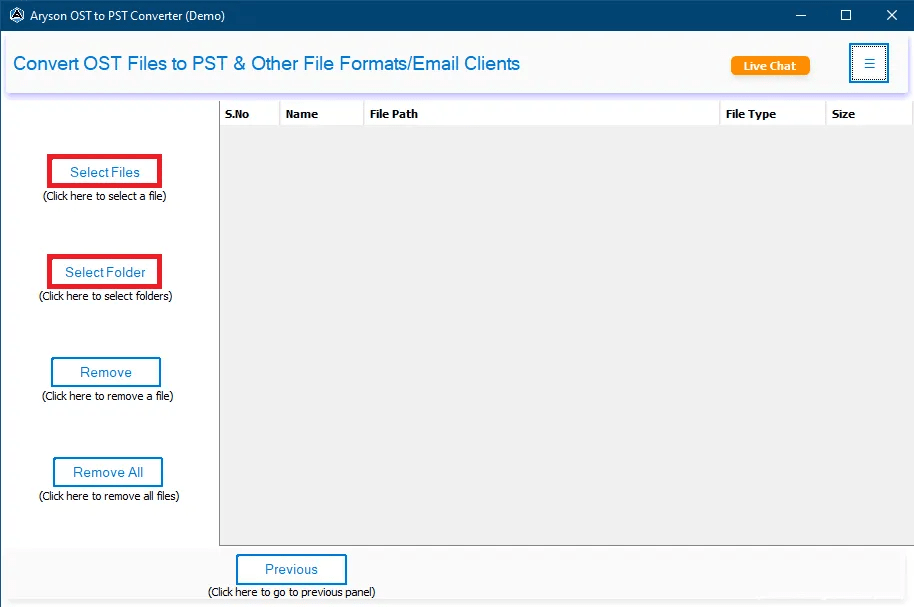
- The utility will scan and then preview all of your mailbox items.
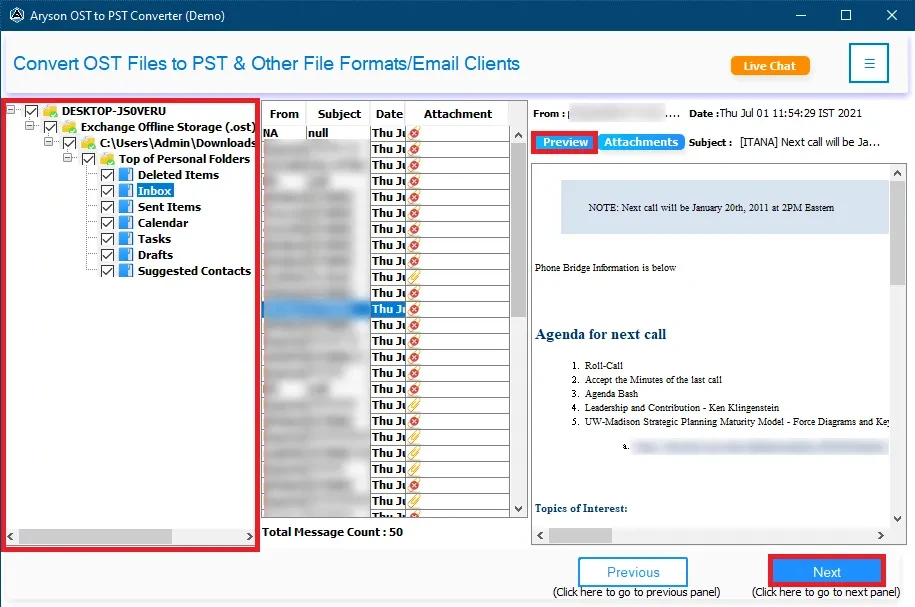
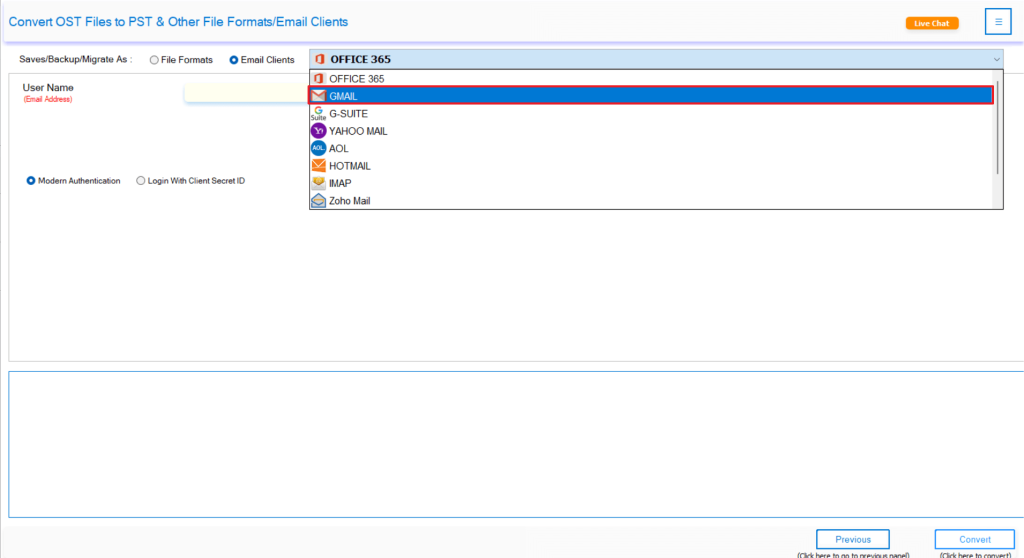
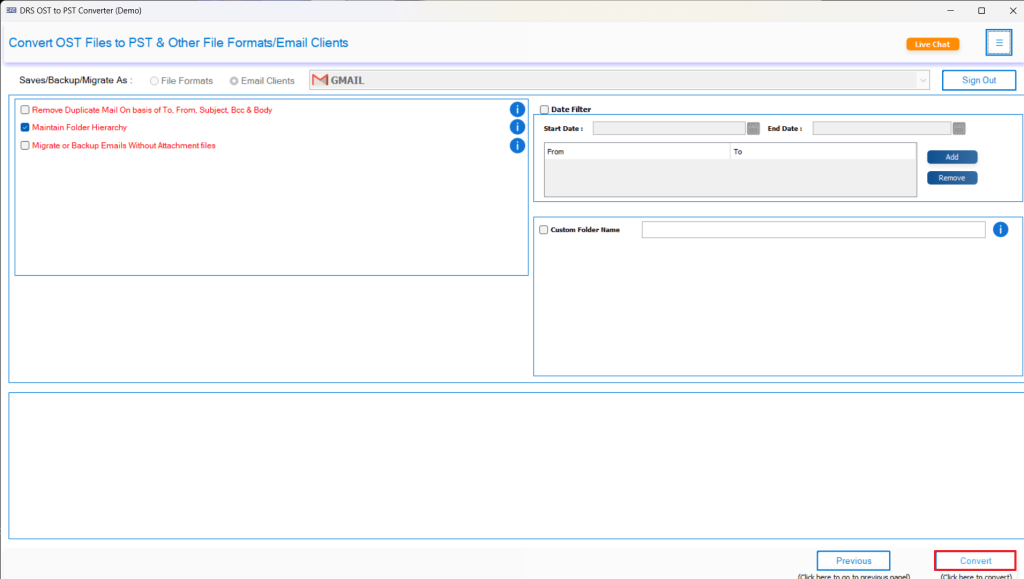
- Then, select Gmail from the options to save the mailbox items.
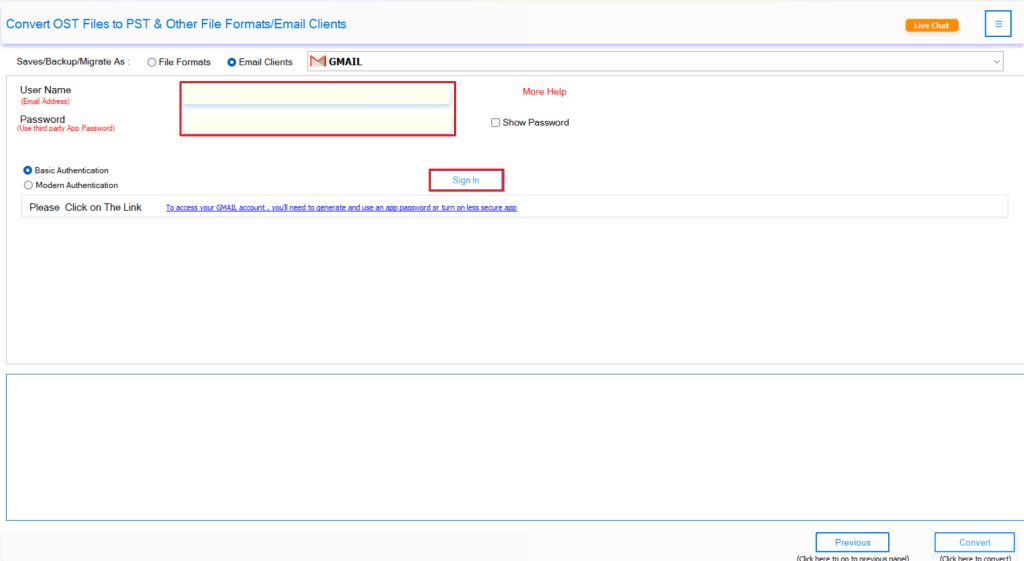
- At this stage, enter your Google account details (email and app password).
- You may use filters for the specific data as the outcome.
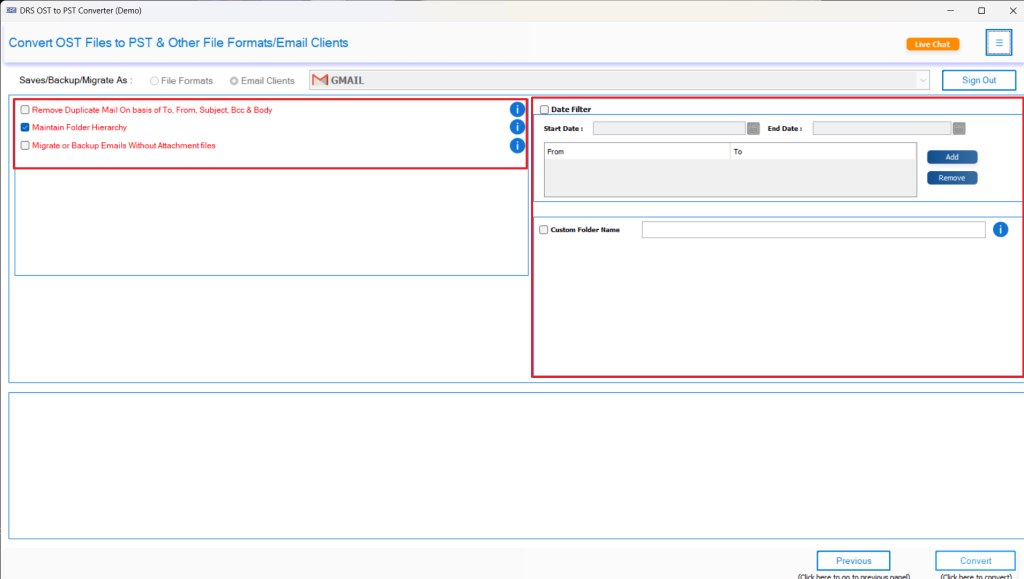
- Finally, click Convert to begin the import of your OST information to Gmail.
Key Features of the Aryson OST Converter Tool
- Direct Migration: Transitions emails, contacts, calendars, and attachments from OST to Gmail directly without any intermediary steps.
- Bulk Conversion: Import multiple OST files simultaneously without monopolizing your time.
- Data Integrity: Preserves existing folder structure, metadata, and statuses in emails.
- Smart Preview: Preview all mailbox data before migration takes place.
- Multiple Exports: Export OST to Gmail or multiple other options before the original file is ever touched. These file types include PST, MBOX, PDF, EML, and more, and you can also easily import OST to Office 365.
Conclusion
Importing your OST file into Gmail provides you with the freedom of accessing Outlook data anywhere, plus your data is stored safely in the cloud. You can go the manual route, but this takes several steps, and it could prove risky. The Aryson OST Converter Tool is a smarter and safer option to import OST to Gmail with ease.
Frequently Asked Questions
Ans: Yes. The Aryson OST Repair Tool can recover the OST file. Then use Aryson OST to PST Converter to import even corrupted or inaccessible OST files into Gmail without any data loss.
Ans: Users often import OST files to Gmail for cloud access, data backup, or when switching from Outlook to Gmail for better accessibility and synchronization.
Ans: Yes. Aryson OST to PST Converter allows you to choose specific folders or date ranges for a customized migration process.
Ans: OST files can’t be accessed directly without Outlook. However, using the OST Recovery Tool, you can open and migrate OST data to Gmail or other formats.
Ans: Simply load your backup OST file into the Aryson OST to PST Converter and choose Gmail as the destination. The tool will safely import your old data into your Gmail account.
About The Author

Khushboo Maurya is a content and website optimization expert who helps blogs and websites grow naturally. She focuses on improving content quality and reaching more people through smart, simple strategies.