
How To Perform Google Workspace To Google Workspace Migration
User Query: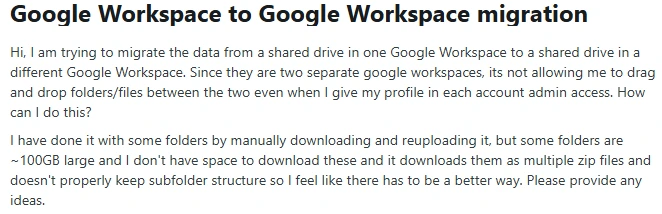
Summary: When you move your Google Workspace data from one Google Workspace to another, it includes emails, Drive, calendars, and contacts. In this blog, we will discuss the simple way for a Google Workspace to Google Workspace migration without any data loss. Along with that, we will discuss the Email Backup Wizard that migrates data safely with ease.
Reasons to Transfer Google Workspace to Google Workspace
The reasons are mentioned why users should migrate from Google Workspace to Google Workspace:
- When two companies join together, they need all emails and files in one place. This helps everyone work without confusion.
- If a company changes its name or website address, it has to move data to a new Google Workspace account that matches the new name.
- When a company splits teams or creates new branches, it may need to move some data to different accounts. This keeps things organised.
- If the company wants better security or more control over users, it might shift everything to a new Workspace account.
- Handling many Workspace accounts at the same time can get messy. So, businesses often combine them into one to make things simple.
- Some companies have to follow local data rules. To follow these rules, they may need to move their data to another Workspace account.
Top Methods to Migrate Google Workspace to Another Account
Now, we will discuss the different methods that will help you to migrate Google Workspace data to the desired destination accounts. Also, these methods help with a smooth Google Workspace tenant-to-tenant migration.
- Native Approach
- Advanced Software
Method 01: Native Approach from Google Workspace to Google Workspace Migration
You can migrate data between two Google Workspace accounts using built-in Google tools. However, this method requires admin access to both source and destination accounts.
Step 01: Prepare Both Accounts
- The first step is to log in to both old and new Google Workspace admin accounts.
- Then, you have to verify domains in the new account.
- After that, create user accounts in the destination tenant.
Step 02: Use Google Data Migration Service
- Now, sign in to the Admin Console of the new Google Workspace account.
- Then, go to Data Migration and select Email as the migration type.
- Afterwards, select Google Workspace as the source server.
- Enter source admin credentials and select users to migrate.
- At last, you can start the migration process.
Limitations of Using this Method:
- For multiple user accounts, this method is time-consuming.
- There is a high risk of data loss along with attachments.
- It is important to have technical knowledge to operate.
- Moreover, permissions and share settings are not fully preserved.
- Furthermore, it is not suitable for bulk exportation.
Method 02: Advanced Software to Migrate Google Workspace to Another Account
Alternatively, you can use the Email Backup Wizard to migrate your Google Workspace data. This software is made to securely move your data with complete data integrity. Moreover, it will maintain the folder structure and hierarchy along with attachments. Also, you can preview the mailbox data and select the required folder for migration. This software’s built-in features allow you to migrate selective data as per your requirement. Most importantly, its simple user interface helps users to easily understand the software.
Note: You can migrate Google Workspace to Microsoft 365 and other email clients using the same software.
Simple Procedure to Accomplish the Migration:
- Download the Email Backup Wizard Software and run it as an administrator.
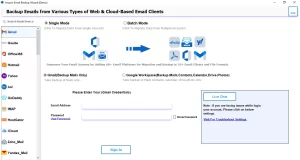
- Select Google Workspace and enter the login credentials to proceed further.
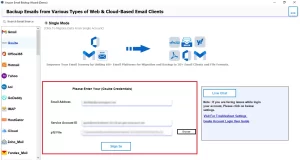
- After that, select the user from whom you want to migrate data and click Next.
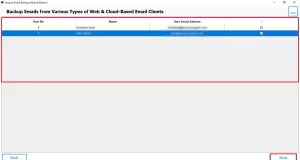
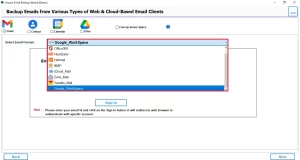
- Select the email client, and from the drop-down menu, choose Google Workspace.
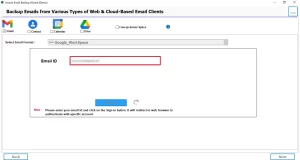
- Next, enter the login credentials for the Google Workspace.
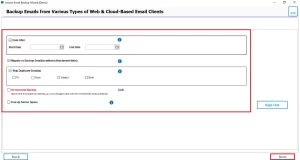
- After login, apply the required features for selective migration and click Convert.
Advanced Features that Prevent Migration from Disaster
Now, you will see the features of this software to migrate emails from Google Workspace to Google Workspace.
| Bulk Migration
Manual Problem: Exporting 100GB files manually is difficult and can take 1–2 days. Solution: Use this software to export all files quickly and efficiently. |
Advanced Preview Option
Manual Problem: Manual methods do not allow folder preview before migration. Solution: This software lets you preview user data before starting migration. |
| Maintain Attachments
Manual Problem: Migrating large data can lead to missing folders or attachments. Solution: You can migrate emails without attachments to reduce file size by up to 70%. |
Assign Date Filter
Manual Problem: Manual methods export all data without date selection. Solution: The software includes a date filter to export emails from a specific time range. |
In Closing
To sum up, we have covered all the reasons why you should perform a Google Workspace to Google Workspace migration. The above two methods help you to migrate data easily. It is a must to always opt for the right method to secure your data during migration without any loss. While the manual method is suitable for a small data migration, on the other hand, advanced software is reliable for large data migrations. Therefore, it is recommended to opt for the advanced software, as it provides full data integrity and security.
Frequently Asked Questions
Ans. With Email Backup Wizard, you can migrate emails, attachments, contacts, calendars, and Google Drive data between two Google Workspace accounts while preserving folder structure and metadata.
Ans. Generally, migration time depends on mailbox size, number of users, and internet speed. Small migrations may take a few hours, while large tenant migrations can take several days.
Ans. Yes, this Email Backup Wizard tool transfers Google Drive files and maintains folder hierarchy.
Ans. Common reasons include mergers, domain changes, restructuring, rebranding, and data consolidation.
Ans. Typically, challenges include large data volume, permission conflicts, API limits, and downtime risks. Fortunately, Email Backup Wizard minimises these with incremental and bulk migration options.
About The Author

Khushboo Maurya is a content and website optimization expert who helps blogs and websites grow naturally. She focuses on improving content quality and reaching more people through smart, simple strategies.