How to Export Google Workspace to MBOX: Step-by-Step Guide
Exporting your Google Workspace data to MBOX helps you save a copy of your emails and move them to another email service. To export Google Workspace to MBOX, it is important for the user to pick the right approach. However, there are many methods in which you can accomplish the conversion process. In this guide, we will discuss the most appropriate methods, including the Email Backup Wizard Tool, to export your emails safely without any data loss.
Common Reasons to Export Google Workspace to MBOX
- The MBOX files create a secure offline backup of Google Workspace emails.
- It can migrate emails to other platforms that support MBOX (Apple Mail, etc.).
- In addition, it preserves the email audit and legal holds requirements.
- Likewise, the MBOX stores emails in a universal format for future access.
- Moreover, you can export required emails instead of the entire mailbox.
- MBOX can move emails from Google Workspace to desktop email clients.
Ways to Convert Google Workspace to MBOX
Basically, there are ways by which you can convert your Google Workspace files to MBOX. We will discuss the most appropriate approach that is reliable for G-Suite to MBOX Conversion.
- Automated Software
- Using Google Takeout
Method 01: Automated Software to Backup G Suite Mailbox to MBOX
The Email Backup Wizard Software is made for users to simply deploy their Google Workspace mailbox to MBOX. This software’s embedded features help users to export selective data. Also, it provides a preview of your fetched mailbox data from the Google Workspace and other source emails as well. To remove the duplicates email from your mailbox to avoid repetitive emails in the folder after export, use the remove duplicates option.
You can export Google Workspace email to PST and other file formats using this software. Now, follow the steps below to export G Suite emails to MBOX.
Working Process to Export Google Workspace Emails to MBOX
- Download and launch the Email Backup Wizard Software on your System.
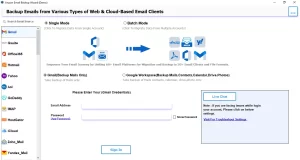
- Select Google Workspace and enter the login credentials to log in.
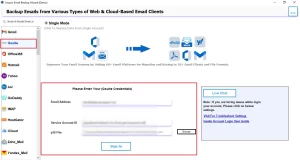
- After login it will fetch all your mailbox data to preview and proceed with the next step.
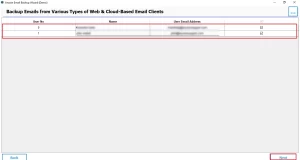
- Then, select from where you want to export data, such as Gmail, and select MBOX as a file format from the drop-down.
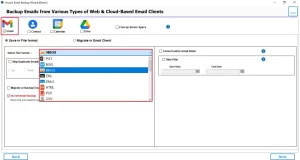
- Now, you can apply the filters based on your requirements and click Next to proceed further.
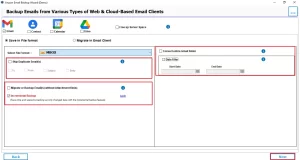
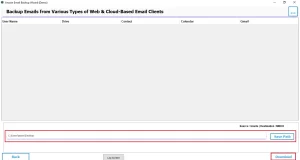
- After that, select the Path to save the resultant file and click Download.
Benefits of this Automated Software
- It is useful for bulk conversion of the mailbox data.
- Moreover, it is a simple layout that helps users to easily use this software.
- Further, it can handle multiples account simultaneously.
- It supports multiple file formats and email clients for exporting or converting.
Method 02: Manual Way to Export Google Workspace to MBOX
To export Google Workspace mailbox data for the manual method, use Google Takeout. For this, you have to select the Mail option and manage the export settings. By doing this, you can export your Google Workspace data to the MBOX.
Simple Steps to Export Google Workspace Emails to MBOX
- To start the method, sign in to your Google Workspace and select the manage you workspace.
- After that, navigate to Data and Privacy from the left-side menu.
- Then, move curser to Download or delete your data, and after that, click on Download your data.
- Now, uncheck all the options and only enable the Mail to export your emails, and click Next to proceed further.
- Moreover, select the file type and delivery method, and then click on the Create export option.
- After completion, click on the Download button to log in again.
- Lastly, extract the downloaded Zip file to access your MBOX files.
Limitations of this Manual Method
- It is a time-consuming process based on the file size.
- There is no filter for selective data exportation.
- Along with that, it transfers incomplete data for large mailbox files.
Ending Quote
In closing, we have discussed the importance of MBOX files that help users to secure offline backup. We have explained the two methodologies in detail by which you can export Google Workspace to MBOX. However, it is important to use the right methods for the conversion. If you have a small number of files, then use the manual way using Google Takeout. Therefore, it is recommended to use the optimised software for ease, and it will efficiently export your data.
Frequently Asked Questions
Ans. Generally, the time depends on the mailbox size and the internet speed. Small mailboxes export in minutes; large ones take longer. However, the Email Backup Wizard is faster than Google Takeout.
Ans. Yes. You can use date filters and selective folder export to back up only the required emails.
Ans. No major limitations. Requires a Windows system and a stable internet. Gmail API limits may affect very large exports.
Ans. Yes. The Email Backup Wizard tool supports bulk export of multiple Google Workspace users via CSV.
Ans. Google Takeout is manual and slow, with no filters. Whereas the Email Backup Wizard tool is automated, faster, supports filters, and bulk exports.
Ans. Yes. MBOX files can be imported into Thunderbird, Apple Mail, and other email services or used for further migration.
About The Author

Khushboo Maurya is a content and website optimization expert who helps blogs and websites grow naturally. She focuses on improving content quality and reaching more people through smart, simple strategies.