
How to Export Google Workspace Email To PST File
Many users choose Microsoft Outlook to manage their emails in a secure way. When a user moves from Google Workspace to Outlook, then export emails to a PST file becomes important. A PST file lets you save emails on your system and open them easily in Outlook. However, Google Workspace does not offer a direct option to export emails to PST format. There are several approaches to simplifying the exportation process to export Google Workspace email to PST file without data loss. To preserve the email structure and attachments, you can use the Email Backup Wizard Tool, which is secure and reliable for both individuals and businesses.
Reasons to Export G Suite Emails to PST
The PST file format is widely supported by Outlook. It is used to store emails, calendars, attachments, and contacts on a local device. Listed below are the various reasons why exporting Google Workspace data to PST is beneficial for you.
- It helps you to easily access your Google Workspace emails in Outlook.
- Moreover, it creates a local backup for long-term compliance.
- Also, after export, you can store emails and other data for future use.
- Additionally, it is helpful to share legal documents, as they are password-protected.
- Further, it reduces mailbox size by archiving old emails and freeing up server space.
Methods to Export Google Workspace Email to PST
There are many ways in which you can export emails from G Suite to Outlook PST. Here, we discuss two methods by which you can easily transfer your data.
- Using Outlook
- Automated Software
Method 01: Export G Suite Emails to PST using Outlook
For this method, you have to configure your Gmail account with Outlook for data transfer. And, after that, you can export Google Workspace mailbox to PST.
Step 01: Enable IMAP in Gmail
- To initiate the process, log in to your Google Workspace Gmail account.
- Then, go to Settings, and then click See all settings, and after that, Forwarding and POP/IMAP.
- Next, under the IMAP access section, enable IMAP and click on Save Changes.
- Now, go to Google Account >> Security tab >> App Password.
- After that, generate the app password for mail and note it down for future use.
Step 02: Configure your Gmail in Outlook
- For this, open Outlook and go to the File tab >> Add Account >> Manual Setup.
- Select IMAP and provide the details:
Incoming Server: imap.gmail.com
Port: 993 & Encryption: SSL/TLS
Outgoing Server: smtp.gmail.com
Port: 465 or 587 & Encryption: SSL/TLS
Username: your Gmail Address & Password: Your App Password (if 2FA enabled) - Now, complete the setup, and Outlook will sync all your data.
Step 03: Export Mailbox to PST
- In Outlook, go to the File tab and then Open & Export and Import/Export.
- Then, next, select Export to a file and after that Outlook Data File (.pst).
- After that, select a location where you want to save your file and click Finish.
Drawbacks of Using this Method
-
- This method is suitable for a small number of files.
- Consume a lot of time, and you have to perform the steps multiple times.
- Moreover, it is difficult for non-tech background users to configure IMAP.
Method 02: Convert G Suite Mailbox to PST using Automated Software
To overcome the manual method limitations, use the Email Backup Wizard Tool. This advanced software is reliable for all users who manage data in bulk. Also, its embedded features, like date filter, skip duplicate files, and incremental backup, help users with selective data migration. The multipurpose organisation, which has multiple files to export, can use this reliable software. Follow the steps below to export your Google Workspace data easily.
Step-by-step working process to Export Google Workspace Email to PST
- Download and install the Email Backup Wizard Software.
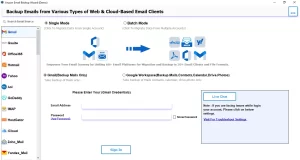
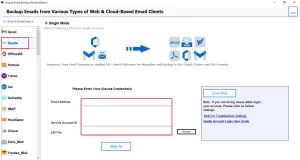
- From the left panel, select G Suite and then enter the login credentials for G Suite.
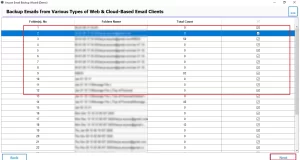
- After that, it will fetch all your mailbox data, preview it, and click Next.
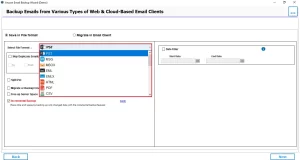
- Now, select PST as a file format from the drop-down menu.
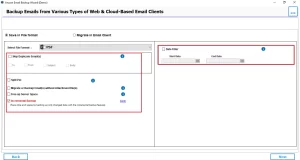
- Next, apply the required folder for selective data to export.
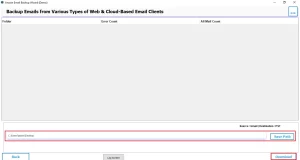
- At last, choose the path to save the resultant file and click on Download to start the process.
Benefits of Using Professional Software
- It provides the bulk exportation of multiple large files.
- This software is safe and secure and performs faster exportation.
- Moreover, it supports multiple file formats and email clients.
- Users can simply use this software because of its simple interface.
- Furthermore, you can free up server space after backing up your data.
- Using this software, you can export G Suite to PDF and other formats.
Conclusion
To sum up, we have discussed the reasons and methods to export Google Workspace email to PST. These two methodologies help you to export your data easily. The manual method is reliable for small-scale data export. Therefore, for users who have a large number of files, it is suggested to use the above automated software.
Frequently Asked Questions
Ans. Yes. Email Backup Wizard allows you to export Gmail or Google Workspace emails directly to PST without requiring Outlook to be installed. Simply sign in with your Gmail account in the software.
Ans. Yes. Moreover, the Email Backup Wizard tool supports batch migration, allowing you to export emails from multiple Google Workspace accounts to PST.
Ans. No, in general admin access for individual accounts. However, if you are exporting multiple user mailboxes in batch mode, admin credentials may be required to access all accounts.
Ans. No. Currently, Google Workspace does not provide a direct option to export emails to PST. Therefore, you can use Email Backup Wizard to convert and save emails in PST format.
Ans. The time depends on mailbox size and internet speed. Nevertheless, Email Backup Wizard is optimised for faster export and can handle large mailboxes efficiently without data loss.
Ans. Yes. The exported PST files are compatible with all major versions of Outlook, including Outlook 2021, 2019, 2016, 2013, 2010, and even older versions.
About The Author

Khushboo Maurya is a content and website optimization expert who helps blogs and websites grow naturally. She focuses on improving content quality and reaching more people through smart, simple strategies.