
How To Seamlessly Migrate Yahoo Mail To IMAP Server
Yahoo Mail is generally used for personal and organisational communications. Sometimes users need to connect their mailboxes to an IMAP server for better accessibility. While users perform the migration process, they may face some issues like sync errors or incorrect server settings. In this guide, we will cover the most appropriate methods along with the Email Backup Wizard software to transfer data without any loss.
Why Migrate Yahoo Email to IMAP Server?
- Unlike Yahoo Mail, IMAP provides centralized email management.
- It provides a better backup and recovery option, helping users for long-term access.
- Moreover, IMAP enables users to access emails across multiple devices.
- Migrating to IMAP leads to an effortless integration with different email clients.
- IMAP stores emails on the server, which improves data security and reduces data loss.
Pre-Migration Checklist To Follow
- You must have a stable internet connection for the Yahoo Mail migration.
- After that, make sure to have the correct IMAP server credentials.
- Moreover, you must have a Yahoo Mail login detail.
- Make sure to have sufficient mailbox storage on the destination server.
- Additionally, make sure you have a backup of important Yahoo emails.
Method 01: Manual Method to Migrate Emails from Yahoo to IMAP Server
You can use Thunderbird or Microsoft Outlook to manually migrate the Yahoo Mail emails to the required IMAP server. Make sure to follow the steps carefully to avoid any kind of data loss during the process.
Step 01: Enable IMAP in Yahoo Mail
- First, log in to your Yahoo Mail account.
- After that, go to Settings >> More Settings >> Mailboxes.
- Then, make sure IMAP access is enabled.
- Thereafter, for secure login, you have to generate an app password.
Step 02: Add Yahoo Mail to Email Client
- In this step, you have to first open Outlook or Thunderbird.
- Now, you can choose the Add Account option and enter your Yahoo credentials.
- Afterward, select IMAP configuration and use Yahoo IMAP settings, such as:
- IMAP Server: imap.mail.yahoo.com
- Port: 993
- Encryption: SSL
Step 03: Add Destination IMAP Server
- Next, enter the new IMAP Server details.
- Then, configure SMTP settings and verify login.
- After both accounts appear, select Yahoo folders.
- At last, drag emails to destination IMAP folders and wait for synchronisation.
In addition, this will export Yahoo emails to the IMAP server gradually.
Drawbacks of the Manual Method
- It is a slow process for large mailboxes to migrate data.
- When you use this method, there is a risk of a sync error.
- Moreover, the folder hierarchy may change during the migration.
- No advanced filter option is available in this method.
- The process may take several hours for the migration of 1000+ emails.
Common Errors occur during Yahoo to IMAP migration
- Authentication Error: It occurs due to an incorrect password or an app password not being generated.
- IMAP Sync Failures: Usually caused by a poor internet connection.
- Server Timeout: It happens when the mailbox size is too large.
- Folder not synced: It occurs with improper folder mapping in the source and destination.
Method 02: Automated Software to Migrate Yahoo Mail to IMAP Server
If the manual method does not work for you, then use the Email Backup Wizard Software. It is secure software that will migrate your data with complete data security. Moreover, this software offers advanced features like Date Filter and Remove Duplicate Emails, which are suitable for selective migration. Along with that, this software provides several file format options and import Yahoo Mail to Gmail and other clients as well.
Simple Process to Export Yahoo Emails to IMAP
- First, launch the Email Backup Wizard Software on your computer.
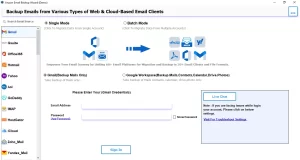
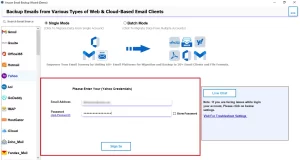
- Then, choose Yahoo Mail from the left panel and enter your login credentials.
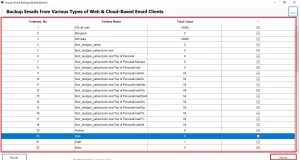
- After that, preview the fetched mailbox data and proceed further by tapping on Next.
- From the email clients, select IMAP as the output destination.
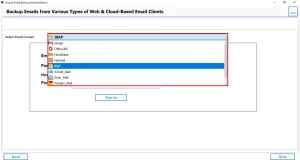
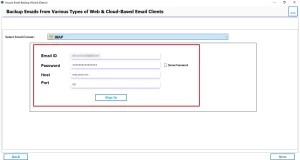
- Now, enter the login credentials for IMAP and authenticate for a successful login.
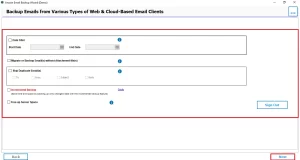
- Next, apply the filters for selective migration >> click Next to continue.
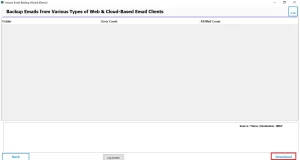
- Finally, tap on the Download button to start the migration process.
Conclusion
To sum up, to migrate Yahoo Mail to IMAP server, you can choose either of the two methods. For small businesses that deal with a small number of emails, manual methods will work well. However, a large organisation that has a large volume of data must opt for the above automated software for efficient and secure migration.
Frequently Asked Questions
Ans. You can verify the migration by downloading the report generated by the Email Backup Wizard software after the process completes successfully.
Ans. You do not need to enable “Less Secure Apps” when using proper IMAP credentials.
Ans. Yes, you can use the Mac version of Email Backup Wizard to migrate Yahoo Mail to an IMAP server.
Ans. However, common errors include incorrect login details, wrong server settings, or poor internet connectivity.
About The Author

Khushboo Maurya is a content and website optimization expert who helps blogs and websites grow naturally. She focuses on improving content quality and reaching more people through smart, simple strategies.