The Ultimate Guide to Convert Office 365 Emails to PDF
User query: “I am an Office 365 user from New York, and I am in sudden need to export some of my important Office 365 emails into PDF format for keeping my official records. So, is there any quick as well as reliable way to accomplish this conversion without losing attachments?”
Overview: The above query is from an anonymous user who requested a method for converting Office 365 emails to PDF without losing data. If you are also looking for the same solution, you’ve reached the right place. This write-up will guide you through two effective methods for completing the conversion process, including the Aryson Email Backup Wizard. For easier conversion, follow the step-by-step instructions provided in this blog. For a better understanding of the process and the software involved, please read this article thoroughly.
Why Should You Convert Office 365 Emails to PDF?
There exist multiple reasons for this conversion to take place. Some of the reasons for conversion are listed below:
- Once you perform the Convert Office 365 to PDF, you can open your PDF files on any device without requiring any Outlook or Office 365.
- Also, PDFs are compact; therefore, they are easy to share across different platforms without any compatibility issues.
- You can protect your PDF files with passwords, which adds an extra layer of security for sensitive emails.
- The PDF format preserves formatting, as it retains the original email formatting, attachments, and metadata.
- Once you have your resultant PDF file, you can open it without any internet connection.
After understanding the importance of converting an Office 365 mailbox into a PDF, the next step is to see how this process can actually be carried out. For that, explore the solutions section provided below.
Top Proven Solutions to Convert Office 365 Emails to PDF
You will get to see different approaches to convert your Office 365 emails into PDF format. But here in this section, we will be covering the two most effective ones along with their step-by-step process. You can pick either of the two methods as per your convenience and need. Let’s have a close look at these methods now.
Solution 1: Aryson Email Backup Wizard Tool
Aryson Email Backup Wizard is the fastest and most trustworthy way to convert Office 365 emails to PDF. This software lets you perform a safe and reliable conversion process without losing your attachments. Additionally, it comes with some advanced built-in features like Skip Previous Migration, Free Up Server Space, and a date filter to export only the data from a specific date you need. Not only this, but it is not limited to just PDF format—you can also export Office 365 to CSV, EML, PST, and MBOX, depending on your requirements.
Quick guide to convert Office 365 into PDF:
- Install and run the Aryson Email Backup Wizard tool on your PC.
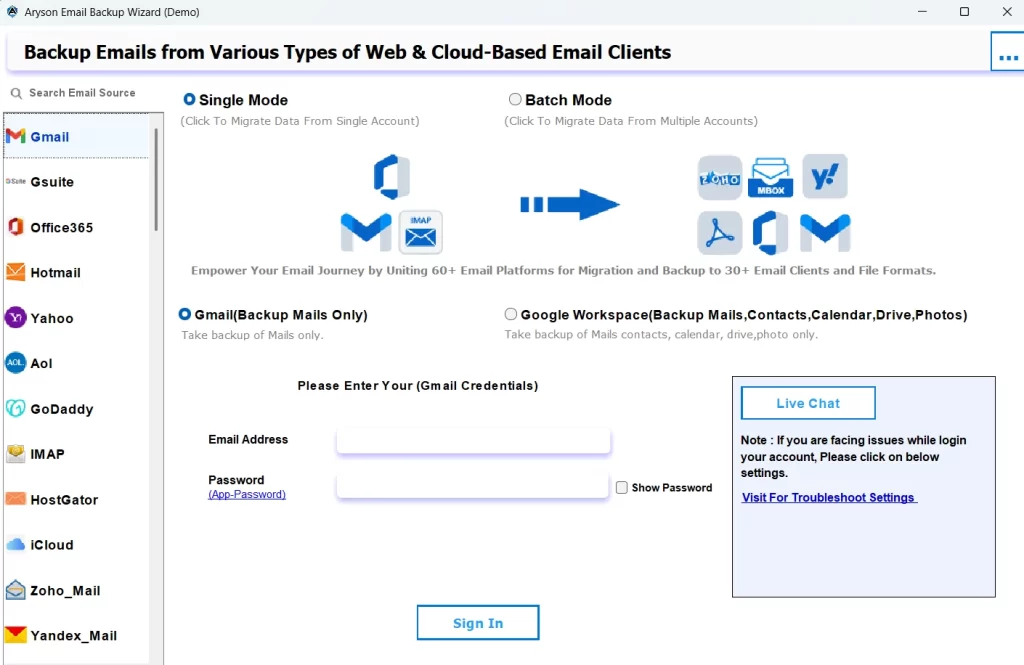
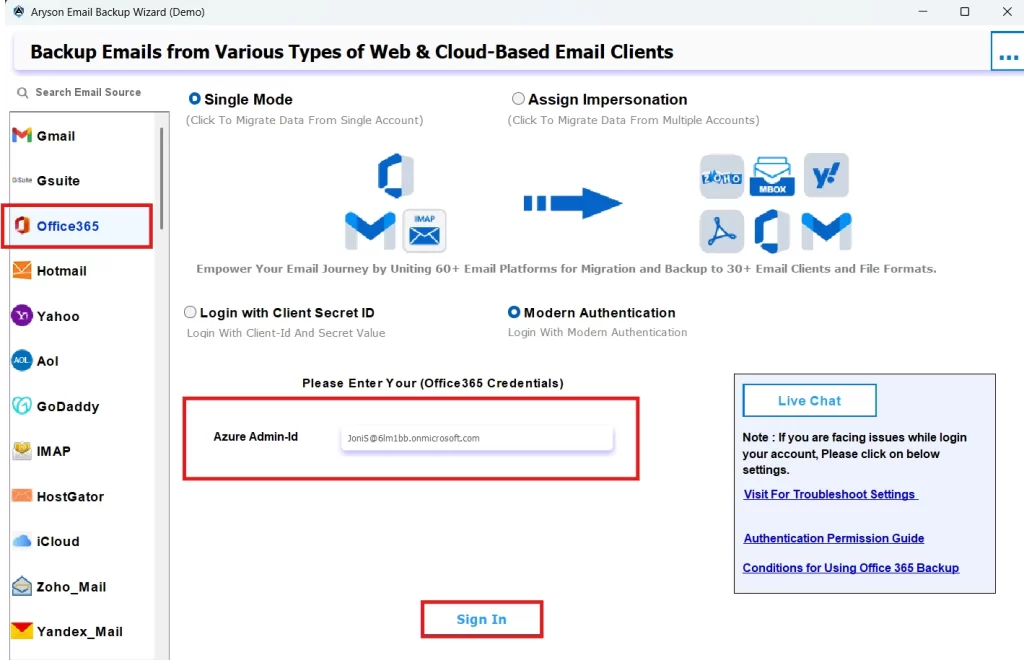
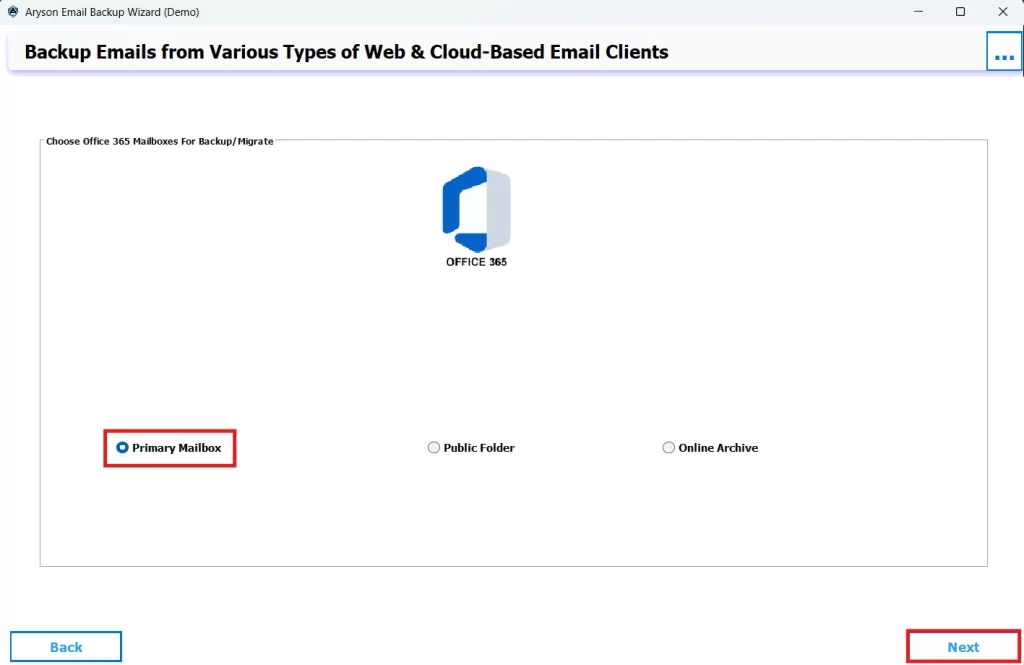
- Then, from the left panel, select Office 365 as the source and sign in to it with your Office 365 credentials.
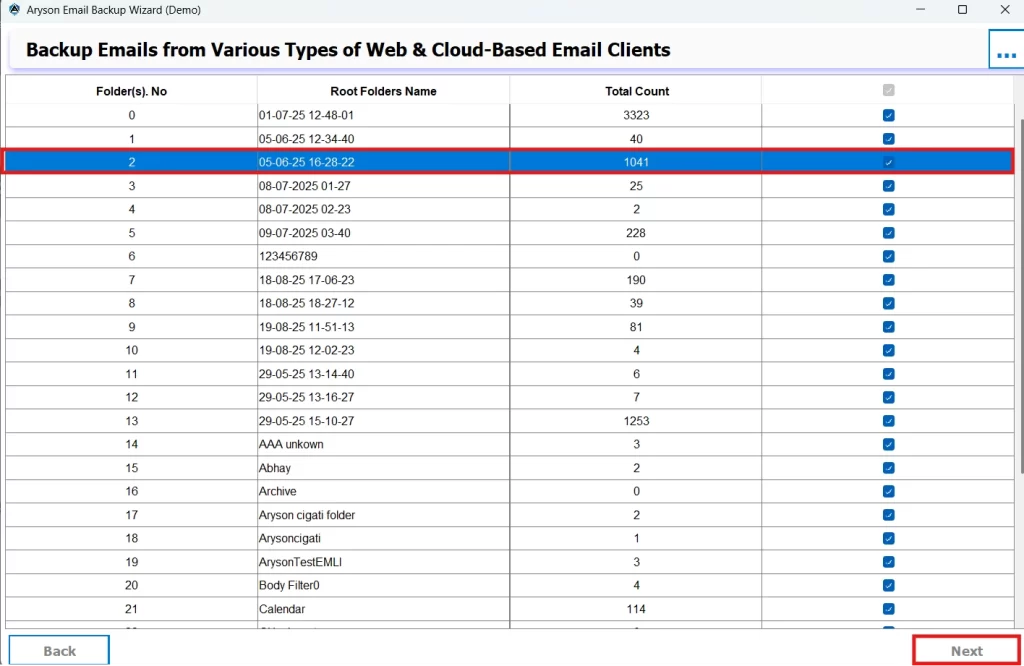
- From the mailbox list, choose the folder(s) you want to move and click Next.
- The tool will now let you cross-verify your chosen emails. Once checked, click Next again.
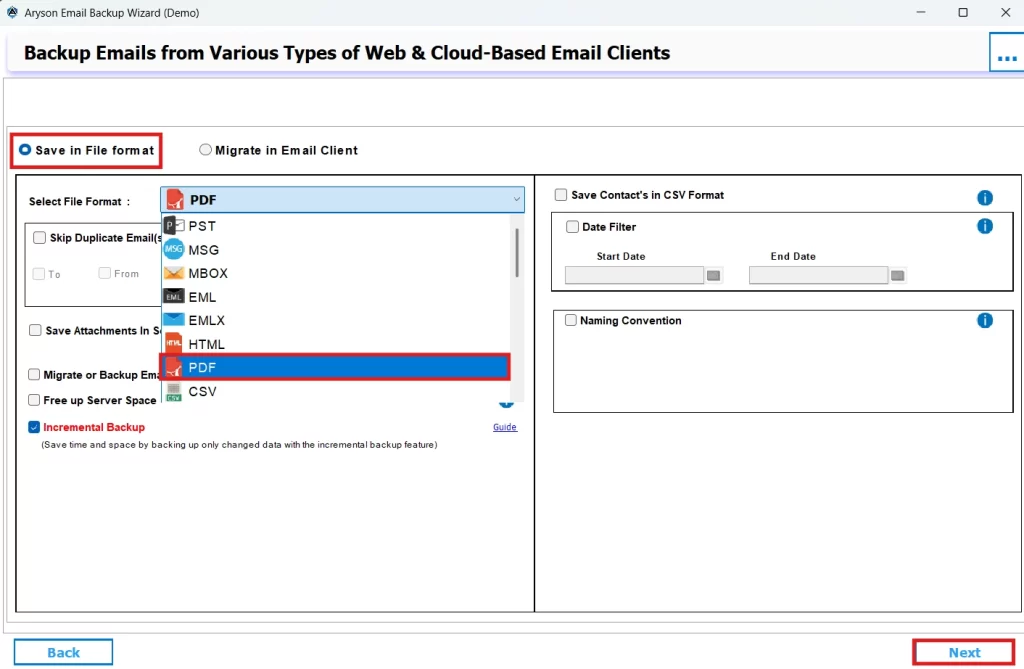
- Now, mark the Save in File Format option, then select PDF under the listed Formats & hit Next.
- Make use of the advanced features as per your requirement, and finally, hit Next to download emails from Office 365 to PDF.
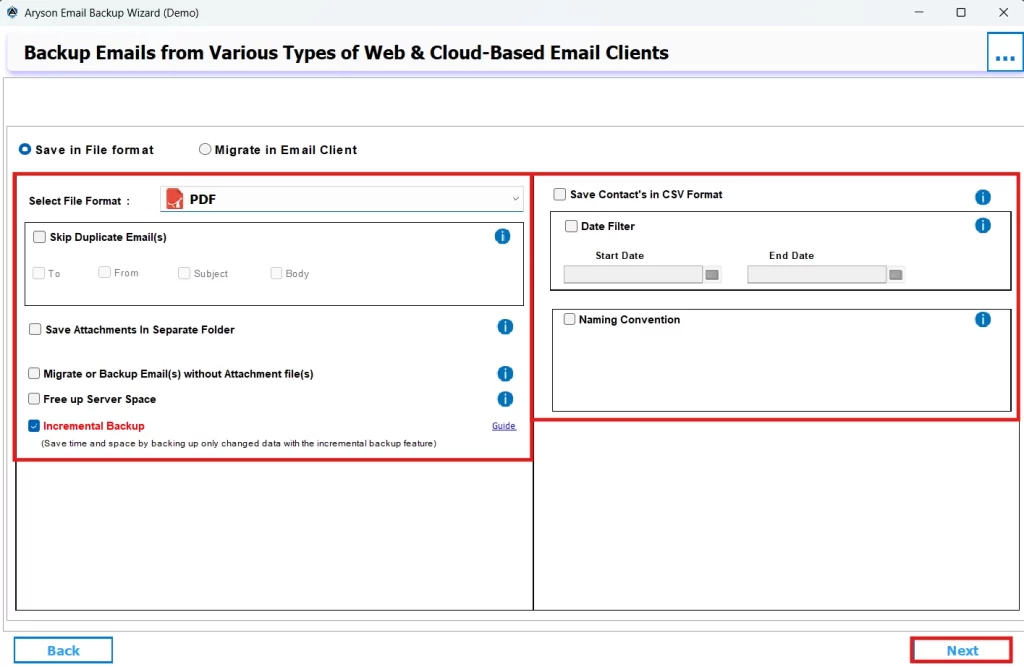
Following the above steps carefully, you can export Office 365 emails to PDF without losing your data or having it corrupted.
Important Note: Although this solution is the quickest way available to save Office 365 emails as PDF in bulk, you can also try the manual solution explained below if you are comfortable investing some time and handling the process on your own. To perform this method, you need to have a decent amount of technical knowledge, so just follow the below-given steps below carefully to ensure no data loss.
Solution 2: Use the Microsoft Print to PDF feature
You can use the Microsoft Print to PDF feature to save your Outlook 365 emails as a PDF. Using this option, you can convert emails directly into PDF format and store them on your PC. But keep this in mind that this method requires you to save your files one by one. You can’t perform bulk conversion using this method. The steps to perform the export process are given below:
Steps to convert Office 365 into PDF are as follows:
- Firstly, run the Outlook 365 email to PDF converter on your existing PC.
- Then, find and open whichever file you desire to convert.
- After that, click on the File option.
- It will open the file menu for you.
- There, go to the Print option.
- Now, in the Printer option, pick Microsoft Print to PDF.
- After that, you have to pick PDF as the desired file format for saving your email.
- Finally, hit the Save button.
Conclusion
In the above blog, we discussed two effective methods to convert Office 365 emails to PDF. The two approaches included both a manual method and a tool. If you have a large number of emails to export, you can go for the tool. Whereas, if you have just a few emails to convert and you don’t mind converting them one by one to PDF using your decent technical skills, you can proceed with the manual approach. Lastly, just refer to the FAQs section below.
Frequently Asked Questions
Ans-Yes, it is possible to skip duplicate emails by using the Aryson Email Backup Wizard discussed above. You can simply use one of the additional features provided, that is, Skip Duplicate Emails.
Ans-Yes, you can convert encrypted or secured Office 365 emails to PDF, but first, you need to decrypt them with valid permissions. Once unlocked, use the Email Backup Wizard for secure PDF conversion.
About The Author

Khushboo Maurya is a content and website optimization expert who helps blogs and websites grow naturally. She focuses on improving content quality and reaching more people through smart, simple strategies.