How to Migrate Yahoo Mail to Google Workspace Easily
Migrate Yahoo Mail to Google Workspace can improve collaboration and productivity. Whether you’re an individual user or a business, switch to Google Workspace gives you access to professional tools like Gmail and Drive. In this guide, we will explore the approach to accomplish the migration process. We will discuss the manual and the professional Yahoo Backup Tool for a smooth migration.
TL;DR: Easily migrate Yahoo Mail to Google Workspace using IMAP or a professional migration tool. While manual methods work for small data, a professional tool make sure faster, secure, and error-free migration with complete data integrity.
Why Do Users Need to Migrate Yahoo Mail to G Suite?
Before the process begins, let’s understand why users prefer this migration:
- Google Workspace has a centralised email and collaboration platform.
- Unlike Yahoo, Google Workspace offers enhanced data security.
- Moreover, it has access to cloud-based tools like Google Drive and Meet.
- Additionally, it offers better storage and scalability for businesses.
- Also, it provides a professional email environment with custom domain support.
Pre-Migration Checklist to Migrate from Yahoo Mail to Google Workspace
- Make sure to take a backup of important emails.
- Most importantly, verify the Google Workspace account setup.
- Moreover, you must have a stable internet connection.
- Additionally, disable two-factor authentication (if required temporarily).
- Furthermore, you need to generate an app password.
Top Solutions to Migrate Yahoo Mail to Google Workspace
- Through IMAP Manually
- Professional Software
Method 01: Manual Method with the help of IMAP
In this method, we will explore IMAP to transfer emails from Yahoo Mail to Google Workspace. Moreover, follow the steps to transfer Yahoo Mail to Google Workspace.
Step 01: In Yahoo Mail (Enable IMAP)
- First, you have to log in to your Yahoo Mail account.
- Then, go to Settings and then More Settings >> Mailboxes.
- After that, make sure IMAP access is enabled.
- Now, Yahoo requires an app password for third-party access.
- For this, go to Account Security >> Generate App Password.
Step 02: Log in to Google Workspace Admin Console
- Next, use admin credentials and go to Data Migration Services.
- Thereafter, select email as the data type and choose IMAP server.
Step 03: Enter Yahoo Mail server Details
- Subsequently, enter IMAP Server: imap.yahoo.com
Port: 993 and Security: SSL - Afterward, enter your Yahoo email ID and generate an app password.
- Consequently, you need to select a date range or migrate all emails.
- Finally, click on Start and monitor the process.
Drawbacks of the Manual Method:
- This method does not offer bulk migration of Yahoo Mail.
- Users must have technical knowledge to perform migration through this method.
- Moreover, it does not have a selective migration option.
- Furthermore, there is a risk of emails or attachments being missing.
Method 02: Enterprise-Level Yahoo to Google Workspace Migration Tool
Yahoo Backup Tool is professional software that is created to securely migrate users data. This software complies with the privacy policy to maintain users trust in the software. It has various built-in features that accomplish the smooth migration of Yahoo Mail. Moreover, if users want to migrate Yahoo Mail to Office 365, this software supports the migration to Office 365 directly. It is helpful for IT admins and organizations that work with bulk emails.
Simple Process to Migrate Yahoo Mail to Google Workspace:
- Download the Yahoo Backup Tool and then launch it on your software.
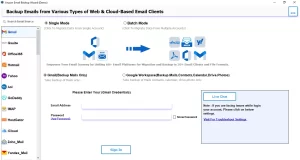
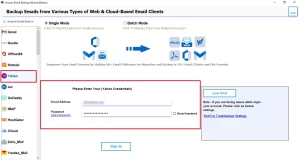
- Enter the Yahoo Mail login credentials, such as Email and App Password.
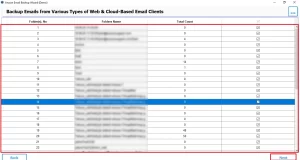
- Now, you can preview the fetched mailbox data and click on Next to proceed.
- From the email client, select the Google Workspace and enter credentials.
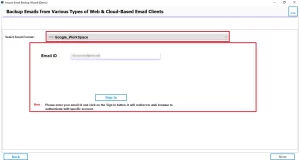
- Afterward, apply the filters and click on Next to proceed further.
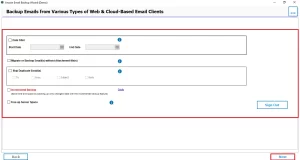
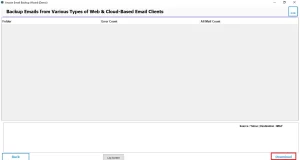
- At last, click on Start to begin the migration of Yahoo Mail to Google Workspace.
Conclusion
To sum up, you can migrate Yahoo Mail to Google Workspace with the help of a secure method. For users who manage small emails, they can go through the manual method. Therefore, for bulk email migration, it is recommended to opt for the professional software that provides selective and safe migration. In case you are stuck in the process, you can contact our technical team.
Frequently Asked Questions
Ans. The migration time depends on the size of your mailbox and your internet speed. Small mailboxes may take a few hours, while large data sets can take several days.
Ans. Emails may be missing due to sync errors, incorrect IMAP settings, or interruptions during migration. Using a Yahoo Backup tool can prevent such issues.
Ans. Yes, attachments are transferred along with emails, provided the migration process completes successfully without interruptions.
Ans. Yes, migration can be performed without downtime using advanced tools that allow background migration while users continue working.
Ans. To fix errors, verify IMAP settings, recheck login credentials, ensure a stable internet connection, or you can use a professional migration tool for better reliability.
About The Author

Khushboo Maurya is a content and website optimization expert who helps blogs and websites grow naturally. She focuses on improving content quality and reaching more people through smart, simple strategies.